
Accessible interaction
- Lesson 18
- 55 min
- Module 6: Security, accessibility and handoff
Lesson 18 of 19 · Frontend Architecture and Performance for AI AppsAccessible interaction
1. Web foundations bridge
2. Components and application structure
3. Data fetching and state management
4. AI-specific interaction states
5. Performance and scalability
6. Security, accessibility and handoff
What you will be able to do
Make the main task of the desk work by keyboard and with a screen reader. The focus goes where the work is, every control has a name, and the text has enough contrast. A screen reader hears each change of state once, never every piece of the streamed draft.
Before you startWhat to know and to have ready
What you need to know
- The draft panel and its states, from Streaming interfaces; errors in words, from Trustworthy feedback.
- Labels and form fields in HTML, from HTML and CSS essentials.
- Why drawing the draft for every piece costs React almost nothing, from Measure the browser.
What you need on your computer
- The project after Browser security boundaries, with
npm testat 27 and 46 passing checks. npm run apiandnpm run devin two terminals, and the desk open at http://localhost:5173/.- Optional: a screen reader. macOS has VoiceOver (Cmd+F5); on Windows, NVDA is free.
The course team checked the desk with the keyboard, the browser’s accessibility tree and Playwright in Chromium, on macOS. It did not test it with a real screen reader. Before a real delivery, a person who uses one every day should try it.
A traffic report and a guide
Section titled “A traffic report and a guide”Camille, an agent in Montréal, uses the keyboard and a screen reader for parts of the day. Think of how they get traffic news on the radio. The report says “The bridge is closed” when something changes. It does not read out every car that drives over the bridge. A report that did would be useless: the one sentence that matters would be lost among hundreds.
Now think of a visitor in a large office. A good guide walks her to the meeting room and says “Here it is”. A bad guide points vaguely down the corridor and leaves her at the door. For a keyboard user, the focus is where they stand: the one element that the next key press acts on.
The problem: the desk, by keyboard only
Section titled “The problem: the desk, by keyboard only”At the start of this module, the course team did Camille’s main task by keyboard only. Playwright recorded where the focus went:
| Camille does | The focus went to | What a screen reader is told |
|---|---|---|
| Opens the desk and presses Tab | The Tickets link in the header | The link: Camille must pass the header on every page |
Presses Enter on T-80008 in the list |
Still the row in the list | Nothing: the ticket opened on the right, unannounced |
| Presses Write a draft, waits | The same button, now Write a new draft | Nothing: the draft panel has 0 live regions |
| Sends a new ticket | Nothing: the <body> |
Nothing: “Saved as T-500001.” is plain text |
The last row is the worst. While the form sends, its button is disabled, and a disabled button loses the focus. The focus falls back to the page itself. Camille’s next Tab starts again from the top of the page.
Tomás has a fix for the silence: “Make the draft text a live region. Then Camille hears the draft as it arrives.” The course team tried it with aria-live="polite" on the streamed text, and counted the changes of that region during one draft:
- aria-live on the streamed text
- one status message per change of state
Text description of the chart
A column chart with four columns. For ticket T-64704, the live region on the streamed text changed 30 times, and the status message changed 3 times. For ticket T-80008, the streamed text changed 28 times, and the status message changed 3 times. The three status messages were: Asking for a draft, Writing the draft, and Draft finished.
Each change asks the screen reader for an announcement: “I’m”, then “I’m sorry”, then “I’m sorry this”, and so on, 30 times in under a second. Screen readers differ in what they read at each change, but none of them makes this pleasant. Worse, the important sentence, “A person must handle this ticket”, is lost among the pieces. This is the radio that reads every car.
Measure the browser found that drawing every piece costs React less than 0.01 ms per draft. So the reason not to react to every piece is not the processor. It is Camille.
The idea: five checks for every task
Section titled “The idea: five checks for every task”Accessibility means that people with different abilities and tools can do the same tasks. For an interface, five checks cover most of the work:
- Keyboard flow. Tab moves through the controls in the order of the page’s HTML. Every action works with Enter or Space. A skip link, the first control on the page, jumps over the header to the main content.
- Focus. The focus is always visible: the desk draws a 3-pixel outline with
:focus-visible. When the user asks for new content, the code moves the focus to it. An element that disappears takes the focus with it, so the focus must never sit on such an element. - Names. Every control has an accessible name: the text of a button, or the
<label>of a field. A placeholder is not a name, because it disappears when you type. - Contrast. Text must stand out from its background: at least 4.5 to 1 for normal text, 3 to 1 for large text and for outlines.
- Announcements. A live region is an element whose changes a screen reader reads without moving the focus. Use one for short changes of state.
role="status"(polite) waits until the screen reader is silent;role="alert"interrupts, so keep it for errors that need action now.
The browser keeps a second version of the page for these tools: the accessibility tree. Each element in it has a role (button, heading, status), a name and a state. A screen reader reads this tree, not the pixels. In Chrome, open the Elements panel and choose the Accessibility tab to see the tree of one element.
A tiny example: the draft panel’s tree
Section titled “A tiny example: the draft panel’s tree”Playwright can print the accessibility tree of an element as text: locator.ariaSnapshot(). Here is the draft panel of T-80008 after a finished draft, at the start of this module. The draft text is shortened:
- region "AI draft": - heading "AI draft" [level=3] - paragraph: Draft finished. Check it before you use it. - text: I’m sorry you haven’t received a delivery date for your garden shed. … - paragraph: "Why: The customer is asking for a delivery date for an order that has shipped." - paragraph: This draft has no sources. Check every fact in it yourself. - button "Write a new draft" - button "Use this draft" - button "Discard"Every button has a name, which is good. But “Draft finished” is a plain paragraph. Camille hears it only if they move to it themselves, and nothing tells them that they should. After this lesson, the same tree has a status element:
- region "AI draft": - heading "AI draft" [level=3] - status: Draft finished. No sources. - paragraph: I’m sorry you haven’t received a delivery date for your garden shed. …The visible line “Draft finished. Check it before you use it.” is still on the screen, but it is hidden from the tree with aria-hidden="true". Otherwise Camille would get the same news twice. The status says what they need in one sentence: the draft is ready, and it has no sources. For some tickets, it adds that a person must handle it. A function decides the sentence for each state:
| State of the draft | The status says |
|---|---|
connecting |
Asking for a draft… |
streaming |
Writing the draft… (once, never each piece) |
done |
Draft finished. No sources. (or 1 source., 2 sources.), and A person must handle this ticket. when needed |
stopped |
You stopped the draft. The text below is not complete. |
interrupted |
The connection ended before the draft was finished. The text below is not complete. |
failed |
No draft. and the error in words, for example: The AI service stopped answering. Your work is safe. Try again. |
invalid |
The draft did not pass the checks. Do not use it. and the reason |
The whole journey, with each step’s focus and words, is in this diagram:

Text description of the diagram
The diagram has seven rows, one for each step of the main task, and four columns: the key that Camille presses, where the focus is, what the screen reader is told, and other paths with other words. Row 1: Tab puts the focus on the skip link, Skip to the main content. Row 2: Camille types garden shed in the search box, whose label is Search, and the list’s live region says Showing 50 tickets (more on the server). If the list fails, an alert says The ticket service is busy, with a Try again button. Row 3: Tab to the row T-80008 and Enter; the code moves the focus to the ticket’s heading, Hello, where is my order LK-581106. Row 4: Enter on Write a draft; the same button is now labelled Stop, and the status says Asking for a draft, then Writing the draft. Row 5: when the draft ends, the same button reads Write a new draft and the status says Draft finished. No sources. The other path: Stop, a lost connection or an error each has its own sentence, such as You stopped the draft, The connection ended, or No draft, The AI service stopped answering. Row 6: Enter on Use this draft fills the box Reply to the customer. Row 7: Enter on Send reply; the status says Sent., but the focus falls to the page, a known limit. A red line at the bottom says: never the 28 pieces of the draft, one by one, as they arrive.
Larkfield: the changes
Section titled “Larkfield: the changes”-
Create
src/ui/LiveRegion.tsx. It is a status element that only screen readers see. The classvisually-hiddenis already insrc/styles.css:src/ui/LiveRegion.tsx /*** A short message for screen readers, read when it changes ("polite": after what the user hears* now). It is for changes of state only; never put every streamed piece of text here.*/export function LiveRegion({ message }: { message: string }) {return (<p className="visually-hidden" role="status" aria-live="polite" aria-atomic="true">{message}</p>);}aria-atomic="true"asks the screen reader to read the whole message, not only the changed words. The element stays in the page, even when the message is empty. Some screen readers ignore a live region that appears together with its text. -
In
src/features/draft/DraftPanel.tsx, add the importimport { LiveRegion } from '../../ui/LiveRegion';and change the type import toimport type { DraftState, DraftStatus } from './draftMachine';. Then add the function that chooses the sentence, afterSTATUS_TEXT:src/features/draft/DraftPanel.tsx (after STATUS_TEXT) /** What a screen reader hears: one sentence when the state changes, never the streamed text. */export function announcement(s: DraftState): string {if (s.status === 'done' && s.draft) {const sources = s.draft.citations.length;return ['Draft finished.',sources ? `${sources} ${sources === 1 ? 'source' : 'sources'}.` : 'No sources.',s.draft.needs_human ? 'A person must handle this ticket.' : '',].join(' ').trim();}if (s.status === 'failed' || s.status === 'invalid') return `${STATUS_TEXT[s.status]} ${s.problem ?? ''}`.trim();if (s.status === 'idle') return '';return STATUS_TEXT[s.status];} -
In the same file, replace the visible state line and the error paragraph with these four lines:
src/features/draft/DraftPanel.tsx (under the h3) <p className="draft-state" aria-hidden="true">{STATUS_TEXT[state.status]}</p><LiveRegion message={announcement(state)} />{state.problem && <p className="error">{state.problem}</p>}The error loses its
role="alert": the status already says it, and two live regions would say it twice. -
In the plain-text branch of the draft, mark the text as busy while it streams.
aria-busytells assistive tools that this content is still changing:src/features/draft/DraftPanel.tsx (the streamed text) state.text && (<div className={unfinished ? 'draft-text muted' : 'draft-text'} aria-busy={running}>{state.text}</div>) -
Replace the two buttons Stop and Write a draft with one button whose label changes:
src/features/draft/DraftPanel.tsx (the toolbar) {/* One button that changes its label: the keyboard focus stays on it when the streamstarts and ends. Two different buttons would drop the focus to the top of the page. */}<button type="button" onClick={running ? stop : start}>{running ? 'Stop' : state.status === 'idle' ? 'Write a draft' : 'Write a new draft'}</button> -
Run
npm test. Four tests of the draft panel fail. The section Common mistakes below explains why; fix them as it says. -
In
src/features/tickets/TicketView.tsx, move the focus to the ticket’s heading when a ticket opens. Change the first import toimport { useEffect, useRef, useState } from 'react';, and add this after theprefillstate:src/features/tickets/TicketView.tsx (after the prefill state) // When a ticket opens, the focus moves to its heading: a keyboard or screen reader user is// taken to the new content, not left in the list.const heading = useRef<HTMLHeadingElement>(null);const loaded = ticket.isSuccess;useEffect(() => {if (loaded) heading.current?.focus();}, [loaded, ticketId]);Then give the heading the reference and
tabIndex={-1}:<h2 id="ticket-heading" ref={heading} tabIndex={-1}>. A heading cannot take the focus by itself.tabIndex={-1}lets the code focus it, without adding it to the Tab order. -
In
src/features/jobs/NewTicketForm.tsx, do the same for the result. ImportuseEffectanduseReftoo, and add after theidempotencyKeystate:src/features/jobs/NewTicketForm.tsx (after the idempotencyKey state) // After sending, the focus moves to the result, so that a keyboard user is not left in an empty form.const saved = useRef<HTMLParagraphElement>(null);useEffect(() => {if (answer) saved.current?.focus();}, [answer]);Then change the result line to
<p className="success" ref={saved} tabIndex={-1}>. -
In
src/App.tsx, add the skip link as the first element in the fragment, and give<main>anidandtabIndex={-1}:src/App.tsx (the start of the page) {/* The address after # is our router's, so the link moves the focus itself. */}<aclassName="skip-link"href="#main"onClick={(e) => {e.preventDefault();document.getElementById('main')?.focus();}}>Skip to the main content</a>src/App.tsx (the main element) <main className="layout" id="main" tabIndex={-1}>The desk’s router reads the part of the address after
#. WithoutpreventDefault(), the link would change the address to#main, and the router would read it as the list without a ticket:{"page":"tickets","ticketId":null}. The open ticket would close. -
Run
npm test. The output ends withℹ pass 27andTests 48 passed (48).
Now repeat Camille’s task by keyboard in the browser. Reload the page and press Tab once:
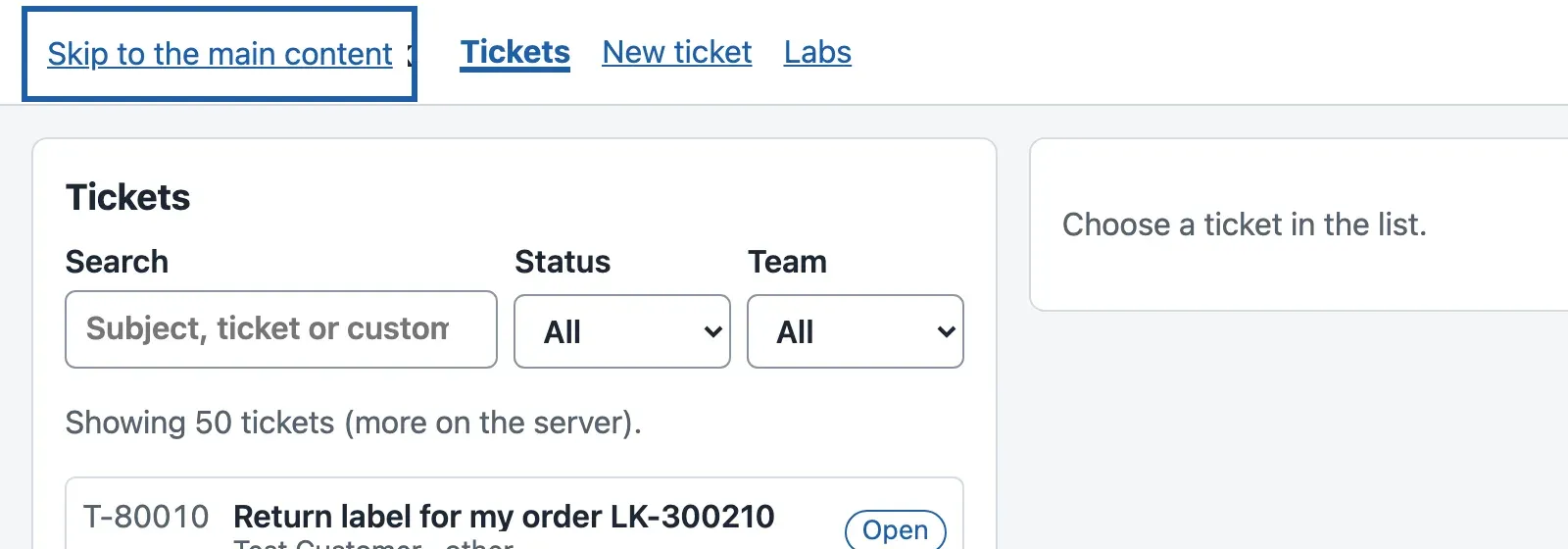
Type garden shed in Search, press Tab until the row T-80008 has the focus, and press Enter. The ticket opens and its heading has the focus. Press Tab until Write a draft has the focus, then press Enter:
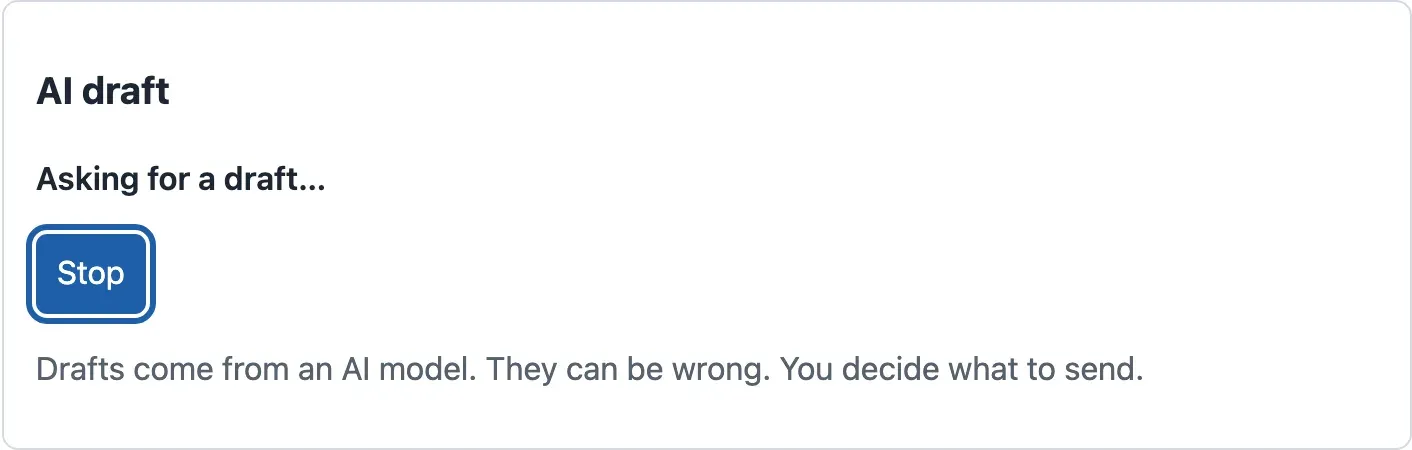
The course team’s run after the changes recorded this:
| Camille does | The focus went to | What a screen reader is told |
|---|---|---|
| Presses Tab on a new page | Skip to the main content | The link |
Presses Enter on T-80008 |
The heading “Hello, where is my order LK-581106?” | The heading |
| Presses Write a draft, waits | The same button: Stop, then Write a new draft | Asking for a draft… / Writing the draft… / Draft finished. No sources. |
| Sends a new ticket | “Saved as T-500001.” | The message; the job’s progress follows in its own status |
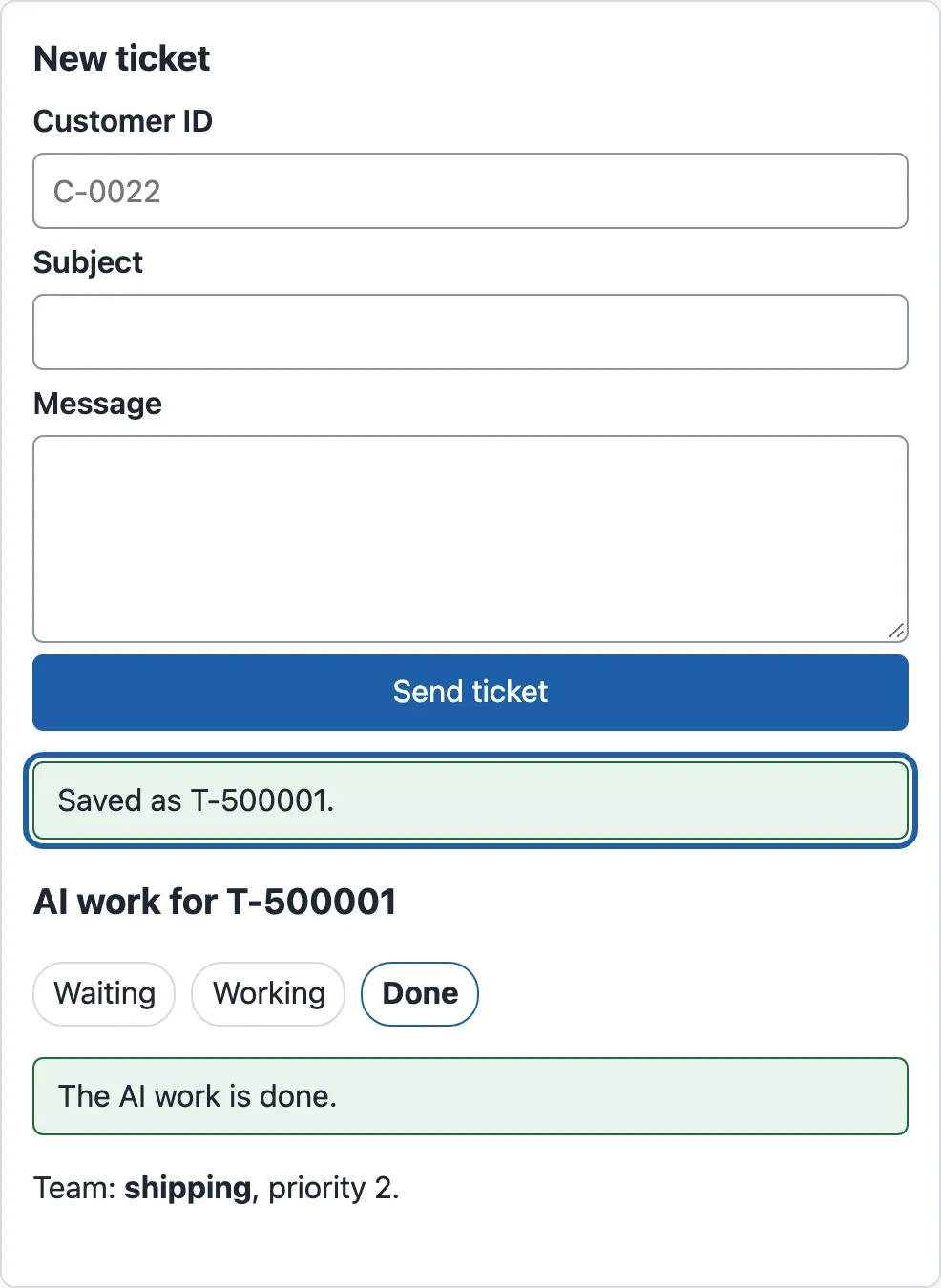
One gap remains. After Send reply, the course team’s run found the focus on <body> again: that button is also disabled while it sends. A screen reader still hears “Sent.”, because that message is a status. The handoff of the next lesson lists it as a known limit. Fixing it the same way is a good first change for the next developer.
Why one button, when the focus already stayed?
Section titled “Why one button, when the focus already stayed?”Look at the first table again: at the start of the module, the focus already stayed on the button. Why? React compared the two versions of the toolbar and saw a <button> at the same place both times. So it kept the same element and changed only its text and its click handler. That was luck, not design. The course team gave the two buttons different keys, key="stop" and key="start". Then React made a new element each time, and the focus fell to <body> when the draft started and again when it ended. One button with a changing label makes the good behaviour explicit, and the test in step 6 keeps it.
Contrast
Section titled “Contrast”The desk’s colours are tokens in src/styles.css. The course team computed the contrast of each pair that the desk uses, with the formula of the Web Content Accessibility Guidelines (WCAG):
| Text and background | Contrast | Normal text (4.5:1) |
|---|---|---|
Text #1d2733 on a card #ffffff |
15.11:1 | passes |
Grey text #56616d (ticket IDs, hints) on a card |
6.31:1 | passes |
Grey text #56616d on the page #f4f6f8 |
5.83:1 | passes |
Links and the focus outline #1f5fa8 on a card |
6.44:1 | passes |
Button text #ffffff on the blue button |
6.44:1 | passes |
Error text #a32020 on the error background #fdeeee |
6.69:1 | passes |
Constructed: Tomás’s lighter grey #9aa4ae on a card |
2.53:1 | fails |
Tomás likes a lighter grey for hints: “It looks calmer.” At 2.53:1 it fails, and in bright light even people without a visual impairment cannot read it. Chrome shows the contrast of any text: in the Elements panel, click a colour in the Styles pane.
When to use each tool, and what it costs. Move the focus only when the user asked for the new content: an opened ticket, a sent form. A job that finishes in the background must not steal the focus; it gets a status message. Use role="status" for changes of state and role="alert" only for errors that need action now. Never put text that changes many times per second into a live region. The cost is small in code, but real in testing. The keyboard checks take minutes, and an end-to-end test can repeat them, as in the next lesson. A real screen reader test needs time and, ideally, a person who uses one every day.
Your turn: test the sentences
Section titled “Your turn: test the sentences”announcement() is a plain function, so you can test it without a browser. Write src/features/draft/announcement.test.ts with these cases. Predict the sentence for each one first:
- a finished draft with two sources and
needs_human: true; - a stopped draft;
- a failed draft whose problem is “The AI service stopped answering. Your work is safe. Try again.”;
- the start state, before any draft.
Use fullDraft from src/test/stream.ts and initialDraft from draftMachine.ts.
Show the answer
import { expect, test } from 'vitest';import { fullDraft } from '../../test/stream';import { announcement } from './DraftPanel';import { initialDraft } from './draftMachine';
test('what a screen reader is told when a draft ends', () => {  const twoSources = { ...fullDraft, needs_human: true, citations: [fullDraft.citations[0], fullDraft.citations[0]] };  expect(announcement({ ...initialDraft, status: 'done', text: 'x', draft: twoSources })).toBe(    'Draft finished. 2 sources. A person must handle this ticket.',  );  expect(announcement({ ...initialDraft, status: 'stopped', text: 'Your refund' })).toBe(    'You stopped the draft. The text below is not complete.',  );  const problem = 'The AI service stopped answering. Your work is safe. Try again.';  expect(announcement({ ...initialDraft, status: 'failed', problem })).toBe(`No draft. ${problem}`);  expect(announcement(initialDraft)).toBe('');});
With this file, npx vitest run reports Tests 49 passed (49). The start state gives an empty string on purpose. There is nothing to announce, and the silent live region waits for the first change.
Common mistakes
Section titled “Common mistakes”Common mistake
Found multiple elements with the text
Symptom: after step 5, npm test shows Tests 4 failed | 42 passed (46). Two tests say:
TestingLibraryElementError: Found multiple elements with the text: /You stopped the draft/and two others say:
TestingLibraryElementError: Unable to find role="alert"Cause: the tests were written for the old panel. Each state sentence is now in the page twice: once visible, hidden from the accessibility tree, and once in the status for screen readers. getByText finds both. And the errors no longer have role="alert".
Fix: test what a screen reader gets: the status. In src/features/draft/DraftPanel.test.tsx, import waitFor from @testing-library/react, and change the four checks:
expect(screen.getByRole('status')).toHaveTextContent('You stopped the draft.');await waitFor(() => expect(screen.getByRole('status')).toHaveTextContent(/The connection ended before the draft was finished/));expect(await screen.findByRole('status')).toHaveTextContent('No draft. The AI service stopped answering');expect(await screen.findByRole('status')).toHaveTextContent('Write the reply yourself');In the first test, check the status too: await waitFor(() => expect(screen.getByRole('status')).toHaveTextContent('Draft finished. 1 source.'));. In the test of a refused draft, use await waitFor(() => expect(screen.getByRole('status')).toHaveTextContent('The draft did not pass the checks. Do not use it.'));. Then add two tests that keep this lesson’s promises:
test('a screen reader hears the changes of state, never the streamed text', async () => {  installFakeApi((_url, init) => openStream(tokens, init.signal));  render(<DraftPanel ticketId="T-64979" onUse={() => {}} />);  await userEvent.click(screen.getByRole('button', { name: 'Write a draft' }));  expect(await screen.findByText('Your refund is on its way.')).toBeInTheDocument();  expect(screen.getByRole('status')).toHaveTextContent(/^Writing the draft…$/);});
test('the keyboard focus stays on the button when the stream starts and stops', async () => {  installFakeApi((_url, init) => openStream(tokens, init.signal));  render(<DraftPanel ticketId="T-64979" onUse={() => {}} />);  screen.getByRole('button', { name: 'Write a draft' }).focus();  await userEvent.keyboard('{Enter}');  const stop = await screen.findByRole('button', { name: 'Stop' });  expect(stop).toHaveFocus();  await userEvent.keyboard('{Enter}');  expect(screen.getByRole('button', { name: 'Write a new draft' })).toHaveFocus();  expect(screen.getByRole('status')).toHaveTextContent('You stopped the draft.');});
The complete file is in the snapshot end-of-m06.
Knowledge check
Section titled “Knowledge check”Check your understanding
Tomás wants the streamed draft text in a live region, so that Camille hears the draft as it arrives. What did the course team measure, and what does the desk do instead?
Show the answer
With aria-live on the streamed text, the region changed once per piece: 30 times for T-64704 and 28 times for T-80008. Each change asks for a new announcement. The one sentence that matters, such as “A person must handle this ticket”, is lost among them. The desk keeps one status element that changes only with the state: “Asking for a draft…”, “Writing the draft…”, “Draft finished. No sources.” That is three changes per draft. Camille reads the finished text themselves when they want it.
Does your answer have the main points of ours?
Sign in and enroll in the course to save your answers. Every check counts toward the certificate.
Check your understanding
Predict: the Stop button and the Write a draft button are two different elements (for example with different keys). Camille presses Enter on Write a draft. Where is the focus while the draft streams, and why?
Show the answer
On <body>, the page itself. The button that had the focus is removed, and a removed element takes the focus with it. The course team measured it with two keyed buttons: the focus was on body while streaming and again at the end. At the start of the module, React happened to reuse the same <button> element, so the focus stayed. The desk now uses one button with a changing label, and a test checks that the focus stays on it.
Does your answer have the main points of ours?
Sign in and enroll in the course to save your answers. Every check counts toward the certificate.
Check your understanding
Practical check: by keyboard only, open T-80008 from the list, write a draft and stop it. Where must the focus be after each step, and what must the status say at the end?
Show the answer
After Enter on the row: on the ticket’s heading “Hello, where is my order LK-581106?”. After Enter on Write a draft: on the same button, now labelled Stop. After Enter on Stop: on the same button, now Write a new draft. The status says “You stopped the draft. The text below is not complete.” In Chrome’s Accessibility pane, the status element has the role status and this text.
Does your answer have the main points of ours?
Sign in and enroll in the course to save your answers. Every check counts toward the certificate.
Recap
- Five checks for every task: keyboard flow, visible focus that goes where the work is, names for every control, contrast of at least 4.5:1, and short announcements of changes of state.
- At the start of the module, opening a ticket left the focus in the list, and sending a ticket dropped it to
<body>. The draft panel had no live region. Now the code moves the focus to the heading and to the result, and a skip link comes first. - A live region on the streamed text changed 30 times per draft. The desk’s status changes three times: asking, writing, finished, with the number of sources and whether a person must handle the ticket.
- One button that changes its label keeps the focus; two elements would drop it to
<body>, as the course team measured. - Tested with the keyboard, the accessibility tree and Playwright in Chromium. A real screen reader test is still needed before a delivery.
Next, you test the whole desk, from components to one flow in a real browser, and prepare it for handoff.
Next: Test and deliver