
JavaScript essentials
- Lesson 3
- 60 min
- Module 1: Web foundations bridge
Lesson 3 of 19 · Frontend Architecture and Performance for AI AppsJavaScript essentials
1. Web foundations bridge
2. Components and application structure
3. Data fetching and state management
4. AI-specific interaction states
5. Performance and scalability
6. Security, accessibility and handoff
What you will be able to do
Make the first page work: load the newest tickets from the mock API, and send the form as a new ticket. On the way, learn the parts of JavaScript that every later lesson uses: objects, arrays, functions, modules, events and promises.
Before you startWhat to know and to have ready
What you need to know
- The first page,
bridge/index.htmlandbridge/styles.css, from HTML and CSS essentials. - Python’s dictionaries, lists and functions, from Python for Practical AI Engineering. This lesson compares JavaScript with them.
What you need on your computer
~/projects/ticket-deskwith the two files of the last lesson, and the mock API running in terminal 1.- Node.js 24, to run the small examples in terminal 2.
At the end, the folder has one new file, bridge/app.js, the same as in the snapshot end-of-m01.
The page cannot do anything yet
Section titled “The page cannot do anything yet”The first page looks right, but it does nothing. The list says “Loading…” forever. Send ticket reloads the page, and no ticket reaches the API. HTML describes a page, and CSS styles it. Neither can ask the API for data, wait for the answer, or react when the agent selects a button.
That is the job of JavaScript: a programming language that the browser runs inside the page. You know Python, so most ideas are familiar. The words are different, and two ideas are new: events and promises. This lesson teaches each idea with a small program that you run with Node.js in terminal 2, and then uses it in the page.
Values: objects and arrays
Section titled “Values: objects and arrays”A ticket from the API is a set of named values: an ID, a subject, a team. In Python, you keep that in a dictionary. In JavaScript, it is an object: names and values in braces. A list of tickets is an array: values in square brackets, as a Python list.
Make a folder try in ticket-desk, and a file try/values.mjs with three real tickets of the mock API:
// Objects, arrays and functions: three tickets of the mock API, without a browser.const ticket = { ticket_id: 'T-80009', subject: 'My order LK-55190 never arrived', team: 'shipping', priority: 2 };console.log(ticket.subject);console.log(ticket['team']);console.log(ticket.owner);
const tickets = [  ticket,  { ticket_id: 'T-80008', subject: 'Hello, where is my order LK-581106?', team: 'shipping', priority: 2 },  { ticket_id: 'T-80007', subject: 'You charged my card twice', team: 'billing', priority: 1 },];console.log(tickets.length, tickets[2].ticket_id);
function line(t) {  return `${t.ticket_id}: ${t.subject}`;}const shipping = tickets.filter((t) => t.team === 'shipping');console.log(shipping.map(line));console.log(JSON.stringify(tickets[2]));
Run it in terminal 2, in the ticket-desk folder:
node try/values.mjsMy order LK-55190 never arrivedshippingundefined3 T-80007[ 'T-80009: My order LK-55190 never arrived', 'T-80008: Hello, where is my order LK-581106?']{"ticket_id":"T-80007","subject":"You charged my card twice","team":"billing","priority":1}Go through the output line by line:
const ticket = {…}makes a name for a value.constmeans that the name always points to this value;letmakes a name that can point to another value later.console.logprints, as Python’sprint.ticket.subjectandticket['team']read a value by its name.ticket.ownerprintsundefined. The object has noowner, and JavaScript does not stop with an error, as Python’sKeyErrorwould. It gives the special valueundefined: “nothing here”. This is a common source of quiet mistakes, and TypeScript helps with it in the next lesson.tickets.lengthis the number of items, as Python’slen().tickets[2]is the third item: counting starts at 0.
The table puts the words that you know next to their JavaScript form:
| Python | JavaScript |
|---|---|
{"team": "shipping"} (dictionary) |
{ team: 'shipping' } (object) |
[1, 2, 3] (list) |
[1, 2, 3] (array) |
None |
null, and undefined for “missing” |
True, False |
true, false |
f"{t['ticket_id']}: …" |
`${t.ticket_id}: …` (a template literal, with back quotes) |
print(x) |
console.log(x) |
json.dumps(x), json.loads(s) |
JSON.stringify(x), JSON.parse(s) |
Functions
Section titled “Functions”A function is a named piece of code that takes values and gives back a value. function line(t) { … return …; } is the same idea as def line(t): in Python. The body is in braces instead of indented, and statements end with ;.
JavaScript has a short form, the arrow function: (t) => t.team === 'shipping' takes t and gives back the value after the arrow. It is like Python’s lambda. Use it for small functions that you pass to other functions.
Arrays have methods that take such a function. filter keeps the items for which the function gives true; here, the two shipping tickets. map makes a new array with the function’s result for each item; here, one line of text per ticket. Read shipping.map(line) as “for each shipping ticket, make its line”. Note ===: it compares two values without converting their types. Always use === in JavaScript, never ==.
Modules: one job per file
Section titled “Modules: one job per file”A program grows. You want the code that formats a ticket in one file, and the code that uses it in another, as Python’s import allows. In JavaScript, each file is a module. A module exports the names that other files may use, and another module imports them.
// lines.mjs: one function, exported so another file can use it.export function line(t) { return `${t.ticket_id}: ${t.subject}`;}// main.mjs: imports the function from lines.mjs.import { line } from './lines.mjs';
console.log(line({ ticket_id: 'T-80008', subject: 'Hello, where is my order LK-581106?' }));node try/main.mjsT-80008: Hello, where is my order LK-581106?./lines.mjs is a path next to the importing file. Remove the word export, and run it again. The import fails before any line runs:
SyntaxError: The requested module './lines.mjs' does not provide an export named 'line'So a module hides everything that it does not export. In a browser, <script type="module" src="app.js"> loads app.js as a module, with the same rules. From Module 2, the ticket desk has many modules, one job each.
Events: a doorbell
Section titled “Events: a doorbell”You do not stand at your front door all day to see whether someone comes. You have a doorbell. When it rings, you open the door. The ring is an event, and opening the door is your reaction to it.
A page has the same problem. JavaScript runs its file from the top to the bottom once, when the page loads. But the agent selects Send ticket later, perhaps after a minute. The code cannot wait at that line. Instead, it says in advance what to do when the event happens: it adds a listener, a function that the browser calls at each event.
// An event: say what to do when it happens, then wait.const door = new EventTarget();door.addEventListener('ring', (event) => console.log('Open the door for the', event.type));console.log('Nothing happens yet.');door.dispatchEvent(new Event('ring'));door.dispatchEvent(new Event('ring'));Nothing happens yet.Open the door for the ringOpen the door for the ringAdding the listener does nothing at once. Each ring calls the function once. Node.js has EventTarget too, so you can try it here. In the browser, every element is an event target. A button gets click events, a field gets input events, and a form gets a submit event when it is sent. Each event comes with an object that describes it, here event, with event.type and more.
Promises: a restaurant buzzer
Section titled “Promises: a restaurant buzzer”In some restaurants, you order at a counter, and you get a buzzer. You sit down and talk. When the food is ready, the buzzer buzzes, and you collect it. If the kitchen has run out, you hear that instead. You do not stand at the counter while the soup is cooked.
A request to an API is like that order. It takes time: about 60 ms for the mock’s list, and seconds for an AI draft. If the page stopped and waited, the agent could not type or scroll during that time. So fetch, the browser’s function that sends a request, does not give back the answer. It gives back a promise: an object that stands for a value that comes later. A promise is first pending, and then fulfilled with a value, or rejected with an error.
First, see the problem. This program sends a request to the mock API, and uses the result at once:
// A mistake on purpose: no await.const response = fetch('http://127.0.0.1:8100/v1/tickets?limit=2');console.log(response);console.log(response.status);Promise { <pending> }undefinedresponse is not the answer: it is the buzzer. Its status is undefined, because a promise has no status. Now see the order of events with a buzzer that buzzes after 500 ms:
// A promise is a buzzer: you get it at once, and it buzzes later.console.log('1. Order the food');const buzzer = new Promise((resolve) => setTimeout(() => resolve('soup'), 500));console.log('2. Sit down. The buzzer is', buzzer);buzzer.then((food) => console.log('4. Collect the', food, '- the buzzer is now', buzzer));console.log('3. Talk with a friend');1. Order the food2. Sit down. The buzzer is Promise { <pending> }3. Talk with a friend4. Collect the soup - the buzzer is now Promise { 'soup' }Line 3 prints before line 4, although it comes later in the file. The program did not wait; then said what to do when the promise is fulfilled.
then works, but long chains of then are hard to read. JavaScript has a shorter way to write the same thing: async and await. Inside a function marked async, await promise pauses only that function until the promise is fulfilled, and gives its value. The rest of the page keeps working. If the promise is rejected, await throws the error, and try … catch catches it, as Python’s try … except.
// The same request, with await: wait for the answer, then use it.async function loadTickets(limit) {  const response = await fetch(`http://127.0.0.1:8100/v1/tickets?limit=${limit}`);  if (!response.ok) {    throw new Error(`The API answered ${response.status}`);  }  const page = await response.json();  return page.items;}
const started = performance.now();const waiting = loadTickets(2);console.log('1. asked; the answer is', waiting);const items = await waiting;console.log('2. answered after', Math.round(performance.now() - started), 'ms');console.log(items.map((t) => t.ticket_id));
try {  await loadTickets(500);} catch (error) {  console.log('3. failed:', error.message);}
1. asked; the answer is Promise { <pending> }2. answered after 80 ms[ 'T-80010', 'T-80009' ]3. failed: The API answered 422Follow the values. An async function always gives back a promise, so waiting is pending at first. The lines outside the function use await too: a module file (.mjs) allows await at its top level. await waiting gives the array after 80 ms on the author’s computer; your time will differ. There are two waits inside: one for the start of the response, and one for its body. response.json() reads the body and turns the JSON text into an object.
The last call asks for 500 tickets. The API allows at most 100, so it answers 422. fetch does not reject a promise for an error status: a 422 is still an answer. That is why loadTickets checks response.ok, which is true only for a 2xx status, and throws its own error. fetch rejects only when no answer arrives at all.
The page’s script: bridge/app.js
Section titled “The page’s script: bridge/app.js”Now put the pieces together in the page. Make bridge/app.js:
// Module 1's JavaScript: show the newest tickets and send the form to the mock API.// The page and the API come from the same address (http://127.0.0.1:8100), so the paths start with /.
/** Reads one page of tickets from the API. */async function loadTickets(limit) {  const response = await fetch(`/v1/tickets?limit=${limit}`);  if (!response.ok) {    throw new Error(`The API answered ${response.status}`);  }  const page = await response.json();  return page.items;}
/** Makes one list item for a ticket. */function ticketItem(ticket) {  const item = document.createElement('li');  const title = document.createElement('strong');  title.textContent = `${ticket.ticket_id}: ${ticket.subject}`;  const meta = document.createElement('div');  meta.className = 'meta';  meta.textContent = `${ticket.customer_name} · ${ticket.team} · ${ticket.status}`;  item.append(title, meta);  return item;}
async function showTickets() {  const list = document.querySelector('#tickets');  try {    const tickets = await loadTickets(10);    list.replaceChildren(...tickets.map(ticketItem));  } catch (error) {    list.replaceChildren(`Could not load the tickets. ${error.message}`);  }}
const form = document.querySelector('#new-ticket');const answer = document.querySelector('#answer');
form.addEventListener('submit', async (event) => {  event.preventDefault(); // stay on this page: JavaScript sends the form  const data = Object.fromEntries(new FormData(form));  answer.textContent = 'Sending…';  try {    const response = await fetch('/v1/tickets', {      method: 'POST',      headers: { 'Content-Type': 'application/json' },      body: JSON.stringify(data),    });    const body = await response.json();    if (response.ok) {      answer.textContent = `Saved as ${body.ticket_id}. AI work: ${body.state} (job ${body.job_id}).`;      form.reset();      showTickets();    } else {      answer.textContent = `Not saved: ${body.error.message} Fields: ${body.error.fields.join(', ')}`;    }  } catch (error) {    answer.textContent = `The API did not answer. Is it running? (${error.message})`;  }});
showTickets();
loadTickets is the function from wait.mjs, with one change: the path starts with /. The page came from http://127.0.0.1:8100, so /v1/tickets means the same address. Two new parts need a word.
The page as objects. The browser turns the HTML into a tree of objects, one per element. JavaScript reads and changes the page through that tree, called the DOM (Document Object Model). document.querySelector('#tickets') finds the element with id="tickets", with the same selectors as CSS. document.createElement('li') makes a new element, textContent sets its text, and replaceChildren swaps the “Loading…” item for the new items. The three dots in replaceChildren(...items) spread the array: each item becomes its own argument, as *items does in Python. Browser and build tools looks at the DOM in the browser’s tools.

Text description of the diagram
The API sends text. await response.json() turns the text into JavaScript objects. ticketItem(ticket) makes a new <li> element with the ID and subject in bold and a line with the customer, the team and the status. map does this for all ten tickets, and replaceChildren puts the ten new items into the list on the page.
The submit event. The listener on the form runs at each submit. Its first line, event.preventDefault(), stops the browser’s own way of sending a form: the GET to the same page that you saw in the last lesson. Then new FormData(form) reads every field by its name, and Object.fromEntries makes an object from it: {customer_id: 'C-0022', subject: '…', body: '…'}. JSON.stringify turns it into text for the POST. Each answer goes into <p id="answer" role="status">, which a screen reader reads when it changes.
Note also textContent. The subject is text that a customer wrote. textContent always shows it as text, even when it contains < and >. A later lesson on browser security shows what goes wrong when a page puts such text into the page as HTML.
Run it
Section titled “Run it”-
Save
bridge/app.js, and reloadhttp://127.0.0.1:8100/. The list shows the ten newest tickets. -
Fill in the form:
C-0022,Parcel lost,It did not arrive.Select Send ticket. -
Read the answer under the button, and the first item of the list.
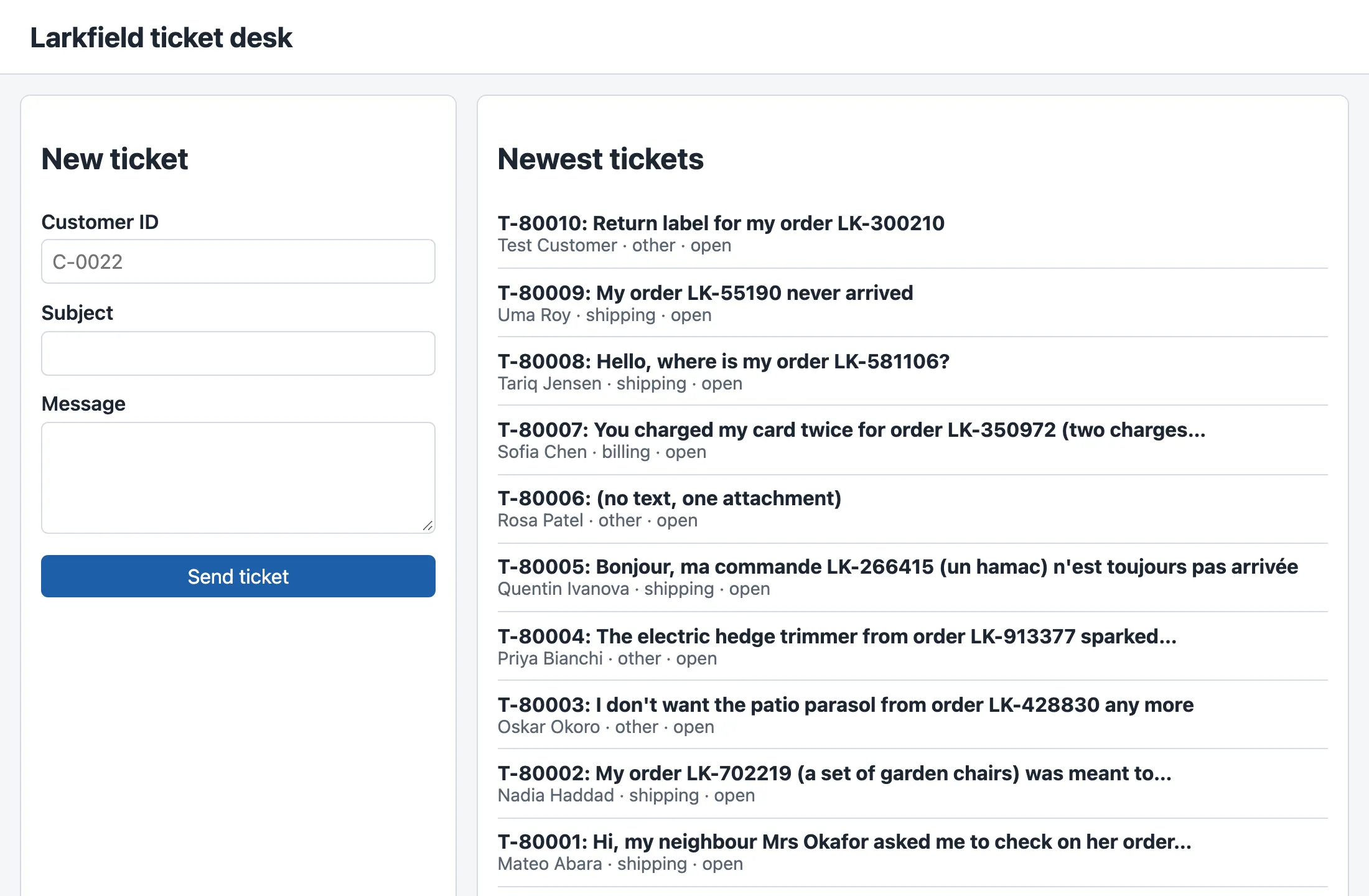
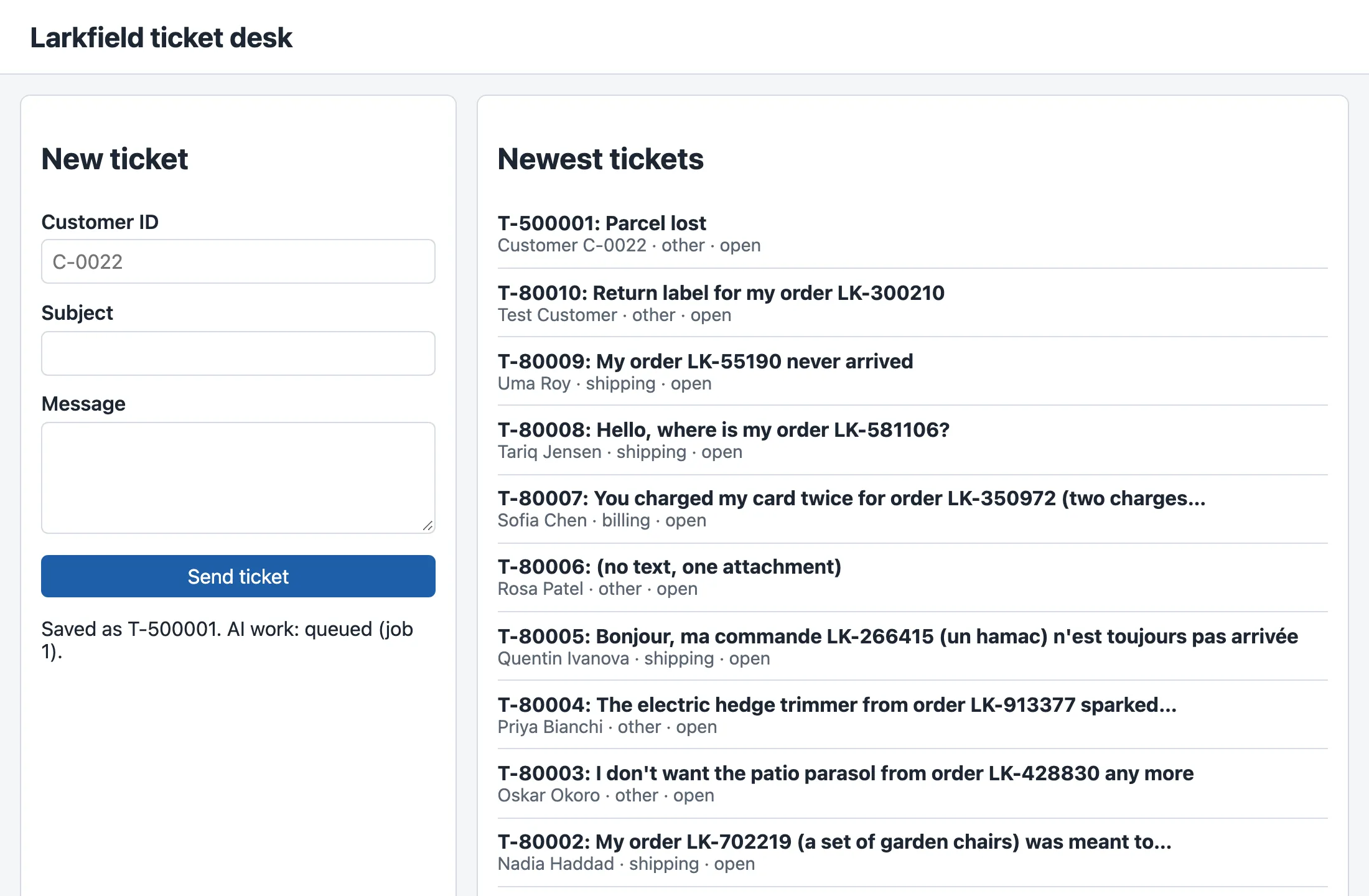
The answer says Saved as T-500001. AI work: queued (job 1). The API saved the ticket, and its AI work waits in a queue as a background job. Module 4 shows that job. Terminal 1 logs every request of the page, in order:
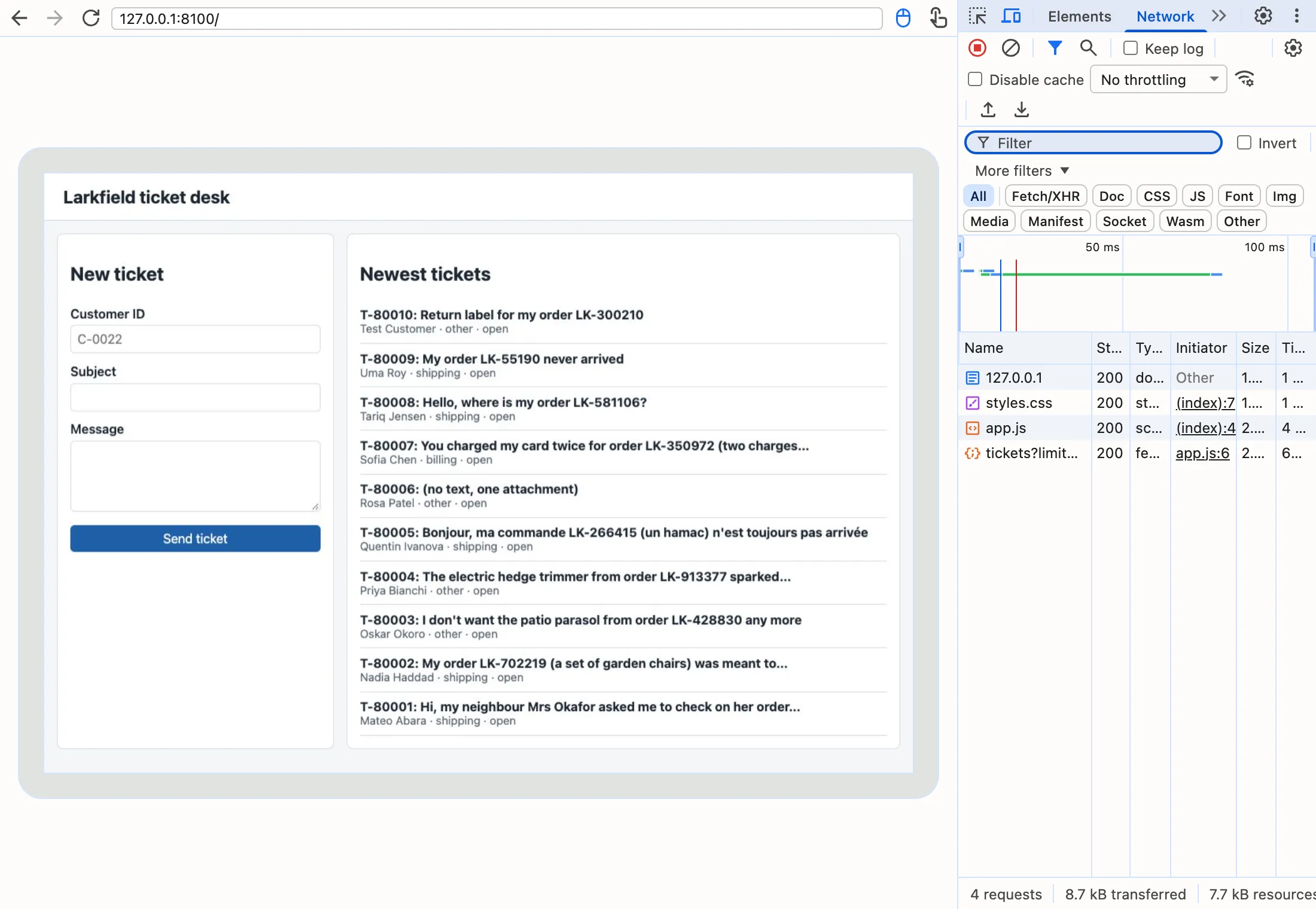
GET / 200 2 msGET /styles.css 200 1 msGET /app.js 200 1 msGET /v1/tickets?limit=10 200 63 msPOST /v1/tickets 202 1 msGET /v1/tickets?limit=10 200 62 msThe diagram puts these requests on a time line, with what the page does between them.

Text description of the diagram
First, the browser gets the three files of the page. Then app.js runs, and its fetch sends the list request. While the promise is pending, the page still works. After about 60 ms (simulated server time), the answer arrives and the code draws ten items. Later, the agent sends the form: a submit event. The script sends POST /v1/tickets, gets 202 with T-500001, and asks for the list again.
You can see the same requests in the browser. Open the developer tools (F12, or Cmd+Option+I on macOS), select the Network tab, and reload the page. You know this tab from Inspect a request.
When to use JavaScript, and what it costs
Section titled “When to use JavaScript, and what it costs”Use JavaScript for what HTML and CSS cannot do: ask a server for data, react to events, and change the page while it is open. Do not use it for what HTML already does. A <button> in a <form> sends on Enter; required checks an empty field. Code that rebuilds those is more code to test, and often less accessible.
JavaScript has costs. The browser must download and run every line before the page can use it, which matters on a slow phone; Module 5 measures that. And every line runs on the user’s computer, where the user can read it and change it. A browser script can never keep a secret.
Common mistakes
Section titled “Common mistakes”Common mistake
The API is not running: Failed to fetch
Symptom: you stop the mock API, and then send the form. The page says:
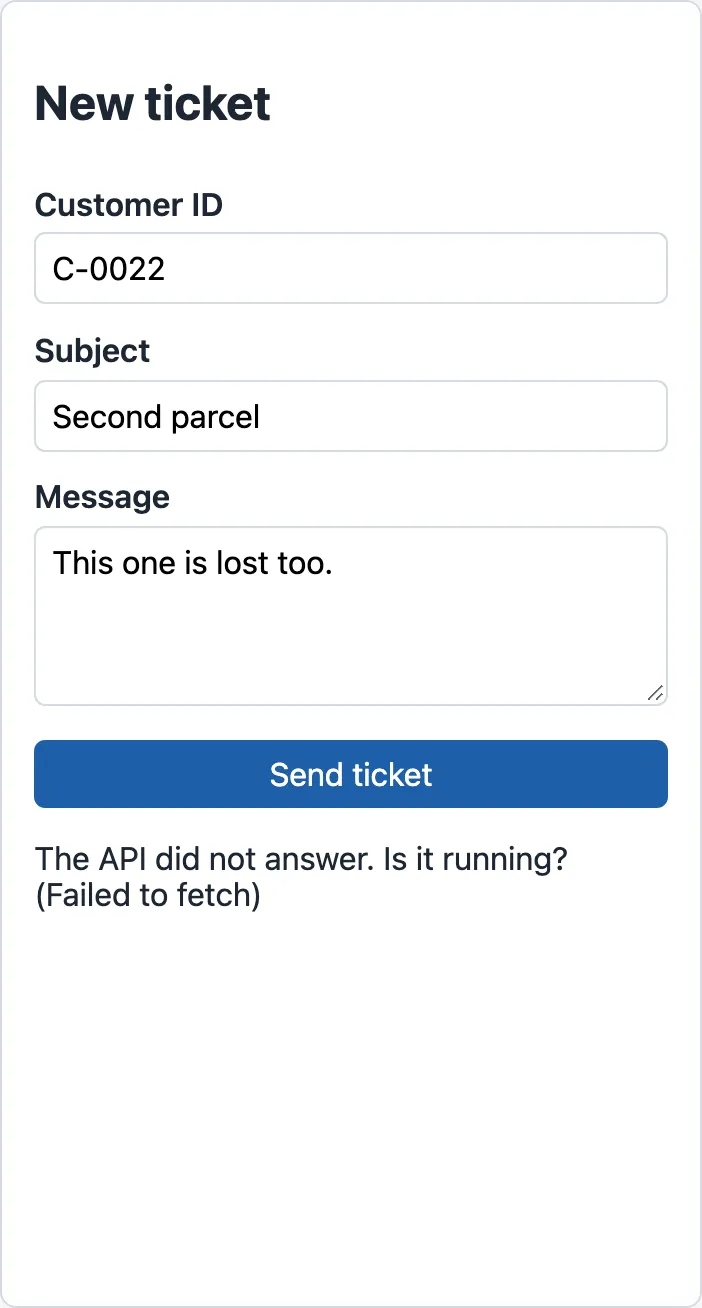
Cause: no answer arrived, so fetch rejected its promise with TypeError: Failed to fetch. await threw the error, and the catch block showed it. In Node.js, the same mistake gives TypeError: fetch failed with the cause connect ECONNREFUSED 127.0.0.1:8100.
Fix: start the API in terminal 1, and send again. The page itself did not break: every await that can fail is inside a try. A page without the try would show nothing at all, and the error would appear only in the developer tools’ Console tab.
Common mistake
A subject of spaces: the browser allows it, the API does not
Symptom: you type three spaces as the subject. The browser sends the form, and the page says:
Not saved: The request is not valid. Fields: subjectCause: for required, three spaces are not empty, so the browser’s check passes. The API removes the spaces, finds nothing, and answers 422 with fields: ["subject"]. The script shows that error in words.
Fix: nothing in the API: it is right to refuse. This is the reason the page must show the API’s error, and not only the browser’s checks. In React basics, the form also checks the text in the page, before it is sent.
Common mistake
A missing await: undefined instead of the tickets
Symptom: a value prints as Promise { <pending> }, or the code stops with an error about undefined. The course team removed one await from loadTickets, in a copy named try/noawait.mjs:
const page = response.json(); // the mistake: no awaitreturn page.items;TypeError: Cannot read properties of undefined (reading 'map')Cause: the line uses a promise as if it were its value, as forgot.mjs did. Without await, page is a promise, and a promise has no items. So loadTickets gives back undefined, and .map on undefined fails one step later, far from the real mistake. In the page, the catch block of showTickets would put the same message into the list.
Fix: put await before each call that gives back a promise (fetch, response.json()), inside an async function.
Your turn: five tickets, with their priority
Section titled “Your turn: five tickets, with their priority”Change bridge/app.js so that the list shows the five newest tickets, and each item’s grey line also shows the priority, for example Test Customer · other · priority 2 · open. Predict first: how many requests does the page send when it loads, and which line of terminal 1 changes?
Show the answer
Two lines change. In showTickets, ask for five tickets:
const tickets = await loadTickets(5);In ticketItem, add the priority to the grey line:
meta.textContent = `${ticket.customer_name} · ${ticket.team} · priority ${ticket.priority} · ${ticket.status}`;The page still sends four requests when it loads. Only the list request changes: terminal 1 logs GET /v1/tickets?limit=5 200. The course team’s run showed five items, the first one T-80010: Return label for my order LK-300210 | Test Customer · other · priority 2 · open. The snapshot keeps ten tickets and no priority; change the two lines back before you continue. The folder try/ is not in the snapshot either: delete it when you no longer need the small programs.
Knowledge check
Section titled “Knowledge check”Check your understanding
Predict the order of the printed lines: console.log('A'); fetch(url).then(function () { console.log('B'); }); console.log('C');
Show the answer
A, then C, then B. fetch gives back a pending promise at once, and then only says what to do later. The program does not wait, so C prints next. B prints when the answer arrives, after the rest of the code has run. This is the buzzer: you sit down and talk, and you collect the food when it buzzes.
Does your answer have the main points of ours?
Sign in and enroll in the course to save your answers. Every check counts toward the certificate.
Check your understanding
The API answers 422 to the form. Does fetch reject its promise? Which line of app.js shows the error, and where does the message come from?
Show the answer
No. fetch rejects only when no answer arrives, for example when the API is not running. A 422 is an answer, so the promise is fulfilled, and response.ok is false. The else branch shows Not saved: …, with body.error.message and body.error.fields from the API’s error shape. The catch block is only for the case with no answer.
Does your answer have the main points of ours?
Sign in and enroll in the course to save your answers. Every check counts toward the certificate.
Check your understanding
Why does the submit listener call event.preventDefault()? What happens without it?
Show the answer
A form’s default action is to be sent by the browser itself, which reloads the page. Without a script, the first page did a GET to /?customer_id=… and no ticket was saved. With the script but without preventDefault(), the browser would start that reload while fetch sends the POST. The page would disappear, and the answer of the API would never be shown. preventDefault() stops the reload, so the script alone sends the form.
Does your answer have the main points of ours?
Sign in and enroll in the course to save your answers. Every check counts toward the certificate.
Recap
- JavaScript objects and arrays are Python’s dictionaries and lists. A missing name gives
undefined, not an error. - Functions and arrow functions go into array methods:
filterkeeps items,mapmakes one result per item. - A module exports names, and another module imports them.
<script type="module">loadsapp.jsas a module. - An event calls a listener when it happens: the form’s
submit, withevent.preventDefault()to stop the reload. fetchgives back a promise: pending, then fulfilled or rejected.awaitin anasyncfunction waits for it without stopping the page. A 4xx or 5xx answer does not reject: checkresponse.ok.bridge/app.jsloads ten tickets, builds one<li>each through the DOM, and sends the form:POST /v1/tickets→202,Saved as T-500001.
Next, you move the same page to the tools of a real project: npm, a development server and TypeScript.
Next: Browser and build tools