
Rendering and effects
- Lesson 7
- 80 min
- Module 2: Components and application structure
Lesson 7 of 19 · Frontend Architecture and Performance for AI AppsRendering and effects
1. Web foundations bridge
2. Components and application structure
3. Data fetching and state management
4. AI-specific interaction states
5. Performance and scalability
6. Security, accessibility and handoff
What you will be able to do
Know when React draws a component again, and compute what you can instead of storing it. Load data in an effect that cleans up, so an old, slow answer never replaces a new one.
Before you startWhat to know and to have ready
What you need to know
- Components, props, state and controlled inputs, from React basics.
- The folders
api/,ui/,features/andlib/, and the clientapiFetch, from Organize by responsibility. - Promises and
then, from JavaScript essentials.
What you need on your computer
- The desk at the end of Organize by responsibility:
npm testshowsTests 9 passed (9). - The mock API in normal mode in the first terminal (
npm run api), andnpm run devin the second. Its terminal prints one line per request: you read it in this lesson.
Tested on macOS (Apple silicon) with Node.js 24.18.0 and Chromium. Times depend on your computer; the order of events is what matters.
A shop on the phone
Section titled “A shop on the phone”You phone a shop and ask: “Do you have blue paint?” While they look, you change your mind and phone again: “Sorry, I meant green paint.” Two people at the shop now look, one for each call. The green answer comes first: yes. Then, a minute later, the first person calls back: “No blue paint, sorry.” If you trust the last call that you received, you go home without paint. A careful customer cancels the first question as soon as they ask the second one.
Keep this picture. In this lesson, the ticket list asks the API a new question at every key press. It must cancel the old questions.
When does React draw again?
Section titled “When does React draw again?”React calls a component again (it rerenders) for two reasons: the component’s state changed, or its parent was drawn again. In the second case, React calls every child too, even if the child’s props are the same. Then React compares the new result with the page and changes only what differs.
So follow one key press in the search box of the desk. TicketFilters calls onChange, and TicketList sets its state filter. React calls TicketList again, then TicketFilters, then each of the 50 TicketRow components and their badges. The page changes in one place only: the text in the box.
Is that slow? The course team measured it with the React Profiler (a tool that you use in Measure the browser). Above 50 rows, a note box was typed into 20 times, in three versions:
| Where the note’s text lives | Rows drawn again | React’s work for 20 key presses |
|---|---|---|
| State in the component that also draws the rows | 1,000 | 2.4 ms |
The same, with every row wrapped in memo |
0 | 0.7 ms |
State moved down into a small NoteBox component |
0 | 0.4 ms |
Medians of 5 runs on the course team’s laptop, with other work running; your times will differ.
Drawing 1,000 rows cost 2.4 ms in all, or 0.12 ms per key press: far below the 16 ms between two pictures on a screen. Tomás says: “Wrap every component in memo.” memo tells React to skip a component whose props did not change. It adds code to every component and saved 1.7 ms in total. Moving the state down saved more, with no extra code. The rule: do not optimize drawing before you measure a problem. A rerender is normal and usually cheap.
Derived values: compute, do not store
Section titled “Derived values: compute, do not store”The list shows Showing 50 tickets. That number is page.items.length. You could keep it in its own state and call setCount after each load. Then two values describe one fact. One day a code path updates page and forgets count, and the screen says “Showing 50 tickets” above 12 rows.
A derived value is computed during drawing from props and state, every time: page.items.length, ticket.ticket_id === selectedId, reply.length > 600. It can never be out of date, because it has no memory. The cost is a little work at each draw, almost always too small to measure. The rule: if you can compute it from what you have, do not store it.
The problem: the list should load by itself
Section titled “The problem: the list should load by itself”Grace tries the desk. “Why must I press Search? And why does the list not follow what I type?” So the list must load when it first appears, and again whenever the filter changes.
Where does that code go? Not in the component’s body: React calls it at every draw. A request there sets state when it answers, which causes a draw, which sends a request: a loop that never stops. Not in an event handler either: “the list appeared” is not an event.
The idea: an effect keeps something outside React in step
Section titled “The idea: an effect keeps something outside React in step”An effect is code that React runs after it has drawn the component, to keep something outside React in step with the props and state. The outside thing here is the ticket API. You give React a list of dependencies: the values that the effect uses. After each draw, React compares them with the last draw. If one changed, it runs the effect again.
useEffect(() => { listTickets(filter, 50).then(setPage, setError);}, [filter.status, filter.team, filter.q]);Follow it with every value visible:
| Draw | Why React draws | filter.q |
Effect runs? | Request |
|---|---|---|---|---|
| 1 | the list appears | '' |
yes, first draw | GET /v1/tickets?limit=50 |
| 2 | the answer arrived: setPage |
'' |
no, nothing changed | none |
| 3 | you typed p |
'p' |
yes | …&q=p |
| 4 | you typed a |
'pa' |
yes | …&q=pa |
Try it: an effect without cleanup
Section titled “Try it: an effect without cleanup”-
Open
src/features/tickets/TicketFilters.tsx. Delete the<button type="submit">Search</button>line, theonSearchprop and its call inonSubmit. Keepe.preventDefault(): Enter must not reload the page. The snapshot’sTicketFilters.tsxdoes the same in fewer lines; you can copy it instead. -
Replace
src/features/tickets/TicketList.tsxwith the version in the box below. It has the effect above and no Search button. -
Reload http://localhost:5173/. The list appears at once.
-
Look at the mock API’s terminal. The list was asked for twice:
GET /v1/tickets?limit=50 200 62 msGET /v1/tickets?limit=50 200 62 msThat is
StrictMode, frommain.tsx. In development only, React runs every effect, cleans it up and runs it again at once. It does this to show effects that do not clean up. You see why soon. -
Click in Search and type
parcelquickly. Wait two seconds.
The list with an effect and no cleanup (a first try)
import { useEffect, useState } from 'react';import { listTickets } from '../../api/tickets';import type { TicketFilter, TicketPage } from '../../api/types';import { ErrorMessage } from '../../ui/ErrorMessage';import { TicketFilters } from './TicketFilters';import { TicketRow } from './TicketRow';
export const NO_FILTER: TicketFilter = { status: '', team: '', q: '' };
/** The first 50 tickets that match the filters. A first try: an effect without cleanup. */export function TicketList() {  const [filter, setFilter] = useState<TicketFilter>(NO_FILTER);  const [page, setPage] = useState<TicketPage | null>(null);  const [error, setError] = useState<Error | null>(null);
  useEffect(() => {    listTickets(filter, 50).then(setPage, setError);  }, [filter.status, filter.team, filter.q]);
  return (    <section className="list" aria-labelledby="list-heading">      <h2 id="list-heading">Tickets</h2>      <TicketFilters value={filter} onChange={setFilter} />      {error && <ErrorMessage error={error} />}      {page === null ? (        <p className="muted">Loading tickets…</p>      ) : (        <>          <p className="muted">{page.items.length === 0 ? 'No ticket matches.' : `Showing ${page.items.length} tickets.`}</p>          <ul className="rows">            {page.items.map((t) => (              <li key={t.ticket_id}>                <TicketRow ticket={t} />              </li>            ))}          </ul>        </>      )}    </section>  );}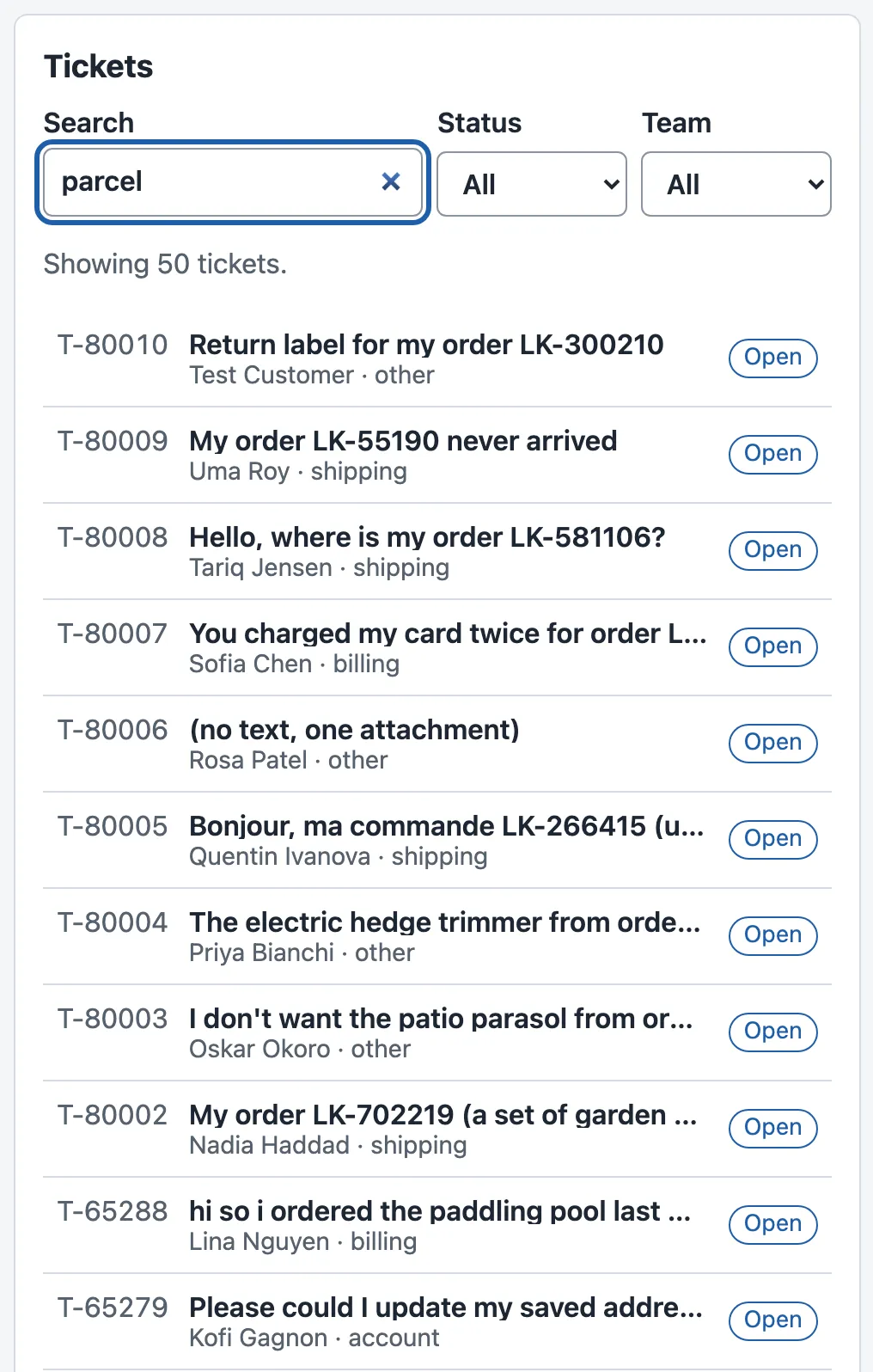
The box says parcel, but the first row is T-80010, the newest ticket of all. In the course team’s run, only 1 of the 50 subjects mentions a parcel; the right answer has 24. The mock API’s terminal shows why. It prints each answer when it is sent, in this order:
GET /v1/tickets?limit=50&q=par 200 219 msGET /v1/tickets?limit=50&q=parc 200 163 msGET /v1/tickets?limit=50&q=pa 200 466 msGET /v1/tickets?limit=50&q=parce 200 161 msGET /v1/tickets?limit=50&q=parcel 200 161 msGET /v1/tickets?limit=50&q=p 200 902 msEvery key press sent a request, and each one called setPage when its answer came. The answer for p came last, so it stayed on the screen. It is slow because the short search p matches thousands of tickets. The mock API makes this visible on purpose: its list takes 60 ms plus 0.1 ms per matching ticket (a simulated server time).
Text description of the chart
Each bar runs from when a request was sent to when its answer arrived. “p”: 0 to 907 ms. “pa”: 120 to 589 ms. “par”: 240 to 461. “parc”: 360 to 528. “parce”: 480 to 647. “parcel”: 600 to 767 ms. So “p” arrives 140 ms after “parcel” and replaces it. The times are the course team’s median answer times on the mock API, added to the typing schedule.
This is the stale-response race: an answer to an old question arrives after the answer to the new one and replaces it. The course team typed parcel this way 10 times: the screen was wrong 10 times out of 10, and it always showed the results for p. No error appears anywhere. The agent sees a list that looks fine and is for the wrong search.
The fix: cleanup
Section titled “The fix: cleanup”An effect can return a function: its cleanup. React calls it before it runs the effect again, and when the component leaves the screen. This is the moment to cancel the old question, like the careful customer on the phone.
The browser has a tool for that. An AbortController makes a signal that you give to fetch. When you call controller.abort(), the browser closes the request, and its promise fails with an AbortError. The project’s own small hook, useApi, puts this together:
// Our own small data hook: it loads data in an effect, and it cancels the old request when the// inputs change or the component goes away (the cleanup). Without the cleanup, a slow old answer// can arrive after a new one and replace it.import { useEffect, useState, type DependencyList } from 'react';
export type ApiState<T> =  | { status: 'loading'; data: null; error: null }  | { status: 'success'; data: T; error: null }  | { status: 'error'; data: null; error: Error };
export function useApi<T>(load: (signal: AbortSignal) => Promise<T>, deps: DependencyList): ApiState<T> {  const [state, setState] = useState<ApiState<T>>({ status: 'loading', data: null, error: null });  useEffect(() => {    const controller = new AbortController();    setState({ status: 'loading', data: null, error: null });    load(controller.signal).then(      (data) => {        if (!controller.signal.aborted) setState({ status: 'success', data, error: null });      },      (error: Error) => {        if (!controller.signal.aborted) setState({ status: 'error', data: null, error });      },    );    return () => controller.abort(); // cleanup: the answer of this request is not wanted any more    // The caller lists every value that `load` uses in `deps`. A missing value means an old answer.  }, deps);  return state;}
A function whose name starts with use and that calls hooks is a custom hook. It lives in lib/, because it knows nothing about tickets. Each run of the effect has its own controller. Trace the first two keys:
| Moment | What happens |
|---|---|
you type p |
effect run 1: controller A, request q=p with signal A |
you type a |
cleanup of run 1: A.abort(); the browser closes q=p · effect run 2: controller B, request q=pa |
… parcel |
each key aborts the request before it |
q=parcel answers |
B…F are aborted; only the last controller is not, so its answer is shown |
The check if (!controller.signal.aborted) is a second guard. If an answer was already on its way when the abort came, it is thrown away. The course team’s run, 10 times each: with cleanup, the screen was wrong 0 times; 6 requests were sent, and 5 were closed early.
Build it: the desk at the end of the module
Section titled “Build it: the desk at the end of the module”-
Create
src/lib/useApi.ts(above) and its testssrc/lib/useApi.test.tsx, from the snapshotend-of-m02. The second test is the race: it answersparcelfirst andplast, and checks thatparcelstays. -
Create
src/router.tsandsrc/router.test.tsfrom the snapshot. The part of the address after#names the page:#/tickets/T-80008is the list with one ticket open. The address lives outside React, souseRouteuses React’suseSyncExternalStorehook: it reads the address and drawsAppagain when it changes. The route is derived from the address, not stored in state. -
Replace
src/features/tickets/TicketList.tsx,TicketRow.tsxandTicketList.test.tsxwith the snapshot’s files. The list now usesuseApi, and each row is a link to its ticket. -
Create
src/features/tickets/TicketView.tsxfrom the snapshot (in the box below). It loads one ticket withuseApiand[ticketId]as its dependency. -
Replace
src/App.tsxwith the snapshot’s file: a navigation bar, and the list next to the ticket that the address names. -
Run
npx tsc --noEmit(no output), thennpm test. The end showsTest Files 6 passed (6)andTests 14 passed (14). -
Reload the desk and type
parcelquickly again. Now 24 of the 50 subjects mention a parcel. The mock API’s terminal shows one answered request,q=parcel: the browser closed the other five before they were answered. -
Click
T-80008. The address becomes#/tickets/T-80008, the row is marked, and the ticket appears on the right. Open http://localhost:5173/#/tickets/T-99999: the right side saysThere is no ticket T-99999. -
Run
npm run build. It ends with one JavaScript file of 227.47 kB (gzip: 71.21 kB) and✓ built in. CopyREADME.mdfrom the snapshot too: it now describes the React interface. Your folder now matches the snapshotend-of-m02.
The list and the ticket view at the end of the module
import { useState } from 'react';import { listTickets } from '../../api/tickets';import type { TicketFilter } from '../../api/types';import { useApi } from '../../lib/useApi';import { ErrorMessage } from '../../ui/ErrorMessage';import { TicketFilters } from './TicketFilters';import { TicketRow } from './TicketRow';
export const NO_FILTER: TicketFilter = { status: '', team: '', q: '' };
/** The first 50 tickets that match the filters. The filters are this component's own state. */export function TicketList({ selectedId }: { selectedId: string | null }) {  const [filter, setFilter] = useState<TicketFilter>(NO_FILTER);  const tickets = useApi((signal) => listTickets(filter, 50, null, signal), [filter.status, filter.team, filter.q]);
return ( <section className="list" aria-labelledby="list-heading"> <h2 id="list-heading">Tickets</h2> <TicketFilters value={filter} onChange={setFilter} /> {tickets.status === 'loading' && <p className="muted">Loading tickets…</p>} {tickets.status === 'error' && <ErrorMessage error={tickets.error} />} {tickets.status === 'success' && ( <> <p className="muted">{tickets.data.items.length === 0 ? 'No ticket matches.' : `Showing ${tickets.data.items.length} tickets.`}</p> <ul className="rows"> {tickets.data.items.map((t) => ( <li key={t.ticket_id}> <TicketRow ticket={t} selected={t.ticket_id === selectedId} /> </li> ))} </ul> </> )} </section> );}import { getTicket } from '../../api/tickets';import { useApi } from '../../lib/useApi';import { ErrorMessage } from '../../ui/ErrorMessage';import { StatusBadge } from '../../ui/StatusBadge';
/** One ticket: the customer's message and the conversation. */export function TicketView({ ticketId }: { ticketId: string }) { const ticket = useApi((signal) => getTicket(ticketId, signal), [ticketId]);
if (ticket.status === 'loading') return <p className="muted">Loading {ticketId}…</p>; if (ticket.status === 'error') return <ErrorMessage error={ticket.error} />; const t = ticket.data; return ( <article className="ticket" aria-labelledby="ticket-heading"> <header> <p className="muted"> {t.ticket_id} · {t.customer_name} ({t.customer_id}) · {t.team} · priority {t.priority} </p> <h2 id="ticket-heading">{t.subject}</h2> <StatusBadge status={t.status} /> </header> <section aria-label="Conversation"> <div className="message message-customer"> <p className="muted">Customer</p> <p>{t.body || '(no text)'}</p> </div> {t.messages.map((m) => ( <div key={m.message_id} className={`message message-${m.author}`}> <p className="muted">{m.author === 'agent' ? 'Agent' : 'Customer'}</p> <p>{m.body}</p> </div> ))} </section> </article> );}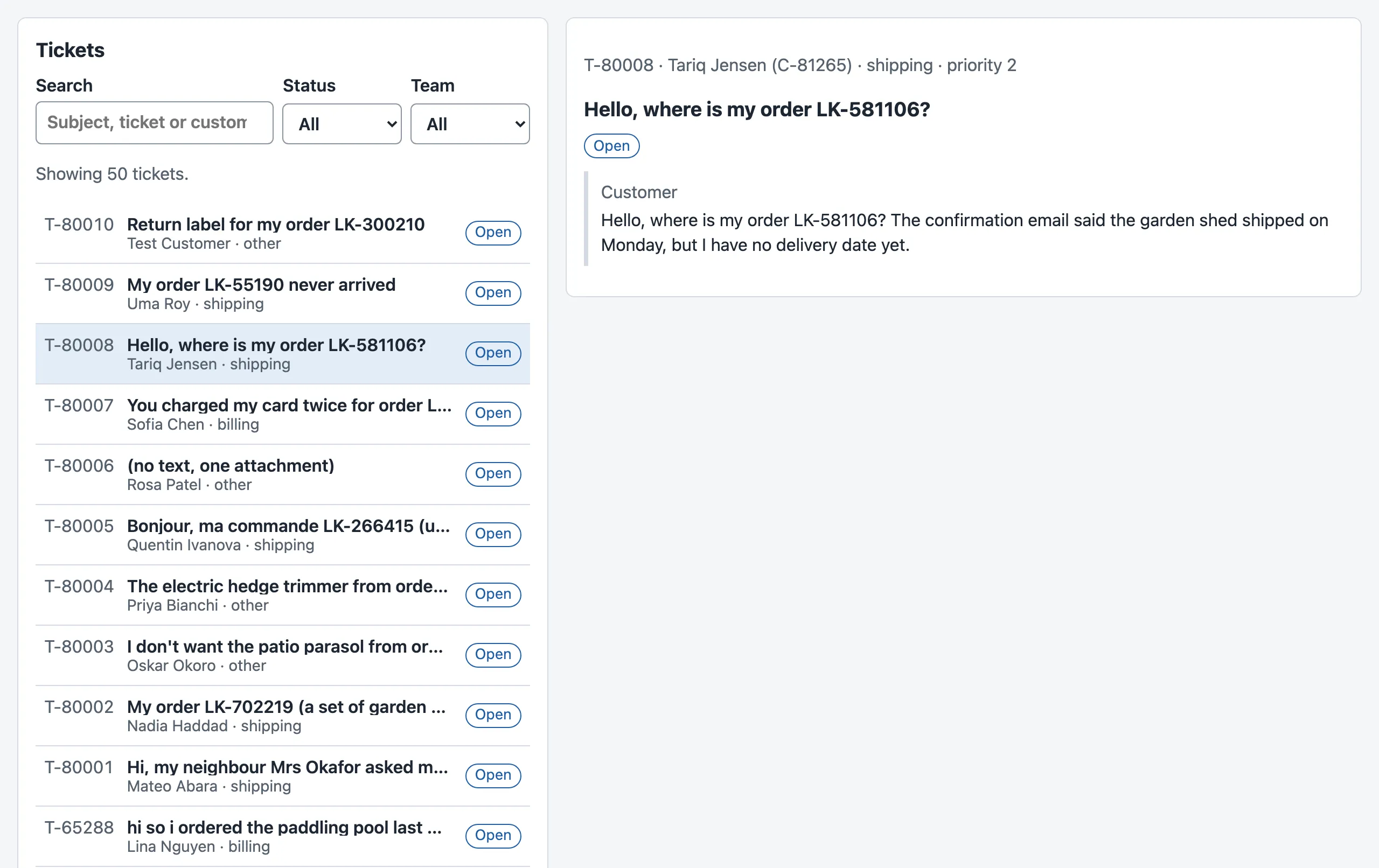
Who owns each value
Section titled “Who owns each value”Now the module’s question can be answered for the whole desk. Every value that can change has exactly one owner, and every other place receives it as a prop or computes it.

Text description of the diagram
Two sources are outside React. The address bar owns the route: App reads it with useRoute and never copies it into state. The ticket API owns the tickets: TicketList and TicketView load them with useApi. App passes selectedId to the list and ticketId to the view. TicketList owns one value of state, filter, and passes it to TicketFilters with onChange. Each TicketRow gets a ticket and a derived selected. NewTicketForm, on its own page, owns the form’s values and its sending state. Later lessons add MessageForm and DraftPanel under the ticket view.
When to use an effect, and what it costs. Use an effect to keep something outside React in step: data for the current filter, a connection that follows the open ticket, a timer. Do not use one for derived values, or for what a person did, such as sending a form: that belongs in the event handler. Every effect is a place where timing bugs live: list its dependencies in full, and clean up what it starts. useApi still lacks things: going back to a ticket loads it again, and nothing refreshes the list after a change. Local versus server state replaces it with a library, TanStack Query, and the race lab there compares all three ways.
Common mistake
A dependency that is missing from the list
Symptom: Sam writes the list’s dependencies as [filter.q]. Search works. But when they choose pending in Status, the list does not change. It changes only at the next key press in the search box.
Cause: the effect uses filter.status, but React does not know that. After the draw, it compares only filter.q, sees no change, and does not run the effect. The screen shows the answer to an older question again, with no error.
Fix: list every value from props or state that the effect reads: here filter.status, filter.team and filter.q. Do not list the whole filter object only to be safe. React compares objects by identity, so a new object with the same values runs the effect again. The comment at the end of useApi is there for this reason.
Consequence in AI work: in Module 4, an effect follows the stream of the open ticket’s draft. With ticketId missing from its dependencies, the panel would keep showing the draft of the ticket that you opened before, under the heading of the new one.
Knowledge check
Section titled “Knowledge check”Check your understanding
Predict: you type one letter in the search box of the finished desk. Which components does React call again, and how many requests does the list send?
Show the answer
TicketList’s state filter changes, so React calls TicketList and all its children again: TicketFilters, 50 TicketRow components and their badges. That is normal and cheap (about 0.12 ms per key press in the course team’s measurement). filter.q changed, so the effect in useApi runs: its cleanup aborts the open request, if any, and one new request is sent. App and TicketView are not called: they are above or beside the list.
Does your answer have the main points of ours?
Sign in and enroll in the course to save your answers. Every check counts toward the certificate.
Check your understanding
Explain the stale-response race in the desk, and how the cleanup prevents it.
Show the answer
Each key press starts a request. The short search p matches many tickets, so its answer takes about 900 ms, longer than the later searches. Without cleanup, every answer calls setPage when it arrives. The answer for p arrives last, so the box says parcel while the list shows the results for p (10 of 10 times in the course team’s run). With cleanup, React calls the previous run’s controller.abort() before each new run. The browser closes the old request, and useApi ignores any answer whose signal is aborted, so only the newest search can set the state.
Does your answer have the main points of ours?
Sign in and enroll in the course to save your answers. Every check counts toward the certificate.
Check your understanding
Tomás wants to store the number of tickets in its own state, and to wrap every component in memo. What do you tell him?
Show the answer
The number is a derived value: tickets.data.items.length. Compute it while drawing; a second copy in state can disagree with the list. For memo, measure first. Drawing 50 rows again cost 0.12 ms per key press, far below what a person can see. Moving the state down removed the extra draws with no new code: 0.4 ms for 20 key presses, against 0.7 ms with memo. Use memo only where a measurement shows a slow component.
Does your answer have the main points of ours?
Sign in and enroll in the course to save your answers. Every check counts toward the certificate.
Module practice: split a large assistant screen
Section titled “Module practice: split a large assistant screen”Tomás wrote a first screen for the AI draft as one large component, AssistantScreen: the ticket’s header, the customer’s message, the draft with Use the draft, a reply box with a character count, and a note. Its data is T-80008 and its real recorded draft. Put it into src/practice/AssistantScreen.tsx, and show it in App.tsx in place of NewTicketForm while you work.
The large component (start)
// Module 2 practice: one large screen. Split it into small components.// The ticket and the draft are T-80008 and its recorded AI draft from the mock API's data.import { useState } from 'react';import { StatusBadge } from '../ui/StatusBadge';
const TICKET = {  ticket_id: 'T-80008',  customer_name: 'Tariq Jensen',  subject: 'Hello, where is my order LK-581106?',  status: 'open' as const,  body: 'Hello, where is my order LK-581106? The confirmation email said the garden shed shipped on Monday, but I have no delivery date yet.',};const DRAFT = {  reply: 'I’m sorry you haven’t received a delivery date for your garden shed. Our delivery team can help check the shipment and tracking information for your order.',  confidence: 'high',  needs_human: false,};const MAX = 600;
export function AssistantScreen() {  const [reply, setReply] = useState('');  const [note, setNote] = useState('');  const [sent, setSent] = useState<string | null>(null);
  return (    <article className="ticket">      <header>        <p className="muted">          {TICKET.ticket_id} · {TICKET.customer_name}        </p>        <h2>{TICKET.subject}</h2>        <StatusBadge status={TICKET.status} />      </header>      <div className="message message-customer">        <p className="muted">Customer</p>        <p>{TICKET.body}</p>      </div>      <section className="draft" aria-label="AI draft">        <p className="muted">          AI draft · confidence {DRAFT.confidence}          {DRAFT.needs_human ? ' · a person must check it' : ''}        </p>        <p>{DRAFT.reply}</p>        <button type="button" onClick={() => setReply(DRAFT.reply)}>          Use the draft        </button>      </section>      <form        className="form"        onSubmit={(e) => {          e.preventDefault();          setSent(reply);          setReply('');        }}      >        <label htmlFor="reply">Reply to the customer</label>        <textarea id="reply" rows={4} value={reply} onChange={(e) => setReply(e.target.value)} />        <p className="muted">          {reply.length} of {MAX} characters        </p>        <button type="submit" disabled={reply.trim() === '' || reply.length > MAX}>          Send reply        </button>      </form>      {sent && <p role="status">Sent: {sent}</p>}      <label className="form">        Note for the team        <input value={note} onChange={(e) => setNote(e.target.value)} />      </label>    </article>  );}
Guided practice: the first piece. Take out the header, step by step, and check the screen after each step.
-
Find the values that the header reads:
TICKET.ticket_id,TICKET.customer_name,TICKET.subjectandTICKET.status. They are all one object, so the new component takes one prop,ticket. -
Ask whether the header changes any state. It does not, so it needs no function prop and no state.
-
Write the component above
AssistantScreen, with the header’s JSX, andticket.in place ofTICKET.:function TicketHeader({ ticket }: { ticket: typeof TICKET }) {return (<header><p className="muted">{ticket.ticket_id} · {ticket.customer_name}</p><h2>{ticket.subject}</h2><StatusBadge status={ticket.status} /></header>);} -
In
AssistantScreen, replace the whole<header>…</header>with<TicketHeader ticket={TICKET} />. -
Reload the page. The screen looks exactly the same:
T-80008 · Tariq Jensen, the subject and the Open label. Runnpx tsc --noEmit: no output.
Independent task. Split the rest of AssistantScreen into small components: the customer’s message, the draft box, the reply form and the note. Then, for each value that a person can change, write down its one owner. Decide by asking two questions: which components read the value, and which change it? Expected result: the screen looks and works as before. Use the draft fills the reply box, the count follows (155 of 600 characters for the draft), Send reply shows the text and empties the box, and the note keeps its text.
A worked solution
function CustomerMessage({ body }: { body: string }) {  return (    <div className="message message-customer">      <p className="muted">Customer</p>      <p>{body}</p>    </div>  );}
function DraftBox({ draft, onUse }: { draft: typeof DRAFT; onUse: (text: string) => void }) {  return (    <section className="draft" aria-label="AI draft">      <p className="muted">        AI draft · confidence {draft.confidence}        {draft.needs_human ? ' · a person must check it' : ''}      </p>      <p>{draft.reply}</p>      <button type="button" onClick={() => onUse(draft.reply)}>        Use the draft      </button>    </section>  );}
function ReplyForm({ value, onChange, onSend }: { value: string; onChange: (v: string) => void; onSend: () => void }) {  const tooLong = value.length > MAX; // derived from the prop: no state needed  return (    <form      className="form"      onSubmit={(e) => {        e.preventDefault();        onSend();      }}    >      <label htmlFor="reply">Reply to the customer</label>      <textarea id="reply" rows={4} value={value} onChange={(e) => onChange(e.target.value)} />      <p className="muted">        {value.length} of {MAX} characters      </p>      <button type="submit" disabled={value.trim() === '' || tooLong}>        Send reply      </button>    </form>  );}
function NoteBox() {  const [note, setNote] = useState('');  return (    <label className="form">      Note for the team      <input value={note} onChange={(e) => setNote(e.target.value)} />    </label>  );}
export function AssistantScreen() { const [reply, setReply] = useState(''); const [sent, setSent] = useState<string | null>(null); return ( <article className="ticket"> <TicketHeader ticket={TICKET} /> <CustomerMessage body={TICKET.body} /> <DraftBox draft={DRAFT} onUse={setReply} /> <ReplyForm value={reply} onChange={setReply} onSend={() => { setSent(reply); setReply(''); }} /> {sent && <p role="status">Sent: {sent}</p>} <NoteBox /> </article> );}| Value | Read by | Changed by | One owner |
|---|---|---|---|
| the reply text | ReplyForm |
ReplyForm (typing), DraftBox (Use the draft), AssistantScreen (after sending) |
state in AssistantScreen, the closest common parent |
| the note | NoteBox |
NoteBox |
state in NoteBox: nothing else needs it, so it moved down |
| the last sent reply | AssistantScreen |
AssistantScreen |
state in AssistantScreen |
| the character count, “too long”, “Send” enabled | ReplyForm |
nobody | derived from the reply: not state |
| the ticket and the draft | the header, the message, the draft box | nobody here | the API (here, constants); later the server and the stream |
The note moved down, so typing in it no longer draws the rest of the screen. The course team checked the start file and this solution with the same two Testing Library tests: both pass.
Completion check: one source of truth for each editable value. Tomás changes one line of the solution’s ReplyForm: const [text, setText] = useState(value);, and the form then shows text and calls both setText and onChange when you type. He types Thanks, deletes it, and presses Use the draft. Predict what the reply box shows, explain why, and name the one owner of the reply text.
The answer
The box stays empty, and the count stays 0 of 600 characters. Both of the course team’s practice tests fail: the box ignores Use the draft, and after Send reply it keeps its text. useState(value) copies the prop once, at the first draw, when it was ''. Use the draft changes reply in AssistantScreen. The new prop arrives, but nothing reads it. Two copies of one value disagree, with no error. The one owner is the state reply in AssistantScreen; ReplyForm must show the prop value and report changes with onChange. The same holds for every editable value of the desk: filter in TicketList, the values in NewTicketForm, the note in NoteBox.
Remove src/practice/ and put NewTicketForm back in App.tsx when you are done; the snapshot end-of-m02 does not have them. To start again from a clean state, download the snapshot end-of-m02 and run npm install in it.
Recap
This lesson
- React draws a component again when its state changes or its parent draws. That is normal and usually cheap: 1,000 row draws cost 2.4 ms. Measure before you add
memo; moving state down is often the better fix. - A derived value is computed while drawing (
items.length,selected,tooLong). Never store a copy of it in state. - An effect runs after drawing to keep something outside React in step. Its dependencies list every value that it reads; React runs it again when one changes.
- Without cleanup, an old, slow answer can replace a new one: 10 of 10 searches for “parcel” showed the results for “p”. With
AbortControllerin the cleanup, 0 of 10 did, and the old requests were closed early.
This module
- The desk is a tree of components: props go down, events go up, and each editable value has one owner.
- The code is sorted by responsibility:
api/talks to the API,ui/holds reusable pieces,features/holds the screens, andlib/holds general tools such asuseApi. - The project now matches the snapshot
end-of-m02: 35 checks innpm test(21 for the mock API and 14 for the interface).
Next, you separate what the agent chose on the screen from what the server stores, and a library takes over loading, caching and cancelling.