
React basics
- Lesson 5
- 75 min
- Module 2: Components and application structure
Lesson 5 of 19 · Frontend Architecture and Performance for AI AppsReact basics
1. Web foundations bridge
2. Components and application structure
3. Data fetching and state management
4. AI-specific interaction states
5. Performance and scalability
6. Security, accessibility and handoff
What you will be able to do
Turn the ticket desk into a React interface. You describe what the screen shows for the data that you have, and React keeps the page in step when the data changes.
Before you startWhat to know and to have ready
What you need to know
- HTML forms, labels and CSS classes, from HTML and CSS essentials.
- Functions, arrays, objects,
map, events andasync/await, from JavaScript essentials. - The DOM,
npm, Vite and TypeScript types, from Browser and build tools.
What you need on your computer
- Node.js 24 (LTS) and the project folder
ticket-deskat the end of Module 1. If your copy is broken or missing, download the snapshotend-of-m01again, as in Set up the ticket desk, and runnpm installin it. - Two terminals in the project folder. In the first one, the mock API runs:
npm run api. - About 45 MB of free disk space for the new packages, and a network connection for the installs.
Tested with Node.js 24.18.0, npm 11.16.0, React 19.3.0 and Vite 8.3.4 on macOS (Apple silicon) in Chromium. On Windows (PowerShell) and Linux, the commands are the same npm commands; they were not run there.
A spreadsheet that updates itself
Section titled “A spreadsheet that updates itself”Think of a budget in a spreadsheet. Cell B5 holds the total: =B1+B2+B3+B4. When you change the rent in B2, the total changes too. You never go to B5 and type the new total yourself. You described the total once, as a rule, and the spreadsheet keeps it right.
Now think of the same budget on paper. Every time a number changes, you must find each place that depends on it and correct it by hand. If you forget one place, the paper is wrong, and nothing tells you.
The problem: keeping the page in step by hand
Section titled “The problem: keeping the page in step by hand”The TypeScript page from Module 1 works like the paper budget. Open src/main.ts. It changes the page in six places: two calls to list.replaceChildren(...) and four lines that set answer.textContent. Each line is a correction by hand, and each one must run at the right moment.
answer.textContent = 'Sending…';// …answer.textContent = `Saved as ${result.ticket_id}. AI work: ${result.state} (job ${result.job_id}).`;form.reset();void showTickets(); // the list must be loaded and drawn again, by handGrace wants much more than this page: filters, a ticket view, errors with a Try again button, and a draft that appears word by word. With code like main.ts, every change of the data needs its own DOM update, in every place that shows that data. Forget one, and the screen shows old data. Sam counts what Module 4 alone needs: a draft panel with eight situations, from “waiting” to “stopped” and “failed”. “I cannot write all those updates by hand and get every one right,” they say.
The idea: describe the screen, let React update it
Section titled “The idea: describe the screen, let React update it”React is a JavaScript library that works like the spreadsheet. You write a function that says what the screen looks like for some data. When the data changes, React calls your function again and changes the page only where the result is different. You do not write replaceChildren or textContent any more.
Such a function is a component: a piece of the screen with a name, written as a function that returns what to show. Its inputs are props (short for properties): the values that its parent gives it. Its own memory is state: values that the component keeps between draws and that can change, such as the text in a box. When state changes, React draws the component again. That is where the name comes from: the screen reacts to the data.
A tiny example: a status label
Section titled “A tiny example: a status label”Here is the smallest component of the desk. It shows a ticket’s status as a coloured label:
import type { Status } from './types';
const LABELS: Record<Status, string> = { open: 'Open', pending: 'Pending', resolved: 'Resolved', closed: 'Closed' };
/** A ticket's status as a small coloured label. The word is always visible, not only the colour. */export function StatusBadge({ status }: { status: Status }) {  return <span className={`badge badge-${status}`}>{LABELS[status]}</span>;}
The part that looks like HTML is JSX: HTML-like tags inside JavaScript, which the build turns into function calls. Two details differ from HTML. You write className instead of class, because class is a reserved word in JavaScript. And curly braces {…} put a JavaScript value into the tags.
Follow one use, with every value visible. A parent writes <StatusBadge status="pending" />:
| Step | Value |
|---|---|
| The prop that arrives | status is "pending" |
`badge badge-${status}` |
"badge badge-pending" |
LABELS[status] |
"Pending" |
| What React puts in the page | <span class="badge badge-pending">Pending</span> |
A component’s name starts with a capital letter. That is how JSX tells your components (<StatusBadge>) from HTML tags (<span>). The file name ends in .tsx, because the file is TypeScript with JSX.
Components inside components
Section titled “Components inside components”Components use other components, as HTML elements contain other elements. A ticket row shows the ticket’s number, subject, customer and team, and it uses StatusBadge for the status:
import { StatusBadge } from './StatusBadge';import type { TicketSummary } from './types';
/** One ticket in the list. */export function TicketRow({ ticket }: { ticket: TicketSummary }) {  return (    <div className="row">      <span className="row-id">{ticket.ticket_id}</span>      <span className="row-subject">{ticket.subject}</span>      <span className="row-meta">        {ticket.customer_name} · {ticket.team}      </span>      <StatusBadge status={ticket.status} />    </div>  );}
The whole desk is a tree of components. App is the root. It shows TicketList and NewTicketForm. The list shows the filters and 50 rows, and each row shows a badge. Data goes down the tree as props. When a key is pressed lower down, the child calls a function that its parent gave it: events go up.

Text description of the diagram
App is at the top and owns nothing. It has two children. TicketList owns three values of state: the filter, the tickets that it loaded and an error text. It gives TicketFilters the filter (value) and two functions (onChange and onSearch), and it gives each of the 50 TicketRow components one ticket. Each row gives its StatusBadge a status. NewTicketForm owns the form’s values, the errors, whether it is sending, and the API’s answer or failure. When you type in a filter, TicketFilters calls onChange, a function that belongs to TicketList. The event goes up, and the new filter comes back down as a prop.
State: what a component remembers
Section titled “State: what a component remembers”A component is a function, and a function forgets everything when it returns. So where does the text that you typed live? It lives in state. You ask React for it with useState:
const [values, setValues] = useState<NewTicket>({ customer_id: '', subject: '', body: '' });useState gives back two things: the current value, values, and a function that changes it, setValues. React keeps the value for this component between draws. You never change values directly. You call setValues with the new value, and React then calls the component again with that value. A function such as useState, whose name starts with use, is a hook: it lets a component use a feature of React. Call hooks at the top of the component, never inside an if or a loop, because React finds each hook’s value by its order.
Events and controlled inputs
Section titled “Events and controlled inputs”In Module 1 you wrote form.addEventListener('submit', …). In JSX, you give the handler as a prop: onClick={…}, onChange={…} or onSubmit={…}. React calls it when the event happens.
A form input can now get its value from state. This is a controlled input: the state is the single place where the text lives, and the input only shows it.
<input id="new-customer_id" value={values.customer_id} onChange={(e) => setValues({ ...values, customer_id: e.target.value })} />Follow one key press. The box is empty, and you type C:

Text description of the diagram
Step 1: you type C in the Customer ID box. Step 2: the onChange handler calls setValues with customer_id: 'C'; the subject and the message stay empty strings. Step 3: React calls NewTicketForm again, and this time values.customer_id is 'C'. Step 4: React compares the new result with the page and changes only the input’s value, which now shows C. The next key press goes round the same loop.
Why go round a loop for one letter? Because now your code always knows the text. The form can check it, clear it after sending, or fill it from somewhere else, each with one call to setValues. { ...values, customer_id: … } makes a new object: a copy of values with one field changed. React compares the old object and the new one to see that something changed. So always give setValues a new object, and never change the old one.
Lists and keys
Section titled “Lists and keys”The list draws one row per ticket with map, as you did with arrays in Module 1:
<ul className="rows"> {tickets.map((t) => ( <li key={t.ticket_id}> <TicketRow ticket={t} /> </li> ))}</ul>Each item gets a key: a value that is unique in the list and stays with the same item. When the list changes, React matches the items of the new draw with the old ones by their keys. A ticket that moved down keeps its row; only new tickets get new rows. The ticket number is a good key. The position in the list (0, 1, 2…) is a bad one. When a new ticket arrives at the top, every position changes, and React matches the wrong rows.
Lifting state up
Section titled “Lifting state up”The filters need state: the search text, the status and the team. But the list needs the same values to load the right tickets. Two components cannot each own a copy of one value, or the copies drift apart. So the filter lives in the closest parent of both, TicketList. TicketFilters gets the value and the functions to change it and to search, as props:
<TicketFilters value={filter} onChange={setFilter} onSearch={search} />This move has a name: lifting state up. TicketFilters owns no state at all; it shows value and calls onChange. Keep one question in mind for the whole module: for each value that can change, which one component owns it?
Build it: the desk in React
Section titled “Build it: the desk in React”You turn the TypeScript page into the React desk. The four files of Module 1’s page (src/main.ts, src/api.ts, src/types.ts and src/api.test.ts) change or leave.
-
In the second terminal, check that you are in the project folder:
ls(Windows:dir) showspackage.jsonandmock-api. -
Install React, the library that draws the components into the page:
Terminal window npm install --save-exact react@19.3.0 react-dom@19.3.0added 3 packages, and audited 42 packages in 537ms12 packages are looking for fundingrun `npm fund` for detailsfound 0 vulnerabilitiesreactholds the components and hooks;react-domputs them into a browser page.--save-exactwrites the exact version intopackage.json, so every copy of the project gets the same one. On macOS, npm 11 may also printnpm warn allow-scriptsaboutfsevents; you do not need to act on it. -
Install the tools that only you, the developer, need: Vite’s React plugin, React’s types for TypeScript, and the test tools. It is one long line:
Terminal window npm install --save-dev --save-exact @vitejs/plugin-react@6.1.2 @types/react@19.3.0 @types/react-dom@19.3.0 jsdom@30.1.2 @testing-library/react@16.3.3 @testing-library/dom@10.4.2 @testing-library/jest-dom@7.0.1 @testing-library/user-event@14.6.7added 63 packages, and audited 105 packages in 5s21 packages are looking for fundingrun `npm fund` for detailsfound 0 vulnerabilitiesnode_modulesgrows from 64 MB to 107 MB. -
Open
package.json. Change"version": "0.1.0"to"version": "0.2.0": this is a new stage of the project. -
Open
tsconfig.json. IncompilerOptions, after the line"moduleResolution": "bundler",, add"jsx": "react-jsx",. It tells TypeScript how to read JSX. -
Replace
vite.config.tswith this version. The React plugin turns JSX into JavaScript. The test part runs the tests in jsdom, a page that lives in memory, because components need a DOM.vite.config.ts import { defineConfig } from 'vitest/config';import react from '@vitejs/plugin-react';export default defineConfig({plugins: [react()],server: { port: 5173, strictPort: true },preview: { port: 4173, strictPort: true },test: {environment: 'jsdom',include: ['src/**/*.test.{ts,tsx}'],setupFiles: ['src/test/setup.ts'],},}); -
Open
index.html. Replace everything between<body>and</body>with one empty element and the new script. React fills the element.index.html (inside body) <div id="root"></div><script type="module" src="/src/main.tsx"></script> -
Delete
src/main.ts. Createsrc/main.tsx:src/main.tsx import { StrictMode } from 'react';import { createRoot } from 'react-dom/client';import { App } from './App';import './styles.css';createRoot(document.getElementById('root')!).render(<StrictMode><App /></StrictMode>,);createRootconnects React to<div id="root">.StrictModeadds extra checks while you develop; Rendering and effects shows one of them. -
Replace the content of
src/types.tswith the filesrc/api/types.tsof the snapshotend-of-m02. It adds the exact lists of teams and statuses, the ticket with its messages, andTicketFilter. -
Replace
src/api.tsandsrc/api.test.tswith the versions in the box below.loadTicketsnow sends the filters.ticketLineleaves, because components draw the rows now. -
Create the components:
src/StatusBadge.tsxandsrc/TicketRow.tsx(above), andsrc/TicketFilters.tsx,src/TicketList.tsx,src/NewTicketForm.tsxandsrc/App.tsx(in the box below). -
Create the test helpers
src/test/setup.tsandsrc/test/fakeApi.ts: copy them from the snapshotend-of-m02, and infakeApi.tschange the import tofrom '../types'. Then createsrc/TicketList.test.tsxandsrc/NewTicketForm.test.tsx(in the box below).
The files of steps 10 to 12
// The requests to the ticket API. The page and the API are on different addresses// (Vite on localhost:5173, the API on 127.0.0.1:8100), so every request uses the full address.import type { NewTicket, TicketAccepted, TicketFilter, TicketPage, TicketSummary } from './types';
export const API_URL: string = import.meta.env.VITE_API_URL ?? 'http://127.0.0.1:8100';
/** Reads the first tickets that match the filter. */export async function loadTickets(filter: TicketFilter, limit: number): Promise<TicketSummary[]> {  const query = new URLSearchParams({ limit: String(limit) });  if (filter.status) query.set('status', filter.status);  if (filter.team) query.set('team', filter.team);  if (filter.q.trim()) query.set('q', filter.q.trim());  const response = await fetch(`${API_URL}/v1/tickets?${query}`);  if (!response.ok) {    throw new Error(`The API answered ${response.status}`);  }  const page = (await response.json()) as TicketPage;  return page.items;}
/** Sends a new ticket. The answer is the saved ticket, or the API's error in words. */export async function sendTicket(ticket: NewTicket): Promise<TicketAccepted | string> { const response = await fetch(`${API_URL}/v1/tickets`, { method: 'POST', headers: { 'Content-Type': 'application/json' }, body: JSON.stringify(ticket), }); const body = await response.json(); if (response.ok) return body as TicketAccepted; const { error } = body as { error: { message: string; fields: string[] } }; return `Not saved: ${error.message} Fields: ${error.fields.join(', ')}`;}// Tests for the requests, with a fake fetch: no API needs to run.import { afterEach, expect, test, vi } from 'vitest';import { loadTickets, sendTicket } from './api';
afterEach(() => vi.unstubAllGlobals());
const ticket = { ticket_id: 'T-80008', customer_id: 'C-0022', customer_name: 'Ana Silva', subject: 'Parcel lost', team: 'shipping', priority: 2, status: 'open', created_at: '2026-01-05T10:00:00Z',};
test('loadTickets asks for one page with the filters that are set', async () => { const fetch = vi.fn(async () => new Response(JSON.stringify({ items: [ticket], next: null }))); vi.stubGlobal('fetch', fetch); expect(await loadTickets({ status: 'open', team: '', q: ' parcel ' }, 10)).toEqual([ticket]); expect(fetch).toHaveBeenCalledWith('http://127.0.0.1:8100/v1/tickets?limit=10&status=open&q=parcel');});
test('loadTickets fails with the status when the API answers an error', async () => { vi.stubGlobal('fetch', async () => new Response('{}', { status: 503 })); await expect(loadTickets({ status: '', team: '', q: '' }, 10)).rejects.toThrow('The API answered 503');});
test('sendTicket gives back the API error in words', async () => { const body = { error: { code: 'validation_error', message: 'The ticket is not valid.', request_id: 'r1', fields: ['customer_id'] } }; vi.stubGlobal('fetch', async () => new Response(JSON.stringify(body), { status: 422 })); expect(await sendTicket({ customer_id: 'x', subject: 's', body: 'b' })).toBe('Not saved: The ticket is not valid. Fields: customer_id');});import { STATUSES, TEAMS, type TicketFilter } from './types';
interface Props { value: TicketFilter; onChange: (next: TicketFilter) => void; onSearch: () => void;}
/** The filters above the list. The parent owns the values; this component only shows and changes them. */export function TicketFilters({ value, onChange, onSearch }: Props) { return ( <form className="filters" role="search" onSubmit={(e) => { e.preventDefault(); onSearch(); }} > <label> Search <input type="search" value={value.q} onChange={(e) => onChange({ ...value, q: e.target.value })} placeholder="Subject, ticket or customer" /> </label> <label> Status <select value={value.status} onChange={(e) => onChange({ ...value, status: e.target.value as TicketFilter['status'] })}> <option value="">All</option> {STATUSES.map((s) => ( <option key={s} value={s}> {s} </option> ))} </select> </label> <label> Team <select value={value.team} onChange={(e) => onChange({ ...value, team: e.target.value as TicketFilter['team'] })}> <option value="">All</option> {TEAMS.map((t) => ( <option key={t} value={t}> {t} </option> ))} </select> </label> <button type="submit">Search</button> </form> );}import { useState } from 'react';import { loadTickets } from './api';import { TicketFilters } from './TicketFilters';import { TicketRow } from './TicketRow';import type { TicketFilter, TicketSummary } from './types';
export const NO_FILTER: TicketFilter = { status: '', team: '', q: '' };
/** The first 50 tickets that match the filters. For now, it loads them when you press Search. */export function TicketList() { const [filter, setFilter] = useState<TicketFilter>(NO_FILTER); const [tickets, setTickets] = useState<TicketSummary[] | null>(null); const [failure, setFailure] = useState<string | null>(null);
async function search() { setFailure(null); try { setTickets(await loadTickets(filter, 50)); } catch (error) { setFailure(`Could not load the tickets. ${(error as Error).message}`); } }
return ( <section className="list" aria-labelledby="list-heading"> <h2 id="list-heading">Tickets</h2> <TicketFilters value={filter} onChange={setFilter} onSearch={search} /> {failure && ( <p className="error" role="alert"> {failure} </p> )} {tickets === null ? ( <p className="muted">Press Search to load the tickets.</p> ) : ( <> <p className="muted">{tickets.length === 0 ? 'No ticket matches.' : `Showing ${tickets.length} tickets.`}</p> <ul className="rows"> {tickets.map((t) => ( <li key={t.ticket_id}> <TicketRow ticket={t} /> </li> ))} </ul> </> )} </section> );}import { useState, type FormEvent } from 'react';import { sendTicket } from './api';import type { NewTicket, TicketAccepted } from './types';
const EMPTY: NewTicket = { customer_id: '', subject: '', body: '' };
/** The checks that the browser can do before it sends the form. The API checks again. */export function validate(t: NewTicket): Partial<Record<keyof NewTicket, string>> { const errors: Partial<Record<keyof NewTicket, string>> = {}; if (!/^C-\d{4,5}$/.test(t.customer_id.trim())) errors.customer_id = 'Write a customer ID such as C-0022.'; if (!t.subject.trim()) errors.subject = 'Write a subject.'; else if (t.subject.length > 120) errors.subject = 'Use 120 characters or fewer.'; if (!t.body.trim()) errors.body = 'Write the customer’s message.'; return errors;}
/** A form for a ticket that came in by phone. Every input is controlled: React state owns its value. */export function NewTicketForm() { const [values, setValues] = useState<NewTicket>(EMPTY); const [errors, setErrors] = useState<ReturnType<typeof validate>>({}); const [sending, setSending] = useState(false); const [answer, setAnswer] = useState<TicketAccepted | null>(null); const [failure, setFailure] = useState<string | null>(null);
async function onSubmit(event: FormEvent) { event.preventDefault(); const found = validate(values); setErrors(found); if (Object.keys(found).length > 0) return; setSending(true); setFailure(null); try { const result = await sendTicket({ ...values, customer_id: values.customer_id.trim() }); if (typeof result === 'string') { setFailure(result); } else { setAnswer(result); setValues(EMPTY); } } catch { setFailure('The ticket was not sent. Is the API running?'); } finally { setSending(false); } }
const field = (name: keyof NewTicket) => ({ id: `new-${name}`, value: values[name], 'aria-invalid': errors[name] ? true : undefined, 'aria-describedby': errors[name] ? `new-${name}-error` : undefined, onChange: (e: { target: { value: string } }) => setValues({ ...values, [name]: e.target.value }), }); const error = (name: keyof NewTicket) => errors[name] && ( <p className="field-error" id={`new-${name}-error`}> {errors[name]} </p> );
return ( <section className="card" aria-labelledby="new-heading"> <h2 id="new-heading">New ticket</h2> <form onSubmit={onSubmit} noValidate className="form"> <label htmlFor="new-customer_id">Customer ID</label> <input {...field('customer_id')} placeholder="C-0022" /> {error('customer_id')} <label htmlFor="new-subject">Subject</label> <input {...field('subject')} /> {error('subject')} <label htmlFor="new-body">Message</label> <textarea {...field('body')} rows={4} /> {error('body')} <button type="submit" disabled={sending}> {sending ? 'Sending…' : 'Send ticket'} </button> </form> {failure && ( <p className="error" role="alert"> {failure} </p> )} {answer && ( <p role="status"> Saved as {answer.ticket_id}. The AI work is {answer.state} (job {answer.job_id}). </p> )} </section> );}import { NewTicketForm } from './NewTicketForm';import { TicketList } from './TicketList';
/** The page: a header, the ticket list and the form for a new ticket. */export function App() { return ( <> <header className="top"> <h1>Larkfield ticket desk</h1> </header> <main className="layout"> <TicketList /> <NewTicketForm /> </main> </> );}import { render, screen } from '@testing-library/react';import userEvent from '@testing-library/user-event';import { expect, test } from 'vitest';import { apiError, installFakeApi, json, ticket } from './test/fakeApi';import { TicketList } from './TicketList';
test('shows the tickets after Search', async () => { installFakeApi(() => json(200, { items: [ticket(1), ticket(2, { status: 'pending' })], next: null })); render(<TicketList />); await userEvent.click(screen.getByRole('button', { name: 'Search' })); expect(await screen.findByText('Ticket number 1')).toBeInTheDocument(); expect(screen.getByText('Pending')).toBeInTheDocument();});
test('says so when the API fails', async () => { installFakeApi(() => apiError(503, 'unavailable', 'The ticket service is not available.')); render(<TicketList />); await userEvent.click(screen.getByRole('button', { name: 'Search' })); expect(await screen.findByRole('alert')).toHaveTextContent('Could not load the tickets. The API answered 503');});src/NewTicketForm.test.tsx is the file src/features/jobs/NewTicketForm.test.tsx of the snapshot end-of-m02, with the import changed to from './test/fakeApi'.
In NewTicketForm, field('subject') returns the props of one input: its id, value, onChange, and two accessibility attributes when the field has an error. {...field('subject')} spreads them onto the input. {failure && <p …>} shows the paragraph only when failure has a value. noValidate turns off the browser’s own messages, because the form shows its own.
Test a component like a user
Section titled “Test a component like a user”Testing Library tests a component the way a person uses it. It finds elements by their role and their label, and it types and clicks. It never looks at the component’s state. Read the second test of NewTicketForm.test.tsx:
render(<NewTicketForm />);await userEvent.click(screen.getByRole('button', { name: 'Send ticket' }));expect(screen.getByLabelText('Customer ID')).toHaveAttribute('aria-invalid', 'true');expect(screen.getByText('Write a subject.')).toBeInTheDocument();expect(fake).not.toHaveBeenCalled();It presses Send ticket on an empty form. Then it checks what a person would see. The Customer ID box is marked as not valid, “Write a subject.” is on the screen, and no request was sent. installFakeApi replaces fetch with a fake, so no API needs to run. Run every test:
npm testThe end of the output:
ℹ tests 21ℹ pass 21ℹ fail 0
 RUN  v5.0.3 …/ticket-desk
 Test Files  3 passed (3)      Tests  8 passed (8)
The first part is the 21 checks of the mock API, run by Node.js’s own test runner. Then Vitest runs the 8 tests in src/: 3 for the requests, 2 for the list and 3 for the form.
Run the desk
Section titled “Run the desk”-
Check that the mock API runs in the first terminal. If it does not, start it:
npm run api. -
In the second terminal, start Vite:
npm run dev. It printsLocal: http://localhost:5173/. -
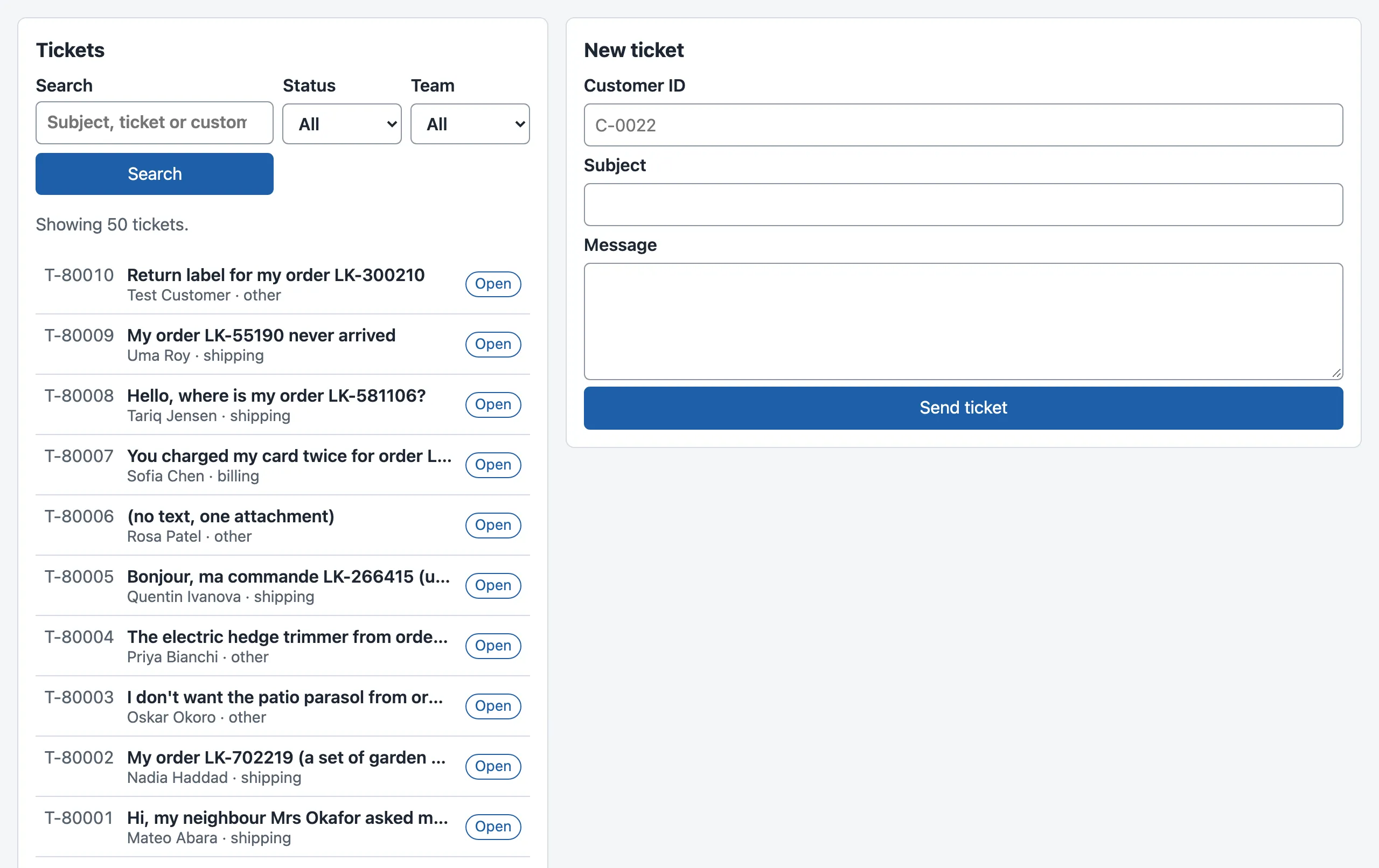
Open http://localhost:5173/. You see Press Search to load the tickets. and the empty form.
-
Press Search. The list shows
Showing 50 tickets.The first row isT-80010, the practice ticket. -
Choose pending in Status, then press Search again. Every row now has the label Pending.
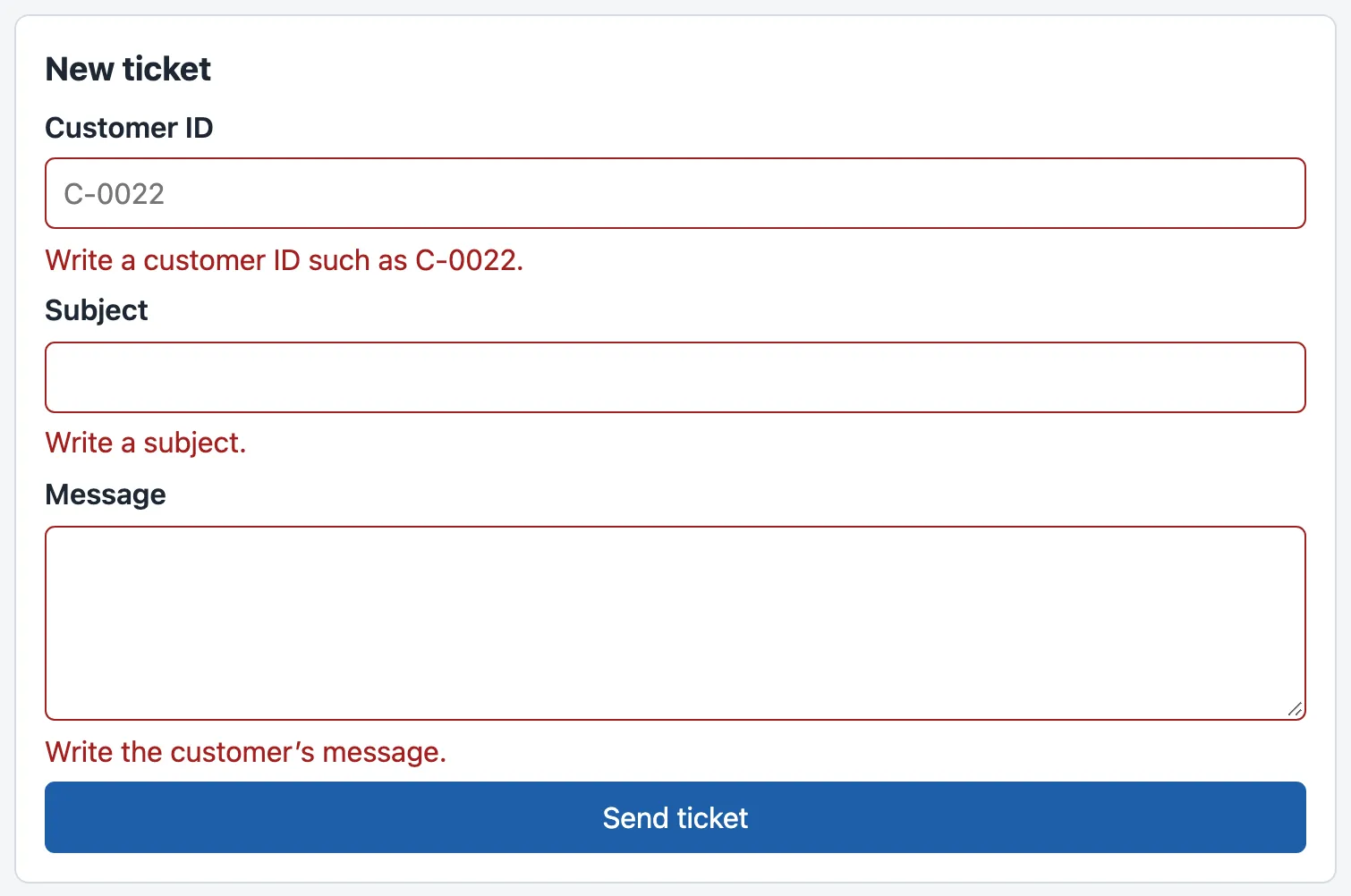
Now press Send ticket with the form empty. Each field shows its own message, and the mock API’s terminal shows no new POST line: the form sent nothing.
Fill in C-0022, Parcel lost and It did not arrive., then press Send ticket. The form empties itself, and a line says Saved as T-500001. The AI work is queued (job 1). The numbers grow by one for each ticket that you send while the mock API runs.
When to use React, and what it costs. Use it when a screen has many parts that depend on data that changes: lists, filters, forms and live updates. For a page with one form that never changes, plain HTML and a few lines of JavaScript are enough, as Module 1 showed. React has costs. Every visitor downloads it before the desk can draw: react-dom alone is 64.1 kB compressed, as Measure the browser shows. You also need a build step, and a new way to think: you describe, and React updates.
Common mistake
An input that does not let you type
Symptom: Sam writes the Subject box as <input id="new-subject" value={values.subject} />. The page shows the box, but typing does nothing: after typing Hello, the box is still empty. The browser’s console (Developer Tools › Console) shows an error:
You provided a `value` prop to a form field without an `onChange` handler. This will render a read-only field. If the field should be mutable use `defaultValue`. Otherwise, set either `onChange` or `readOnly`.Cause: the input is controlled, because its value comes from state. Typing fires a change event, but nothing calls setValues. So the state stays '', and React draws '' again.
Fix: give every controlled input both value and onChange, as the field() helper does. If an input does not need state, leave out value, and read the input when the form is sent, as Module 1 did with FormData.
Consequence in AI work: later in the course, a button Use the draft writes the AI’s draft into a reply box. That works only when the box is controlled. A box that keeps its own copy of the text does not show the draft.
Common mistake
A list without keys
Symptom: Tomás removes key={t.ticket_id}, because “the list works without it”. The rows do appear, but the console shows an error:
Each child in a list should have a unique "key" prop.
Check the render method of `TicketList`. See https://react.dev/link/warning-keys for more information.
Cause: without keys, React matches the rows of two draws by their position. When a new ticket arrives at the top, every position changes, and anything that a row remembers stays with the wrong ticket.
Fix: give each item a key that is unique in the list and belongs to the item: the ticket number. Do not use the position (index). Do not use Math.random() either: it makes a new key for every draw, so React draws every row from the start each time.
Knowledge check
Section titled “Knowledge check”Check your understanding
What is the difference between a prop and state? Give one example of each from the desk.
Show the answer
A prop is a value that the parent gives a component; the component only reads it. TicketRow gets ticket as a prop, and StatusBadge gets status. State is a value that a component owns and can change with its set function; a change makes React draw the component again. TicketList owns filter and tickets, and NewTicketForm owns values. The same value can be state in one component and a prop in its child: filter is state in TicketList and the prop value in TicketFilters.
Does your answer have the main points of ours?
Sign in and enroll in the course to save your answers. Every check counts toward the certificate.
Check your understanding
Predict: the Customer ID box is empty, and you type C. Which functions run, in which order, and what does values contain after the key press?
Show the answer
The input’s onChange handler runs and calls setValues({ ...values, customer_id: 'C' }). React then calls NewTicketForm again. In that draw, values is { customer_id: 'C', subject: '', body: '' }. React compares the result with the page and changes only the input, which now shows C. Nothing goes to the API: that happens only in onSubmit.
Does your answer have the main points of ours?
Sign in and enroll in the course to save your answers. Every check counts toward the certificate.
Check your understanding
Why does the filter live in TicketList and not in TicketFilters? What would go wrong if both kept a copy?
Show the answer
Two components need the filter: TicketFilters shows and changes it, and TicketList sends it with the request. A value has one owner, the closest common parent, so TicketList owns it and passes it down with onChange (lifting state up). With two copies, one would change when you type and the other would not. The search would then send an old filter, and the screen would show one thing while the request used another.
Does your answer have the main points of ours?
Sign in and enroll in the course to save your answers. Every check counts toward the certificate.
Recap
- A component is a function that returns what a part of the screen shows. Its props come from its parent. Its state is its own memory, changed only with the set function. When state changes, React calls the component again and updates the page.
- JSX is HTML-like tags in TypeScript (
className, and{…}for values). A file with JSX ends in.tsx. - Events are props such as
onClick,onChangeandonSubmit. Data goes down the tree; events go up through functions that the parent gave. - A controlled input shows state and changes it in
onChange, so one place holds the text. - Every item of a list needs a stable, unique key, such as the ticket number.
- When two components need the same value, lift the state up to their closest common parent.
- Testing Library tests a component as a person uses it: by roles, labels, typing and clicks.
The desk works, but all its files lie side by side in src/, and two components each handle the API’s errors in their own way. Next, you sort the code by responsibility, and you see why it matters on the first failing request.