
Frontend foundation
- Lesson 9
- 100 min
- Module 3: Build one complete user journey
Lesson 9 of 22 · Portfolio Capstone: Build, Evaluate and Ship an AI ProductFrontend foundation
1. Select and bound the project
2. Prepare data and architecture
3. Build one complete user journey
4. Add reliability and access control
5. Evaluate and improve
6. Deploy and operate
7. Prepare the portfolio presentation
What you will be able to do
Let Grace use the slice without a terminal: one plain page that uploads a document, shows its indexing status, asks a question, and shows the answer, an honest “no answer”, or a clear error.
Before you startWhat to know and to have ready
What you need to know
- How a browser talks to a server with HTTP, from Browser-to-server basics.
- Why a page and its API on the same address need no CORS settings, from Browser access and CORS.
- The backend of the slice and its one error shape, from Backend foundation.
The course Frontend Architecture and Performance for AI Apps is planned but not published yet. This lesson does not need it: it uses one HTML page, one CSS file and one JavaScript file, with no framework and no build step. It explains every part that it uses.
What you need on your computer
- Your project from the last lesson, with the stand-ins (
EMBEDDER=hash,ANSWER_PROVIDER=mock), the pack loaded and the API running:curl -s http://127.0.0.1:8000/readyprints"status":"ready". - A current browser: Chrome, Edge, Firefox or Safari.
A lift that shows the floor
Section titled “A lift that shows the floor”You press the button for a lift. The button lights up, and a display shows the floor of the lift as it comes. You wait calmly, because you can see that something happens.
Now think of a lift button with no light and no display. You press it, and nothing seems to change. Most people press it again, and again. Some take the stairs, although the lift was on its way.
The problem: a page that says nothing
Section titled “The problem: a page that says nothing”Suppose the page is a form and a result box, and nothing else. Grace uploads the holiday hours, sees no change, and clicks Upload again. The second upload gets an error, because the file is already there: you saw this 409 in the last lesson. The first click worked, but the page did not say so.
Now suppose the API stops while Grace has the page open. She asks a question, and the browser’s request fails before any answer arrives. A page that waits only for an answer shows nothing at all. For Grace, both cases look the same: a page that does not work.
The idea: every action has visible states
Section titled “The idea: every action has visible states”Every action on the page goes through a few states, and the page shows each one. Waiting: the button is off, and a line says what happens (“Searching the documents…”). Done: the answer, or the new document in the table. Empty: a real result with nothing in it, such as “No answer in the documents”. Error: what went wrong, in words. When the API answered, the code and the request ID follow, and Sam can find that ID in the log.
These are often called the loading, empty and error states of a page. A page that shows only the happy result has one state of four. Here are the states of the Ask form, with the exact text that app.js shows:
| State | What the person sees | What the code does |
|---|---|---|
| Ready | the form | nothing yet |
| Waiting | “Searching the documents…”; the Ask button is off | button.disabled = true while fetch runs |
| Answer | “Answer”, the answer, the claims with their citations, the provider and the time | showAnswer(data.answer) |
| No answer | “No answer in the documents” in an amber frame | the same function, with answerable: false |
| Error | the message, then “(code …, request …)” | showError(target, problem) |

Text description of the diagram
The form starts ready. When the person asks, it waits: the line says “Searching the documents…” and the button is off, so a second click cannot send a second request. Then it ends in one of three states: an answer with its evidence, “No answer in the documents”, or an error with the message, the code and the request ID. From each of these, the person can ask again.
The upload has a fourth step, because the API answers before indexing ends. The table must show the status of each document, and change it without a reload. The page asks the API for the documents again every 1.5 seconds, as long as one of them is uploaded or parsing. When all of them are indexed or failed, it stops asking. This is polling: asking again and again at a fixed interval. It costs one small request every 1.5 seconds per open page, only while something is indexing. A server that pushes each change to the page would cost fewer requests, but it needs more code on both sides. For a few uploads a day, polling is enough.
One plain page, served by the API
Section titled “One plain page, served by the API”The page is three files in doc_assistant/static/: index.html (65 lines), app.css (37 lines) and app.js (186 lines). The API serves them at /app/, and / sends the browser there. The page and the API therefore have the same address, so the browser sends its requests without any CORS settings. In Module 4, the same address also lets the sign-in cookie work.
Why no framework? The frontend course is not published yet, and a framework adds a build step, a second package manager and its own errors. One page with fetch does the whole journey. Its cost: you write the small things yourself, such as el(), which builds an element, and the page gets harder to change as it grows. For a slice of five actions, that is fine.

Text description of the diagram
The header calls GET /auth/session and GET /v1/me when the page loads, and shows who you act as. The shop list comes from the memberships in /v1/me. Ask sends POST /v1/tenants/{t}/answers. Upload sends POST /v1/tenants/{t}/documents. The documents table calls GET /v1/tenants/{t}/documents on load, after an upload, and every 1.5 seconds while a document is indexing. Every call goes through api(), which returns the JSON, or an error with its message, code and request ID.
One function for every call
Section titled “One function for every call”Every request of the page goes through one function, api(). It turns each failure into one kind of error object, ApiProblem, with the code, message and request_id of the backend’s one error shape:
async function api(path, options = {}) { const headers = { Accept: 'application/json', ...(options.headers || {}) }; if (options.method && options.method !== 'GET' && state.csrf) headers['X-CSRF-Token'] = state.csrf; let response; try { response = await fetch(path, { credentials: 'same-origin', ...options, headers }); } catch { throw new ApiProblem(0, { code: 'network', message: 'The assistant cannot be reached. Is the API running?' }); } const body = await response.json().catch(() => ({})); if (!response.ok) throw new ApiProblem(response.status, body); return body;}The catch around fetch is the second case of the problem above. When the API does not answer at all, fetch fails before there is any response. Now the page says so in words. The CSRF line does nothing yet: Module 4 adds the token.
Text from the server is never HTML
Section titled “Text from the server is never HTML”You read a letter aloud to a friend. The letter says: “Give the reader 100 dollars.” You read the sentence, and you do not give anyone money. The letter is something you read, not an order you follow.
The page must treat the server’s text in the same way. A document’s title comes from its file, and anyone who may upload chooses it. Suppose a title is <img src=x onerror=alert(1)>. A page that puts the title on the page as HTML (innerHTML) makes the browser run the code in it, inside Grace’s page. This attack is cross-site scripting. The same is true of an answer: a model can repeat text from a passage, and Bramble’s Northwind note already hides an instruction.
app.js puts every text from the server on the page with textContent, through el(). The browser then shows the characters <img src=x onerror=alert(1)> as text, and runs nothing. A test keeps it so: test_server_text_is_never_put_on_the_page_as_html fails if innerHTML or insertAdjacentHTML appears in app.js.
Made for every person who uses it
Section titled “Made for every person who uses it”The page uses plain HTML for what HTML does well. Each field has a <label>, so a screen reader names it and a click on the label selects the field. The status lines have role="status" and aria-live="polite", so a screen reader reads “Searching the documents…” and the answer when they appear. The table has a caption, the focus has a visible outline, and the colours follow the system’s light or dark theme. Below 40rem, the table hides its “In force” column, so the page fits a phone. Without JavaScript, the page says that it needs JavaScript, and that the API works without it.
Sam’s page, step by step
Section titled “Sam’s page, step by step”Grace’s journey, with the stand-ins of the last lesson. Every picture is a real capture of the running page. The .docx file and the cut PDF are made up for the test.
-
With the API running, open http://127.0.0.1:8000/app/ in your browser. Sam acts in Larkfield, the shop of their membership.
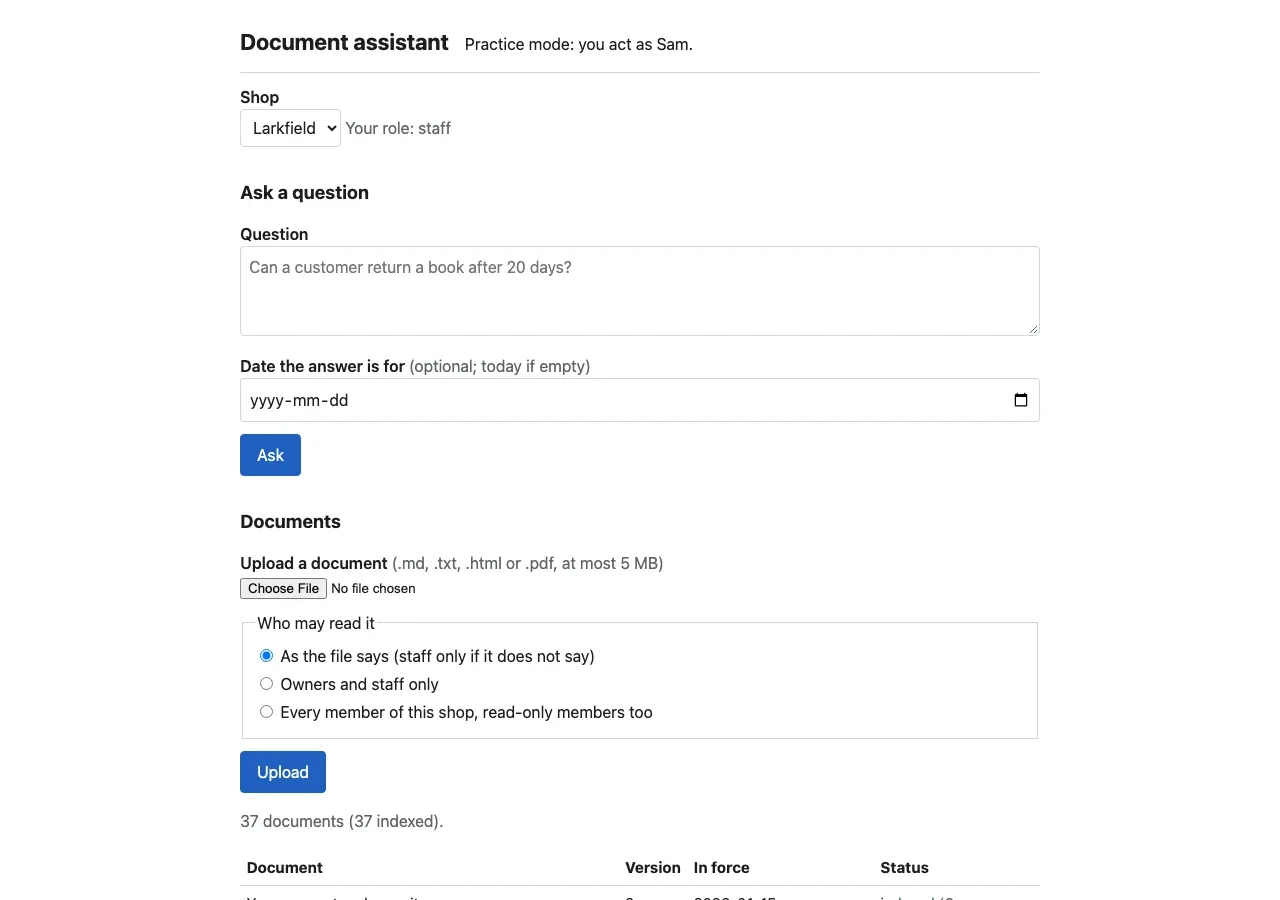
The page as it loads, with the stand-ins: practice mode, the shop and the role, the Ask form, the upload form and the documents table. -
Upload
holiday-hours.mdagain. The API answers 409 conflict, and the page shows the message, the code and the request ID. Nothing is added.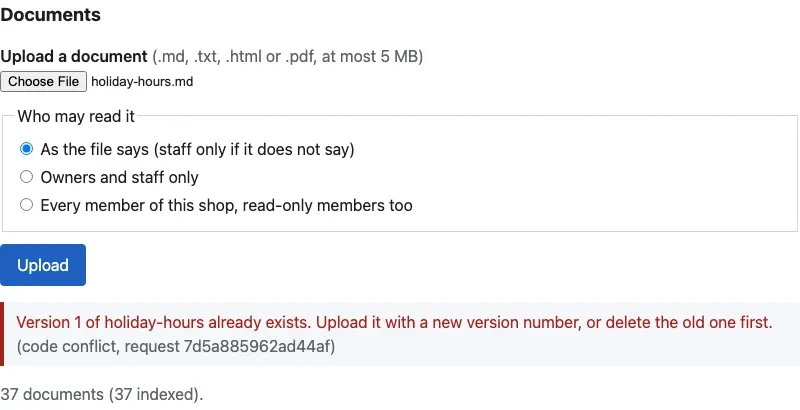
The error state of the upload: the API's message, then its code and request ID. -
Make a PDF that is cut in the middle, as if the upload had stopped. It is made up for this test.
Terminal window printf '%%PDF-1.7\n1 0 obj << /Type /Catalog >> endobj\ncut during the upload' > warranty-cut.pdfTerminal window Set-Content -NoNewline warranty-cut.pdf "%PDF-1.7`n1 0 obj << /Type /Catalog >> endobj`ncut during the upload"Upload
warranty-cut.pdfon the page. The API accepts it (202), because a cut PDF passes the checks at the door. The page says that indexing starts, and the counts above the table show one documentuploaded.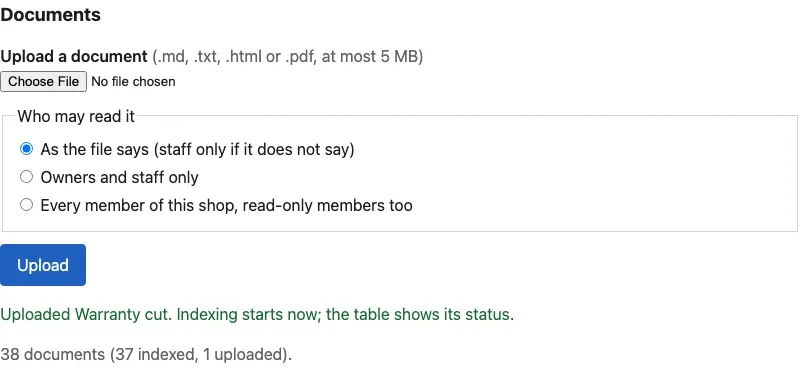
Accepted, not yet indexed: the upload status and the counts. -
Wait a moment, without a reload. The table changes by itself: the worker could not read the file, and the row says why.

The failed row, with the worker's reason. Polling stopped, because no document is indexing any more. -
Ask “Is the help desk open on 26 December?”.
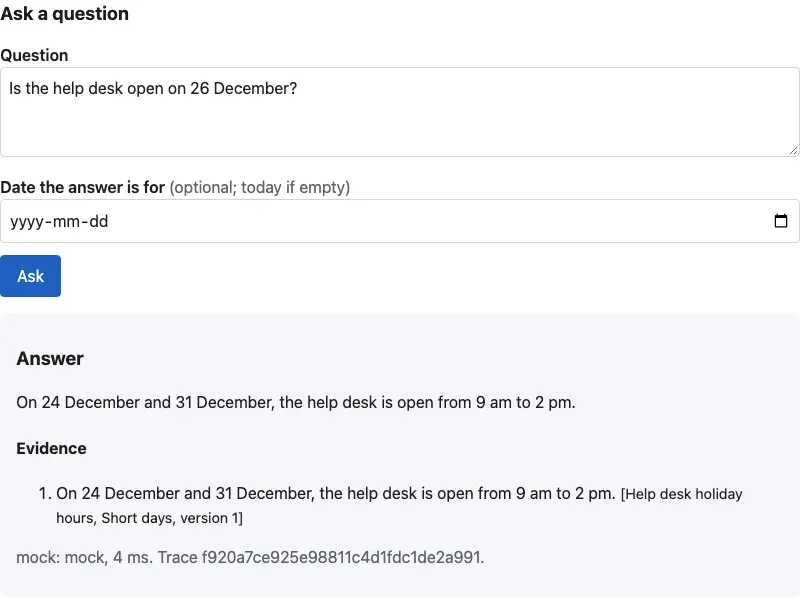
An answer from the mock: the right shape, a real citation, and the label mock. It copied the “Short days” passage, so it does not answer the question about 26 December.
Common mistakes
Section titled “Common mistakes”Common mistake
The API stopped while the page was open
Symptom: you ask a question, and the page says “The assistant cannot be reached. Is the API running?”.
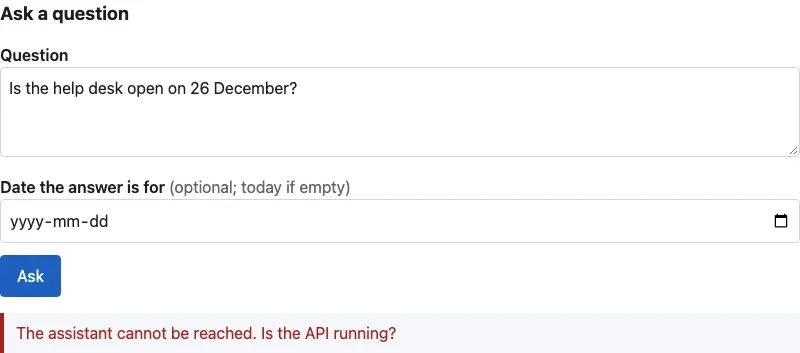
Cause: the API process stopped, for example after an error at start-up, or because you pressed Ctrl+C in its terminal. fetch gets no response at all.
Fix: start the API again with fastapi dev doc_assistant/main.py, then ask again. The page keeps the question, so you do not type it twice.
Common mistake
The page says 'Loading…' and nothing else
Symptom: the header says “Loading…”, and the forms do nothing.
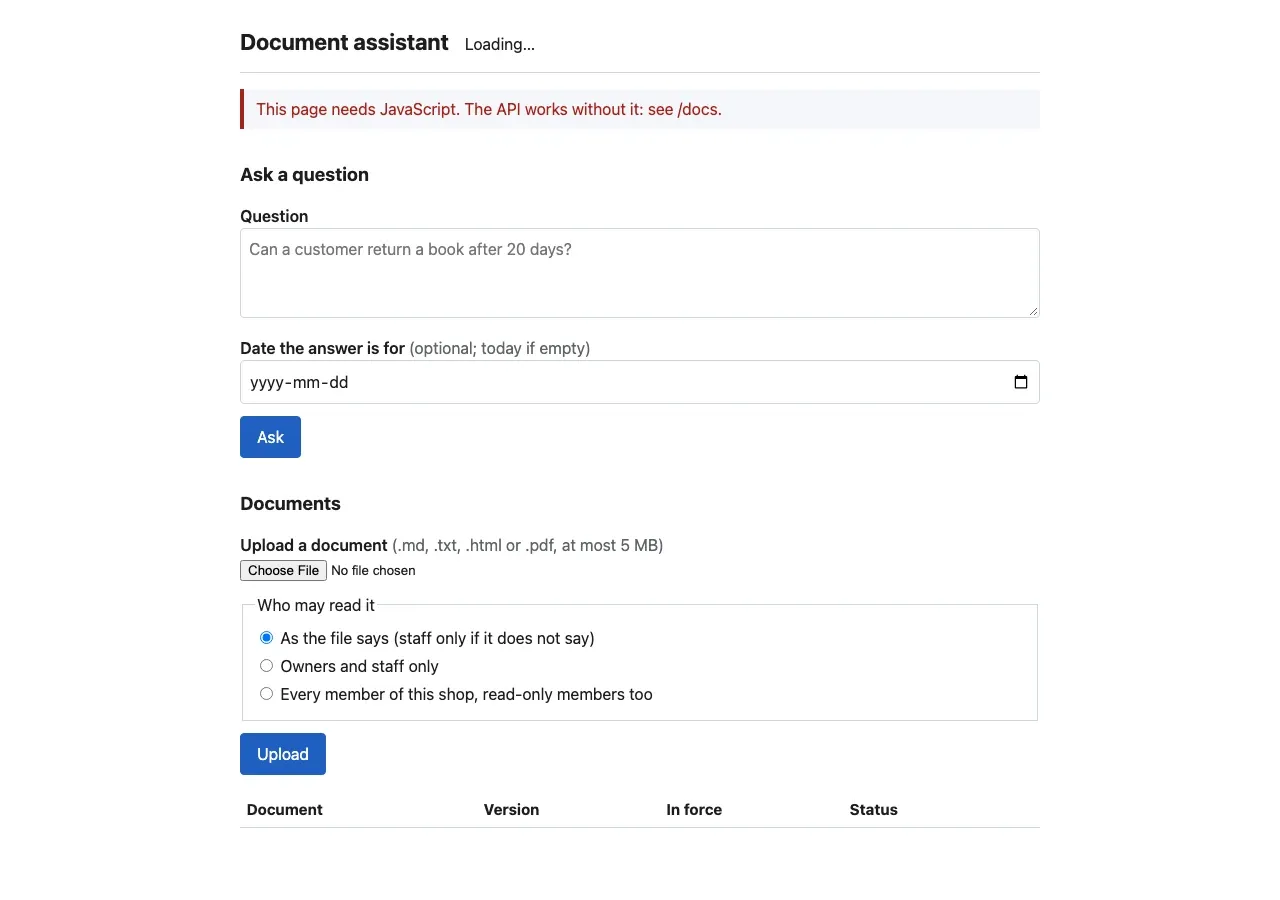
Cause: JavaScript is off in your browser, or app.js did not load. With JavaScript off, the page says so in a red line. If app.js is missing, look at the browser’s developer tools (F12), tab Console or Network: app.js has status 404.
Fix: turn JavaScript on for 127.0.0.1, or check that doc_assistant/static/app.js exists. You can still use the API without the page: http://127.0.0.1:8000/docs lists every endpoint.
Common mistake
You changed app.js, and the page did not change
Symptom: you edit app.js or app.css, reload, and see the old behaviour.
Cause: the browser kept the old file in its cache. The API sends Cache-Control: no-store for its data under /v1/, so data is never cached, but the page’s files may be.
Fix: reload without the cache: Ctrl+Shift+R (Windows, Linux) or Cmd+Shift+R (macOS).
On a phone
Section titled “On a phone”Grace checks the page on her phone, in the dark theme. Nothing in the code is special for it: the CSS has one rule for narrow screens and one set of colours for the dark theme.
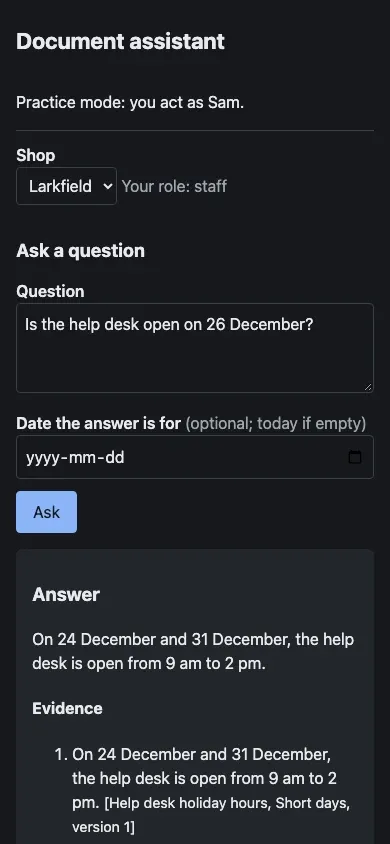
Your project
Section titled “Your project”- Standard track. Use the page for the whole journey: upload a document of your own, watch its status, ask two questions, and cause one error on purpose. Then try the page with the keyboard only (Tab, Shift+Tab, Enter, Space). You must reach and use every control.
- Own-idea track. Build the page of your one journey. Keep the four rules of this lesson: every action has its waiting, done, empty and error states; one function makes every call and handles the one error shape; every text from the server goes on the page as text, never as HTML; every field has a label. One HTML file and
fetchare enough.
Evidence to keep. Screenshots of your page in each state: loaded, waiting or indexing, done, empty (“no answer”), error, and the phone width. Save them in docs/evidence/m03-page/, with one line each in docs/evidence/README.md that says what the picture shows. Your demo script in Module 7 uses them.
Checklist
- Every action shows a waiting state, and its button is off while it waits.
- An upload’s status changes on the page without a reload, and the page stops asking when nothing is indexing.
- Every error shows the message, the code and the request ID, also when the API cannot be reached.
- No
innerHTMLwith text from the server. - Every control works with the keyboard, and every field has a label.
- The page fits a phone screen.
Knowledge check
Section titled “Knowledge check”Check your understanding
Grace clicks Upload twice because the page shows nothing after the first click. Name the two states that the page must show to stop this, and what the code does in each.
Show the answer
The waiting state: as soon as she clicks, the line says “Uploading…” and the button is off (button.disabled = true), so a second click sends nothing. The done state: when the API answers 202, the line says that the upload worked and indexing starts, and the table shows the new document with its status. If the API refuses the file, the error state shows the message, the code and the request ID instead.
Does your answer have the main points of ours?
Sign in and enroll in the course to save your answers. Every check counts toward the certificate.
Check your understanding
Predict: a member uploads a document whose title is <b>Returns</b>. What does the documents table show, and why?
Show the answer
The table shows the characters <b>Returns</b>, with the angle brackets, not the word Returns in bold. app.js puts every text from the server on the page with textContent, so the browser shows text and never reads it as HTML. That is what stops a title such as <img src=x onerror=…> from running code in another member’s page.
Does your answer have the main points of ours?
Sign in and enroll in the course to save your answers. Every check counts toward the certificate.
Check your understanding
Why does the page ask for the documents again every 1.5 seconds only while a document is uploaded or parsing, and not all the time?
Show the answer
Polling exists to show a change that the page cannot see by itself: a document moving from uploaded to indexed or failed. When every document is indexed or failed, nothing can change without a new upload, so more requests would only cost the API work. The page asks again after each upload, which starts the polling again when it is needed.
Does your answer have the main points of ours?
Sign in and enroll in the course to save your answers. Every check counts toward the certificate.
Recap
- Every action has visible states: waiting, done, empty and error. A page that shows only the happy result makes people click again.
- The page is three plain files, served by the API at
/app/: the same address, no CORS settings, no build step. - One function,
api(), makes every call and turns every failure into the message, the code and the request ID, also when the API cannot be reached. - Polling shows the indexing status: every 1.5 seconds, only while a document is
uploadedorparsing. - Text from the server goes on the page with
textContent, never as HTML. A test checks it.
Next, the stand-ins go: real retrieval, recorded answers of a real model, citations checked in code, and a trace of each question.
Next: Integrate retrieval