
Synchronize deliberately
- Lesson 5
- 40 min
- Module 2: Work with branches and remotes
Lesson 5 of 15 · Git and Team Development EssentialsSynchronize deliberately
1. Understand a repository
2. Work with branches and remotes
3. Collaborate through reviews
4. Resolve and recover
5. Release and hotfix practice
What you will be able to do
Share your commits with a team, and get their commits, without surprises. After this lesson, you can say exactly what each command changed: your repository, or the remote.
Before you startWhat to know and to have ready
What you need to know
- How to make and switch branches with
git switch -candgit switch, from Branch basics: A branch is a label on a commit. - What a clone and
originare, from Set up Git: Worked example: clone a repository.
What you need on your computer
-
The repository
~/projects/ticket-noteswith the branchesmainandadd-priorities. You madeadd-prioritiesin Branch basics: Guided practice: work on a branch. If it is missing, do that guided practice again. -
In the repository,
git statusshowsworking tree clean. -
For the “Your turn” task, the branch
add-contacts. You made it in Branch basics: Your turn: a second branch. If you do not have it, the task tells you how to make it. -
If the repository is missing or broken, a script can make the start state of this lesson again. In
~/projects, run:Terminal window git clone https://github.com/Nextia-Intelligence/nextia-learning-labs.gitsh nextia-learning-labs/C14/setup.sh m02-l02 --resetRun the
git clonecommand only once. If you already have thenextia-learning-labsfolder, rungit -C nextia-learning-labs pullinstead. Pull-request sequence: Set up the practice lab explains the script in full. The script makes~/projects/c14-lab/ticket-noteswithmainatd8ae027andadd-prioritiesat999a7c4, the same hashes as in this lesson. It has no remote and noadd-contacts. The commits that you make in this lesson, as Amira or as Sam, have different hashes from the lesson, for example1d45995. This is expected. Then use~/projects/c14-labin place of~/projectsin this lesson.--resetdeletes an olderc14-labfolder first, but your~/projects/ticket-notesdoes not change. -
You do not need an account on a website. In this lesson, the remote is a folder on your computer. You make it in Make a practice remote.
Your copy of the remote
Section titled “Your copy of the remote”In Set up Git, you learned that a remote is a copy of the repository in another place. Your team shares work through it. Git does not connect to the remote all the time. It connects only when you run one of three commands:
| Command | What it changes |
|---|---|
git fetch |
Gets new commits from the remote. Updates only your record of the remote. Your branches and files do not change. |
git pull |
Does a git fetch, then updates your current branch with the new commits. |
git push |
Sends your new commits to the remote, and moves the branch on the remote. |
Your “record of the remote” is a set of remote-tracking branches, with names such as origin/main. origin/main shows where main was on the remote the last time that you connected. It does not update itself. If a teammate pushes, origin/main stays old until you run git fetch.
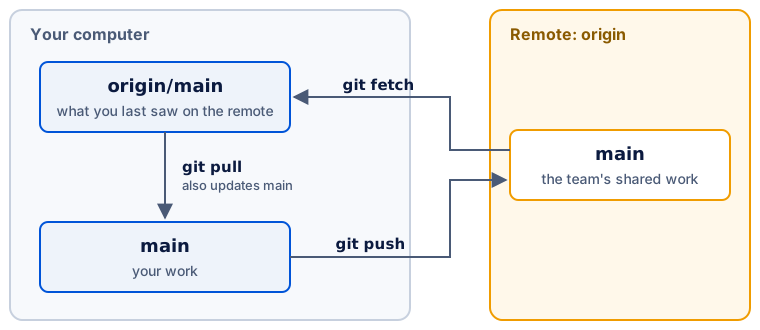
Your main is linked to origin/main. This link makes origin/main the upstream of main, and main is a tracking branch. Because of the link, git status, git pull and git push know which remote branch to compare and use.
Make a practice remote
Section titled “Make a practice remote”A team usually keeps its remote on a server, such as GitHub. A server keeps the repository as a bare repository: a repository with the history only, and no working tree. Nobody edits files in it. People only push to it and fetch from it.
You can make a bare repository in a folder, and use it as a remote. Git treats it the same as a server.
-
Make the bare repository next to
ticket-notes:Terminal window cd ~/projectsgit init --bare team-remote.gitInitialized empty Git repository in /Users/amira/projects/team-remote.git/The name ends in
.gitby convention, to show that the folder is a bare repository. -
Go into
ticket-notes, and connect it to the new remote with the nameorigin:Terminal window cd ticket-notesgit remote add origin ../team-remote.gitgit remote -vorigin ../team-remote.git (fetch)origin ../team-remote.git (push)..means the folder above, so the path points to~/projects/team-remote.git. -
Set Git to update with
git pullonly when this is safe. You learn why in the worked example.Terminal window git config --global pull.ff only
Worked example: Amira and Sam share work
Section titled “Worked example: Amira and Sam share work”Amira pushes
Section titled “Amira pushes”Amira sends main to the remote. The -u option sets origin/main as the upstream of main. You need -u only the first time that you push a branch.
git push -u origin mainTo ../team-remote.git * [new branch] main -> mainbranch 'main' set up to track 'origin/main'.She also pushes her feature branch, so that her team can see it:
git push -u origin add-prioritiesgit branch -vvTo ../team-remote.git * [new branch] add-priorities -> add-prioritiesbranch 'add-priorities' set up to track 'origin/add-priorities'. add-priorities 999a7c4 [origin/add-priorities] Add priority levels* main d8ae027 [origin/main] Add first ticket notegit branch -vv shows each branch, its commit, and its upstream in square brackets.
Sam pushes a new commit
Section titled “Sam pushes a new commit”Sam is Amira’s teammate. He clones the remote, adds a ticket to tickets.txt, commits, and pushes. After you clone, the upstream is already set, so Sam does not need -u:
git clone team-remote.git sam-notescd sam-notesgit commit -am "Add ticket 102"git pushTo /Users/sam/projects/team-remote.git d8ae027..1d45995 main -> maingit commit -am stages every tracked file that changed, and commits in one step. d8ae027..1d45995 means that main on the remote moved from d8ae027 to 1d45995.
Amira fetches, then pulls
Section titled “Amira fetches, then pulls”Amira does not know about Sam’s commit yet. git status still says that she is up to date, because it compares with her old origin/main. She fetches:
git fetchgit statusFrom ../team-remote d8ae027..1d45995 main -> origin/mainOn branch mainYour branch is behind 'origin/main' by 1 commit, and can be fast-forwarded. (use "git pull" to update your local branch)The fetch moved origin/main only. Her main and her files did not change. Before she takes the new commit, she checks what it changes. The diff compares her main with origin/main:
git diff main origin/maindiff --git a/tickets.txt b/tickets.txtindex c1b66eb..e2b0391 100644--- a/tickets.txt+++ b/tickets.txt@@ -1 +1,2 @@ Ticket 101: printer offline. Restarted the spooler.+Ticket 102: password reset email not received.The change is correct, so she pulls:
git pullUpdating d8ae027..1d45995Fast-forward tickets.txt | 1 + 1 file changed, 1 insertion(+)Fast-forward means that Git only moved the main label forward to Sam’s commit. This is possible because Amira had no new commits of her own on main. No new commit was made.
Both people commit at the same time
Section titled “Both people commit at the same time”Now Sam pushes a second ticket. At the same time, Amira commits a new file, contacts.txt, on her main. She tries to push:
git pushTo ../team-remote.git ! [rejected] main -> main (fetch first)error: failed to push some refs to '../team-remote.git'hint: Updates were rejected because the remote contains work that you do nothint: have locally. ...The remote refuses the push. If it accepted it, Sam’s commit would be lost from main. Amira pulls:
git pullFrom ../team-remote 1d45995..7d54ed4 main -> origin/mainhint: Diverging branches can't be fast-forwarded, ...fatal: Not possible to fast-forward, aborting.The fetch part worked, but Git did not change main. The histories have diverged: each side has a commit that the other does not have. git log --oneline --graph --all shows the fork:
* 01f2b94 (HEAD -> main) Add contacts| * 7d54ed4 (origin/main, origin/HEAD) Add ticket 103|/* 1d45995 Add ticket 102This is why you set pull.ff only. Without it, git pull can join the two histories automatically, and you may not notice. With it, Git stops, and you choose what to do.
Amira decides to merge: to join the two lines of history with a new commit that has both as parents. The --no-edit option keeps the message that Git suggests:
git pull --no-rebase --no-editgit log --oneline --graph -4Merge made by the 'ort' strategy. tickets.txt | 1 + 1 file changed, 1 insertion(+)* 7f87ca6 (HEAD -> main) Merge branch 'main' of ../team-remote|\| * 7d54ed4 (origin/main, origin/HEAD) Add ticket 103* | 01f2b94 Add contacts|/Now her main contains both commits, so the push is safe:
git pushTo ../team-remote.git 7d54ed4..7f87ca6 main -> mainGuided practice: be both people
Section titled “Guided practice: be both people”You play Amira in ticket-notes and Sam in a second clone.
-
Make the practice remote and connect it, as in Make a practice remote.
-
In
ticket-notes, push both branches:Terminal window git push -u origin maingit push -u origin add-priorities -
Run
git branch -vv. Each branch shows its upstream in square brackets. -
Make Sam’s clone, and move into it:
Terminal window cd ~/projectsgit clone team-remote.git sam-notescd sam-notes -
Add a line to
tickets.txtinsam-notes, then commit and push:Terminal window git commit -am "Add ticket 102"git push -
Go back to
ticket-notes, and rungit status. It still saysup to date, because you did not fetch. -
Fetch, and check again:
Terminal window cd ~/projects/ticket-notesgit fetchgit statusThe output says
behind 'origin/main' by 1 commit. -
Run
git diff main origin/main. The output shows the new line. -
Run
git pull. The output includesFast-forward. -
Run
git log --oneline -1. The newest commit is the one from step 5.
Your turn: share a feature branch
Section titled “Your turn: share a feature branch”The team wants to review your add-contacts branch from Branch basics. If you do not have it, make it from main now.
- Push
add-contactsto the remote, and set its upstream. - In
sam-notes, get the branch withgit fetch, thengit switch add-contacts. Git makes a local branch that tracksorigin/add-contacts. - In
sam-notes, add a name tocontacts.txt, commit, and push. - In
ticket-notes, bring the new commit into youradd-contacts.
Then write one sentence for each command that you used: did it change your local history, the remote, or only your record of the remote?
Show a model answer
git push -u origin add-contacts(inticket-notes): changed the remote. It madeadd-contactsthere.git fetch(insam-notes): changed only the record of the remote: it addedorigin/add-contacts.git switch add-contacts(insam-notes): changed local history in Sam’s clone. It made a new local branch.git commit(insam-notes): changed local history in Sam’s clone.git push(insam-notes): changed the remote.git switch add-contacts, thengit pull(inticket-notes): the pull fetched, then changed local history. It moved youradd-contactsforward with a fast-forward.
Common mistake
Push rejected: fetch first
Symptom: git push shows ! [rejected] main -> main (fetch first), or (non-fast-forward).
Cause: the remote branch has commits that you do not have. Git refuses the push so that those commits are not lost.
Fix:
- Run
git pull. - If the pull shows
Fast-forward, rungit pushagain. - If the pull shows
Not possible to fast-forward, rungit log --oneline --graph --allto see both lines of work. Then rungit pull --no-rebase --no-editto merge them, and push again.
Never force the push to “fix” a rejection. A force push replaces the remote branch with yours, and your teammate’s commits disappear from it. Module 4 explains when rewriting shared history is acceptable.
Common mistake
No upstream branch
Symptom: git push shows fatal: The current branch add-contacts has no upstream branch. Or git pull shows There is no tracking information for the current branch.
Cause: this branch is not linked to a remote branch yet. Usually you made it locally and never pushed it.
Fix: push it once with -u, for example git push -u origin add-contacts. After that, git push and git pull work without more options.
Check your understanding
Predict: Sam pushes a commit. Amira runs git fetch. Do the files in her working tree change? Does her main change?
Show the answer
No to both. git fetch changes only origin/main, her record of the remote. Her files and her main stay the same until she runs git pull (or merges origin/main herself).
Does your answer have the main points of ours?
Sign in and enroll in the course to save your answers. Every check counts toward the certificate.
Check your understanding
Completion check: in the worked example, which commands changed Amira's local history, and which updated the remote?
Show the answer
- Local history:
git commit(Add contacts), the fast-forwardgit pull, andgit pull --no-rebase --no-edit, which made a merge commit. - The remote: each
git push. The first two made new branches on the remote. The last one moved the remotemainto the merge commit. - Neither:
git fetchupdated onlyorigin/main. The failedgit pulldid the same: its fetch part worked, then it stopped before it changedmain. The rejectedgit pushchanged nothing.
Does your answer have the main points of ours?
Sign in and enroll in the course to save your answers. Every check counts toward the certificate.
Recap
origin/mainis your record of the remote. Onlygit fetch(orgit pull) updates it.git fetchchanges no branch of yours.git pullfetches, then updates your current branch.git pushupdates the remote.-ulinks a branch to its upstream the first time that you push it.- A fast-forward only moves a label. When histories have diverged, you must join them, for example with a merge.
- With
pull.ff only, Git never joins diverged histories without your decision.