
Branch basics
- Lesson 4
- 25 min
- Module 2: Work with branches and remotes
Lesson 4 of 15 · Git and Team Development EssentialsBranch basics
1. Understand a repository
2. Work with branches and remotes
3. Collaborate through reviews
4. Resolve and recover
5. Release and hotfix practice
What you will be able to do
Try a new idea on its own line of work, without changing the work that is already correct. Teams do almost every change this way.
Before you startWhat to know and to have ready
What you need to know
- The working tree, the staging area and the commit history, from Track a first change: Three places for your changes.
- How to stage and commit a change, and read
git log --oneline, from Track a first change: Worked example: Amira’s first commit.
What you need on your computer
-
The repository
~/projects/ticket-noteswith at least two commits, and the filetickets.txt. You made them in Track a first change: Guided practice: make your first commits. -
In the repository,
git statusshowsnothing to commit, working tree clean. If it shows changes, commit them first. -
If the repository is missing, do Set up Git: Step 3: make a repository again. Then do the guided practice of Track a first change.
-
If the repository is missing or broken, a script can make the start state of this lesson again. In
~/projects, run:Terminal window git clone https://github.com/Nextia-Intelligence/nextia-learning-labs.gitsh nextia-learning-labs/C14/setup.sh m02-l01 --resetRun the
git clonecommand only once. If you already have thenextia-learning-labsfolder, rungit -C nextia-learning-labs pullinstead. Pull-request sequence: Set up the practice lab explains the script in full. The script makes~/projects/c14-lab/ticket-noteswith the three commits from Track a first change onmain. Its hashes are the same as in this lesson:763ec59,49397baandd8ae027. The commit that you make in this lesson has your name and time, so its hash is different from999a7c4. This is expected. Then use~/projects/c14-labin place of~/projectsin this lesson.--resetdeletes an olderc14-labfolder first, but your~/projects/ticket-notesdoes not change. -
The hashes in this lesson come from Amira’s repository. Your hashes are different. Use the ones from your own
git log.
A branch is a label on a commit
Section titled “A branch is a label on a commit”In Module 1, every commit went onto main. main is a branch: a name that points to one commit. When you make a new commit, Git moves the branch label forward to the new commit. The label always points to the newest commit of that line of work.
You can make more branches. Each one is a separate label, so each line of work can move forward on its own. A new branch costs almost nothing: Git does not copy your files. It only writes the new label.
How does Git know which branch you are on? It uses HEAD: a pointer to the branch that you are on now. When you commit, Git moves the branch that HEAD points to. The other branches do not move.
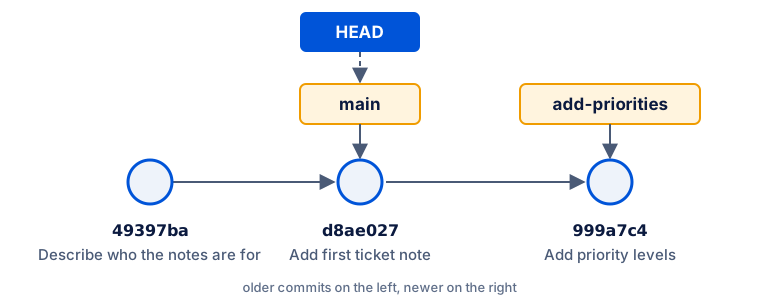
Each commit is identified by its commit hash, which you met in Module 1. A branch name changes as the branch moves, but a hash always means the same commit. Use a hash when you must talk about one exact commit.
Worked example: a branch for priority levels
Section titled “Worked example: a branch for priority levels”Amira wants to add priority levels to the ticket notes. She is not sure that her team will agree, so she uses a new branch. First, she looks at her branches and her history:
git branchgit log --oneline* maind8ae027 (HEAD -> main) Add first ticket note49397ba Describe who the notes are for763ec59 Add READMEgit branch lists the branches. The * marks the branch that she is on. In the log, HEAD -> main shows the same thing: HEAD points to main, and main points to d8ae027.
She makes a branch called add-priorities and switches to it in one step. The -c option means “create”:
git switch -c add-prioritiesgit branchSwitched to a new branch 'add-priorities'* add-priorities mainNow she makes priorities.txt with one line, Priority levels: low, normal, urgent., and commits it:
git add priorities.txtgit commit -m "Add priority levels"git log --oneline[add-priorities 999a7c4] Add priority levels 1 file changed, 1 insertion(+) create mode 100644 priorities.txt999a7c4 (HEAD -> add-priorities) Add priority levelsd8ae027 (main) Add first ticket note49397ba Describe who the notes are for763ec59 Add READMEThe new commit is on add-priorities. main did not move: it still points to d8ae027. This is the situation in the diagram above, but with HEAD on add-priorities.
Next, she switches back to main and lists the files:
git switch mainlsSwitched to branch 'main'README.md tickets.txtpriorities.txt is gone from the folder. This is correct. When you switch branches, Git changes the files in the working tree to match the commit of that branch. The file is safe in commit 999a7c4. When she runs git switch add-priorities, the file comes back.
To see all branches at the same time, she adds --all:
git log --oneline --all999a7c4 (add-priorities) Add priority levelsd8ae027 (HEAD -> main) Add first ticket note49397ba Describe who the notes are for763ec59 Add READMEGuided practice: work on a branch
Section titled “Guided practice: work on a branch”-
In
~/projects/ticket-notes, rungit status. The output must includeworking tree clean. If not, commit or remove your changes first. -
Make a branch and switch to it:
Terminal window git switch -c add-prioritiesThe output is
Switched to a new branch 'add-priorities'. -
In your editor, make
priorities.txtwith the linePriority levels: low, normal, urgent.Save it. -
Stage and commit the file:
Terminal window git add priorities.txtgit commit -m "Add priority levels" -
Run
git log --oneline --all. The newest commit has(HEAD -> add-priorities).mainis on the commit before it. -
Switch to
main:Terminal window git switch main -
Run
ls.priorities.txtis not in the list. -
Switch back with
git switch add-priorities, and runlsagain.priorities.txtis in the list. -
Switch to
mainagain before you continue.
Your turn: a second branch
Section titled “Your turn: a second branch”Make a second branch from main called add-contacts. On it, make contacts.txt with the names of a help desk team, and commit it.
Then answer these questions with git log --oneline --all and ls:
- Which commit does each of your three branches point to?
- When you are on
add-contacts, ispriorities.txtin the folder? Why?
Show the answers
mainpoints to the commit that it pointed to before the lesson.add-prioritiesandadd-contactseach point to their own new commit.- No. You made
add-contactsfrommain, andmaindoes not containpriorities.txt. Each branch only contains the commits on its own line of work.
Common mistake
My change followed me to the other branch
Symptom: you edit tickets.txt on main, but you do not commit. Then you run git switch add-priorities. Git switches, and shows:
Switched to branch 'add-priorities'M tickets.txtYour change is now in the working tree of add-priorities.
Cause: changes that you did not commit do not belong to a branch. They stay in the working tree when you switch. Git only stops the switch if a change would be lost, and then it shows an error.
Fix:
- Run
git switch mainto go back. - Commit the change on
mainif it belongs there.
To prevent this, run git status before you switch. Switch only when the output says working tree clean.
Common mistake
Invalid reference
Symptom: git switch add-priority shows fatal: invalid reference: add-priority.
Cause: no branch has that name. Usually it is a typing mistake. Here the name is add-priorities, not add-priority.
Fix: run git branch to see the correct names, then switch again.
Check your understanding
Predict: Amira is on add-priorities. She makes two more commits. Which branch labels move, and does main change?
Show the answer
Only add-priorities moves. It moves forward once for each commit, so it ends on the second new commit. main does not change, because HEAD points to add-priorities, and Git moves only the branch that HEAD points to.
Does your answer have the main points of ours?
Sign in and enroll in the course to save your answers. Every check counts toward the certificate.
Check your understanding
Practical check: show which branch you are on, and which commit each branch points to, with one command.
Show the answer
Run git log --oneline --all. Each branch name is next to the commit that it points to. HEAD -> shows the branch that you are on. You can also use git branch -v, which lists each branch with its commit hash.
Does your answer have the main points of ours?
Sign in and enroll in the course to save your answers. Every check counts toward the certificate.
Recap
- A branch is a label that points to one commit. It moves forward when you commit on it.
- HEAD points to the branch that you are on.
git branchandgit log --oneline --allshow it. git switch -c namemakes a branch and switches to it.git switch nameswitches to a branch that exists.- When you switch, Git changes the files to match that branch. Changes that you did not commit stay in the working tree.
Next: Synchronize deliberately