
Inspect behaviour
- Lesson 10
- 50 min
- Module 3: Build and inspect a local server
Lesson 10 of 22 · MCP: Connect AI Applications to Tools and DataInspect behaviour
1. Understand the integration problem
3. Build and inspect a local server
4. Connect an AI application
5. Remote access and authorization
6. Protect tools and user control
7. Operate and maintain the integration
What you will be able to do
Look at the server the way any other application will see it. You use MCP Inspector, the MCP project’s developer tool, to discover the server’s capabilities. You call a tool with valid and invalid inputs, and read each result and error. Then you prove the module’s outcome: discovery, one valid call and one controlled failure.
Before you startWhat to know and to have ready
What you need to know
- The difference between a protocol error and a tool error, from JSON-RPC messages.
- How a host starts a stdio server, from Local transport.
Your project
~/projects/support-mcpwith the server of the last lesson:python -m pytest -qprints40 passed.- Node.js 22.19 or later, only for Inspector. Check with
node --version; the course used 24.18.0. If you do not have it, install the LTS version from nodejs.org. - An internet connection the first time:
npxdownloads Inspector, about 97 MB. No account and no key.
A diagnostic reader at the garage
Section titled “A diagnostic reader at the garage”When a car shows a warning light, a mechanic plugs a small reader into a standard port under the dashboard. The reader does not drive the car. It asks each part for its state, shows the raw answers, and can send a test command: “turn on the fan”.
The reader is useful because it is not the car’s own dashboard. The dashboard shows what its designers chose to show. The reader shows what the car really says, in the standard form that every garage understands.
The problem: the tests pass, but what do other applications see?
Section titled “The problem: the tests pass, but what do other applications see?”Your 40 tests pass. They test the server through the SDK’s client, which the server’s own developers wrote. A different host, such as a partner’s app, has its own client. It reads the same messages, but it shows them in its own way, and it gives the text to its own model.
The course team found a real example of this. In the first version of support-mcp, each tool’s docstring had two lines. The tests passed. Then the team listed the tools with Inspector, and saw this description:
"description": "Search this organization's policy documents. Returns at most 5 short matches, best first,\n each with the URI of the full policy. Use it before you answer a policy question."The line break and eight spaces of the docstring’s indentation went to every client, and so to every model. Nothing failed, but the text that a model reads was not what Amira meant. No test looked at it, because no test read the description as a client shows it. The team changed the docstrings to one line each. Your server has the fixed text.
The idea: an independent client that shows everything
Section titled “The idea: an independent client that shows everything”MCP Inspector is a developer tool from the MCP project. It is a host with an MCP client, but it has no model and no opinions. It connects to a server and lists what the server offers. You can call each tool, read each resource and fill each prompt by hand, and it shows every message. This course uses Inspector 2.10.1, which needs Node.js. You start it with npx, which downloads and runs a Node.js package.
Inspector has two ways to work:
- The web UI runs a small web server on your computer and opens a page in your browser. You click through the server’s tools, resources and prompts. Use it to explore.
- The CLI (command-line interface) sends one request, prints the result as JSON and exits with a code. Use it for checks that you repeat, and in scripts.

Text description of the diagram
Web UI (npx @modelcontextprotocol/inspector@2.10.1): your browser opens http://127.0.0.1:6274, with a token in the address. It talks to Inspector’s local web server, which holds the MCP client. You click Connect, Tools, a tool and Execute Tool, and the Messages panel lists every request. You see what a model could see: names, descriptions, schemas and annotations.
CLI (… --cli): one command is one request. It prints the result as JSON and exits with code 0 (OK), 5 (a tool error) or 1 (an error). Write the target first, then --, then Inspector’s own options.
Both start python -m support_mcp as a child process on stdio, so they see the same server and the same messages as any host.
The protocol era: by default, Inspector 2.10.1 uses the legacy era: initialize with revision 2025-11-25. Add --protocol-era modern to use revision 2026-07-28, with server/discover and _meta. The server answers both, so test both.
The last box of the picture is a real finding of this course. Inspector 2.10.1 starts in the legacy era by default. The course team put a recorder between Inspector and the server, and the first message was:
{"method": "initialize", "params": {"protocolVersion": "2025-11-25", "capabilities": {…}, "clientInfo": {"name": "inspector-cli", …}}, "jsonrpc": "2.0", "id": 0}With --protocol-era modern, the first message became server/discover with _meta for 2026-07-28. This matters when you write down what you tested. “Inspector works” is true for both eras, but you should say which one you used.
A tiny example: list the tools from the command line
Section titled “A tiny example: list the tools from the command line”Start with one command, from your project folder, with the virtual environment active. Inspector starts the server with the command after --cli, so python must be the environment’s Python.
npx @modelcontextprotocol/inspector@2.10.1 --cli python -m support_mcp -- --protocol-era modern --method tools/listThe first time, npx asks whether it may install the package: type y and press Enter. The output is the answer to tools/list, as JSON. Here is its start:
{ "tools": [ { "name": "search_knowledge", "description": "Search this organization's policy documents. Returns at most 5 short matches, best first, each with the URI of the full policy. Use it before you answer a policy question.", "inputSchema": { "type": "object", "properties": { "query": { "description": "Words to look for in the organization's policy documents.", "maxLength": 200, "minLength": 3, …The description is one line now. Below it, you find the second tool, get_ticket, with its pattern ^T-\d{5}$, and for each tool its annotations (readOnlyHint: true) and its outputSchema. This is everything that a host receives. Each host chooses which parts it passes to its model; the course’s host, in Module 4, passes the name, the description and the input schema.
Larkfield: inspect the server in the web UI
Section titled “Larkfield: inspect the server in the web UI”-
Start Inspector’s web UI with the server, in the modern era:
Terminal window npx @modelcontextprotocol/inspector@2.10.1 --protocol-era modern python -m support_mcpThe terminal prints the address, with a token:
MCP Inspector Web is up and running at:http://127.0.0.1:6274?MCP_INSPECTOR_API_TOKEN=…Your browser opens that page. The token protects the page, so another program on your computer cannot use it. Keep this terminal open.
-
On the server card, click the switch next to Disconnected. It becomes Connected, and the card shows
MCP 2026-07-28.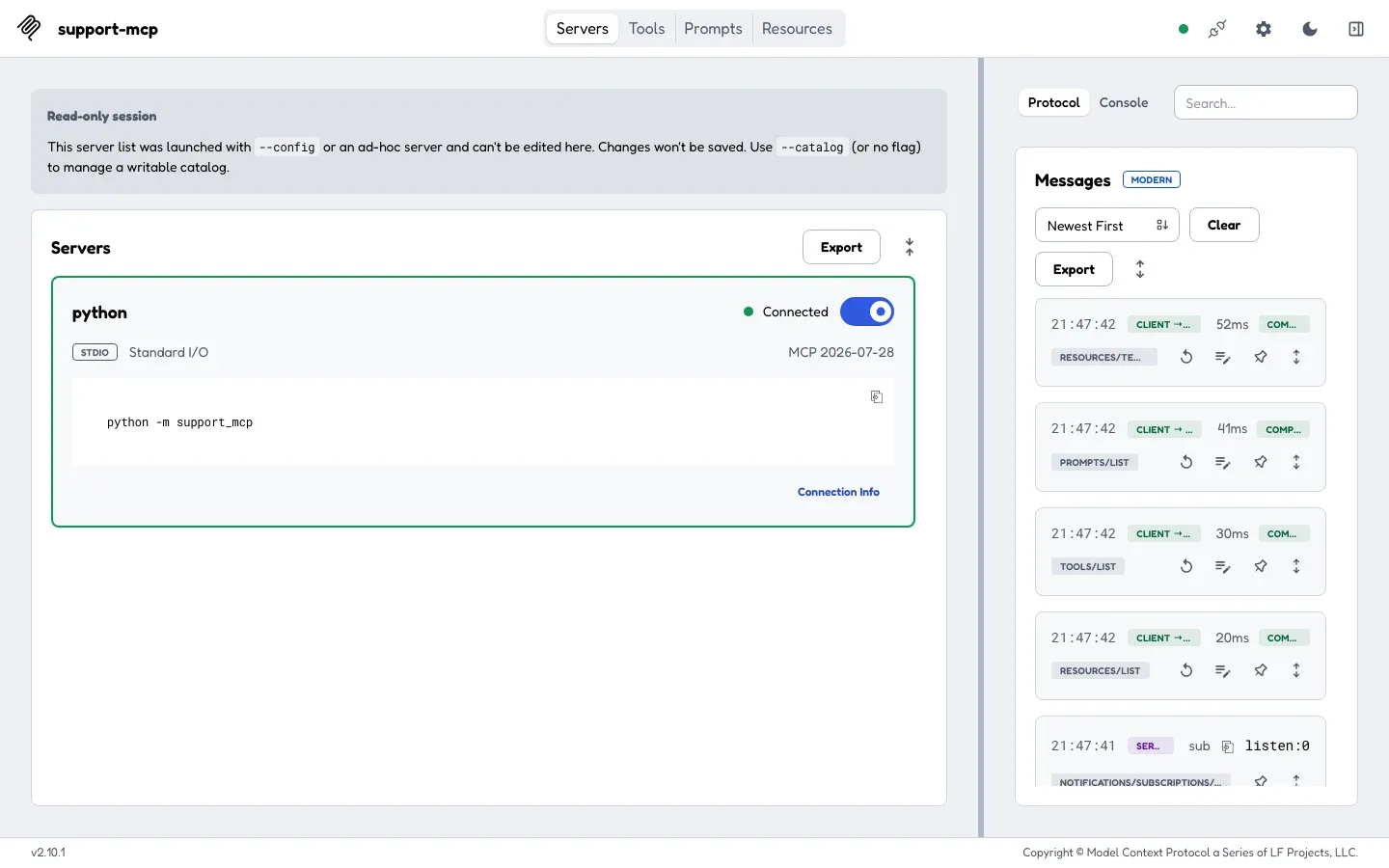
Connected in the modern era: revision 2026-07-28. The Messages panel lists the discovery requests that Inspector sent. On the right, the Messages panel lists what Inspector sent:
server/discover,tools/list,resources/list,resources/templates/listandprompts/list. That is the discovery of JSON-RPC messages, done by another client. Inspector also sendssubscriptions/listen, a request to hear about changes, whichscripts/trace.pydoes not send. -
Click Tools at the top, then get_ticket.
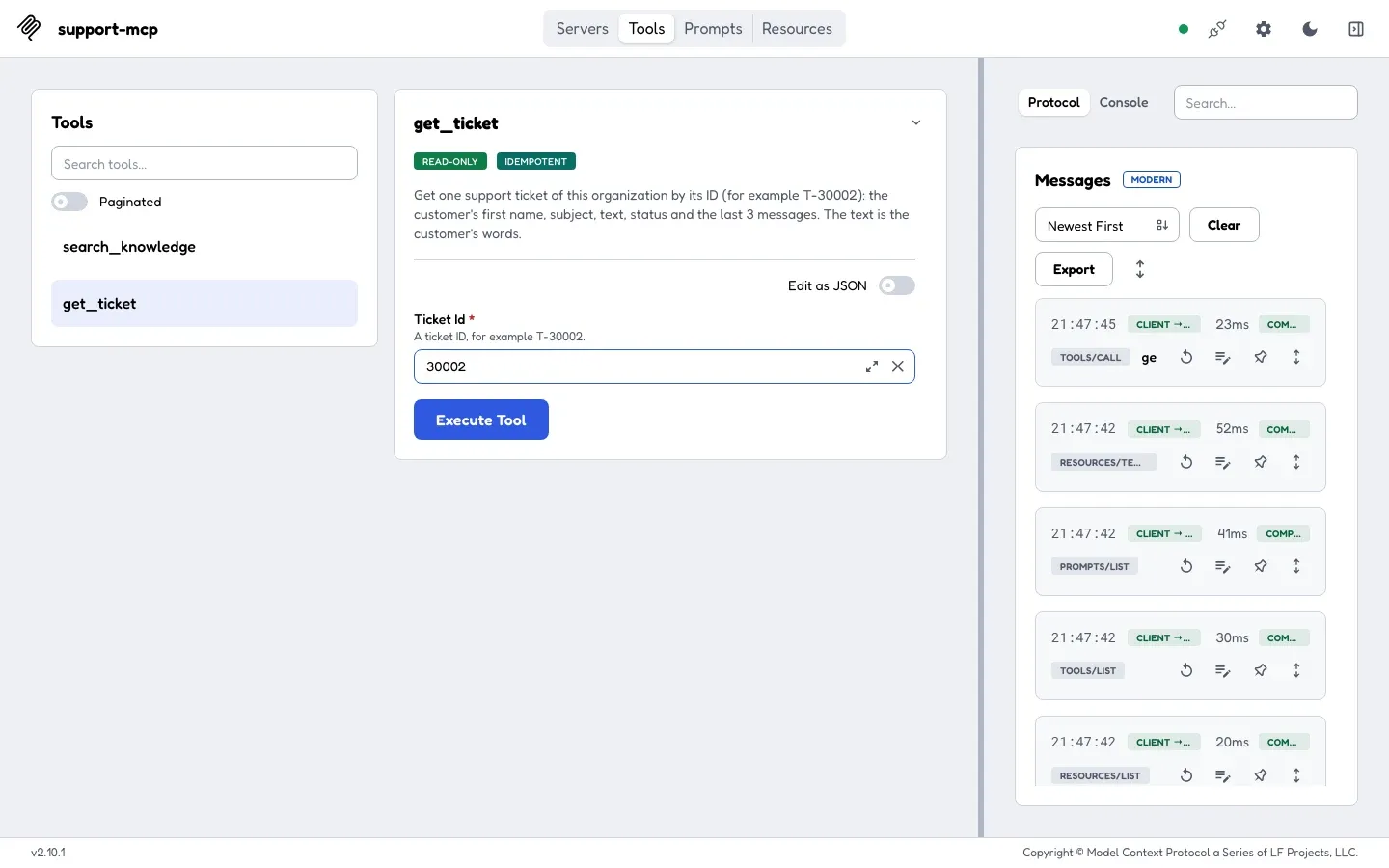
Inspector builds a form from the tool's input schema. The badges come from the tool's annotations, and the hint from the schema's description. The page shows what a model could get: the name and the description, and one required field from the input schema. The badges READ-ONLY and IDEMPOTENT come from the annotations.
-
Type
T-30002in Ticket Id, and click Execute Tool.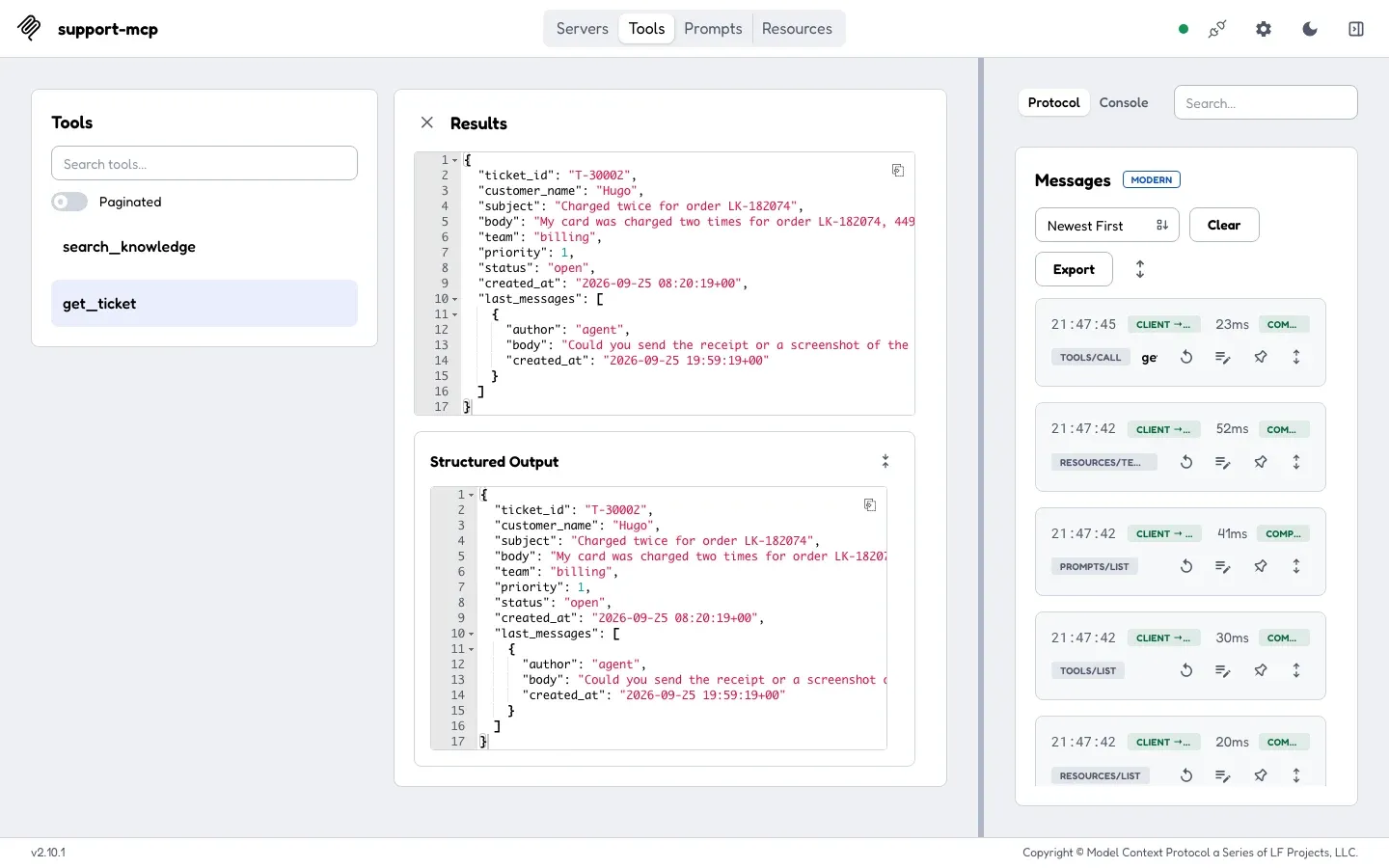
A valid call: the result has the ticket twice, as text for older clients and as structured output that matches the output schema. The result holds the ticket twice: as text, which every client can show, and as Structured Output, which matches the output schema. Hugo’s first name is there, but not his email address: the contract from Module 2 left it out.
-
Close the results with the × next to Results. Type
30002, withoutT-, and click Execute Tool again.![The Results panel shows a red box titled Tool Error: Error executing tool get_ticket: 1 validation error for get_ticketArguments ticket_id String should match pattern '^T-\d{5}$' [type=string_pattern_mismatch, input_value='30002', input_type=str]. The Messages panel shows a second tools/call get_ticket, COMPLETE.](/_astro/m03-inspector-call-invalid.DlT24SYT_Z16XNOp.webp)
A controlled validation failure: the server refused 30002 because it does not match the pattern. Inspector shows it as a Tool Error. Inspector sent the request: it did not check the pattern itself. The server’s schema refused it. The answer is a tool error, a
resultwithisError: true, so the Messages panel shows the request as complete. A model would read this text, and could try again withT-30002. -
Click Resources. The list shows 9 URIs, among them Manual refunds and goodwill credits, a staff-only document: Sam is staff. Click one to read it.
-
To stop Inspector, go back to the terminal and press Ctrl+C. It stops the web server and the child process.
Try one more thing on your own: stop Inspector, and start it again without --protocol-era modern. The server card then shows MCP 2025-11-25, and the Messages panel shows LEGACY and an initialize request:
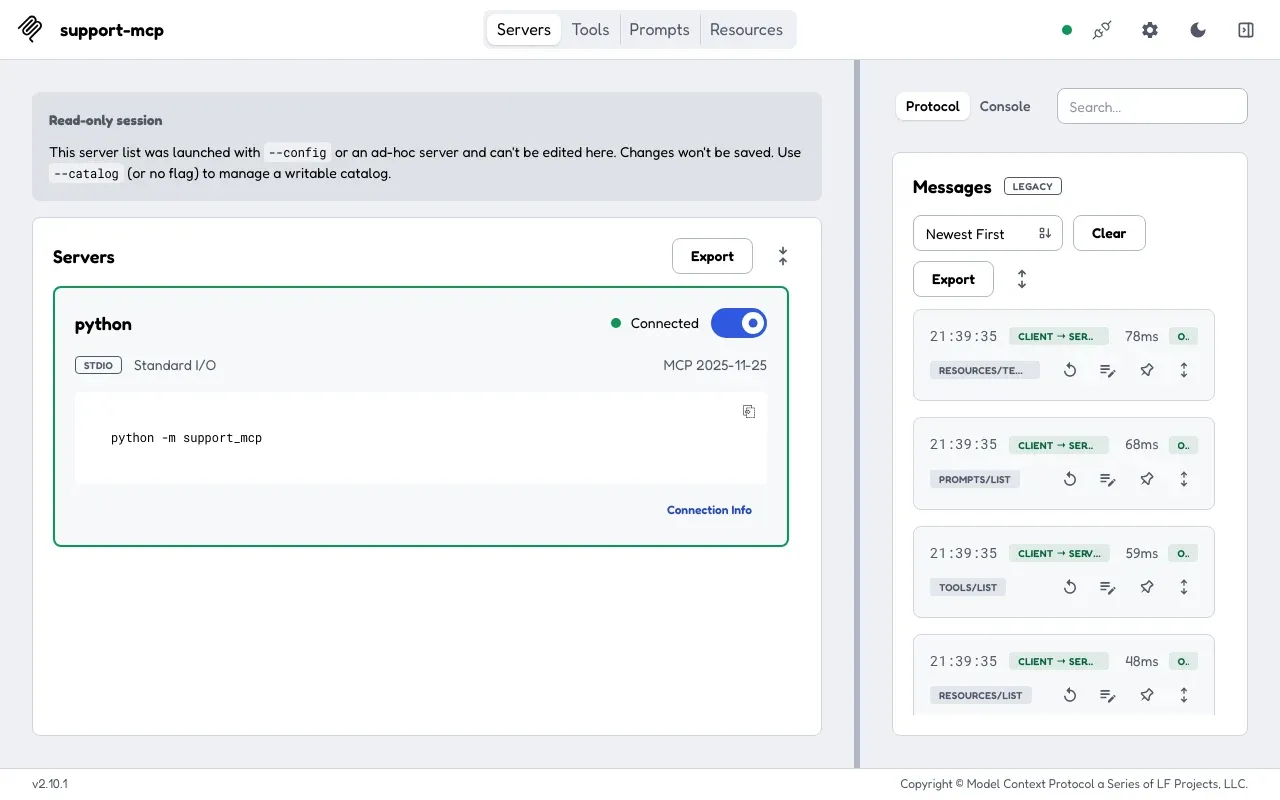
Repeatable checks with the CLI
Section titled “Repeatable checks with the CLI”The web UI is for exploring. For checks that you repeat, use the CLI. The same request gives the same output, and the exit code says what happened. Run these from the project folder. The course did not test these commands in PowerShell, which quotes 'ticket_id="30002"' differently.
-
A valid call:
Terminal window npx @modelcontextprotocol/inspector@2.10.1 --cli python -m support_mcp -- --protocol-era modern --method tools/call --tool-name get_ticket --tool-arg ticket_id=T-30002The output is the result as JSON, with
"isError": falseat the end. The exit code is 0: check it withecho $?(PowerShell:$LASTEXITCODE). -
The same call with
ticket_id=30002:Terminal window npx @modelcontextprotocol/inspector@2.10.1 --cli python -m support_mcp -- --protocol-era modern --method tools/call --tool-name get_ticket --tool-arg ticket_id=30002"text": "Error executing tool get_ticket: 1 validation error for get_ticketArguments\nticket_id\n Input should be a valid string [type=string_type, input_value=30002, input_type=int]\n …"…"isError": trueOn stderr:
{"error":{"code":"tool_is_error","message":"Tool 'get_ticket' returned isError:true."}}, and the exit code is 5. Read the message closely: “Input should be a valid string”,input_type=int. The CLI turned30002into the number 30002, because it looks like a number. The web UI sent a string. Same input, two different messages. -
Send the string on purpose, with JSON quotes inside the argument:
Terminal window npx @modelcontextprotocol/inspector@2.10.1 --cli python -m support_mcp -- --protocol-era modern --method tools/call --tool-name get_ticket --tool-arg 'ticket_id="30002"'Now the message is the one from the web UI,
String should match pattern '^T-\d{5}$', withinput_value='30002', input_type=str. Exit code 5. -
Read another organization’s policy:
Terminal window npx @modelcontextprotocol/inspector@2.10.1 --cli python -m support_mcp -- --protocol-era modern --method resources/read --uri policy://bramble/returns-policy{"error":{"code":"error","message":"Resource not found: policy://bramble/returns-policy"}}Exit code 1: a protocol error, not a tool error. The CLI does not print the JSON-RPC code. You saw it in the recording of JSON-RPC messages: −32602, with the URI in
data. -
Fill the prompt:
Terminal window npx @modelcontextprotocol/inspector@2.10.1 --cli python -m support_mcp -- --protocol-era modern --method prompts/get --prompt-name draft_reply --prompt-args ticket_id=T-30002The output holds one user message that starts with
Draft a reply to support ticket T-30002 for larkfield.The organization comes from the server’s environment, not from the arguments.
Two kinds of failure, side by side
Section titled “Two kinds of failure, side by side”You have now seen every kind of failure that this server sends. The picture sorts them by the two shapes from JSON-RPC messages:

Text description of the diagram
Protocol error: error instead of result. The request itself failed. The client and the host’s code handle it; the model usually never sees it.
- −32601 Method not found:
tools/delete. - −32602 Invalid params: no
_meta, or the resourcepolicy://bramble/…on a Larkfield connection. - −32003 forbidden or insufficient_scope: this server’s own code, for no membership or no scope.
- −32022 Unsupported protocol version:
server/discoverwith 2099-01-01.
Tool error: a result with isError: true. The tool was called and refused the call. The text goes back to the model, which can read it and try again.
- validation:
get_ticketwith “30002”: “String should match pattern”. - not_found:
get_ticketT-40003 on Larkfield: no ticket in this organization. - unknown tool:
delete_ticket: “Unknown tool”. SDK 2.3.0 sends a tool error; the specification asks for −32602.
The Inspector CLI exits with code 5 for a tool error and code 1 for a protocol error.
What Inspector taught Larkfield
Section titled “What Inspector taught Larkfield”The team keeps a short list of what the inspection found, because each item becomes a check later:
- Descriptions are content. A model reads them. The first run showed the docstring’s indentation. The fix was one-line docstrings. In Module 7, a contract test compares the descriptions with a file. Then a change cannot slip through again.
- Clients send different types. The CLI sent
30002as a number, the web UI as a string. The server must check every input itself, and it does: its schema refused both. - The era is part of the result. Inspector’s default is the legacy era. A compatibility note says “Inspector 2.10.1, both eras”, not just “Inspector”.
- Tool errors look like success to the protocol. The Messages panel marks the failed call as complete. Only
isError: truesays that the tool refused.
When to use Inspector, and what it costs
Section titled “When to use Inspector, and what it costs”Use Inspector whenever you change what a client sees: a new tool, a new description, a new error message. Use it before you connect a real host, so that you know the server’s side is right. Use the CLI in scripts, because the exit codes make a quick check easy.
It also has limits and costs:
- It needs Node.js, which a Python project does not otherwise need, and about 97 MB for the package.
- It is a developer tool, not a test suite. It shows what happens today. Turn each finding into a test, so that it stays fixed.
- It runs a local web server with a token. It listens only on 127.0.0.1. Do not share the address with its token, and stop Inspector when you finish.
- It stores secrets. For a server that needs a token, Inspector keeps it in your system’s keychain by default. This server needs none. To keep secrets only in memory, set
MCP_INSPECTOR_SECRET_STORE=memorybefore you start it; the course did this for every run. - It is not your host. It shows what the server sends, not what a given AI application does with it. Module 4 builds that application.
Common mistakes
Section titled “Common mistakes”Common mistake
No servers found in config file
Symptom: the CLI prints {"error":{"code":"error","message":"No servers found in config file"}} and does nothing.
Cause: the options came before the server command, in the order of Inspector version 1. Version 2 needs the target first. The failing command was … --cli --format json python -m support_mcp --method tools/list
Fix: write the server command first, then --, then Inspector’s options: … --cli python -m support_mcp -- --method tools/list. The -- is needed here because the server command has its own option, -m. It tells Inspector where that command ends.
Common mistake
Input should be a valid string
Symptom: a CLI call with --tool-arg ticket_id=30002 fails with Input should be a valid string [type=string_type, input_value=30002, input_type=int], and exit code 5.
Cause: the CLI reads values that look like numbers as numbers. The server expected a string, so its schema refused the call.
Fix: if you meant to test the pattern, send a string with JSON quotes: --tool-arg 'ticket_id="30002"'. If you meant a valid call, use the real ID: ticket_id=T-30002.
Module practice: build and inspect a small server
Section titled “Module practice: build and inspect a small server”Guided example. This module’s worked example is your own project. You chose the SDK and built a tested environment. Then you read and sent JSON-RPC by hand. You ran support-mcp over stdio, with scripts/trace.py as a host. Last, you inspected it with Inspector: discovery, a valid call and a controlled failure.
Your turn. Harbour Cycles, the made-up bike rental shop of Module 1, wants a small read-only server. Write harbour_server.py, a new file outside support_mcp/, with synthetic records in a Python dictionary:
- Five bikes, each with an ID such as
B-101, a size (S, M or L), a kind, a dock and whether it is free now. - A read-only tool
get_bike(bike_id)whose input must match^B-\d{3}$, and which returns one bike or anot_foundtool error. - A read-only tool
list_available(size, limit): the size is S, M or L, the limit from 1 to 5, and the result never has more than 5 bikes. - One resource,
terms://harbour/rental-terms, with the rental terms. - Logs on stderr only.
Then inspect it with Inspector’s CLI: list the tools, make one valid call and one call that fails validation.
Show a worked solution
"""Harbour Cycles: a small read-only MCP server over in-memory records."""
import jsonimport sysfrom typing import Annotated, Literal
from mcp.server.mcpserver import MCPServerfrom mcp.server.mcpserver.exceptions import ToolErrorfrom mcp.types import ToolAnnotationsfrom pydantic import BaseModel, Field
BIKES = {    "B-101": {"size": "M", "kind": "city", "available": True, "dock": "Harbour Street"},    "B-102": {"size": "L", "kind": "city", "available": False, "dock": "Harbour Street"},    "B-103": {"size": "S", "kind": "child", "available": True, "dock": "Old Pier"},    "B-104": {"size": "M", "kind": "electric", "available": True, "dock": "Old Pier"},    "B-105": {"size": "M", "kind": "electric", "available": False, "dock": "Station Road"},}TERMS = """# Rental terms
Rent a bike for 1 to 7 days. The deposit is 50 dollars and comes back when the bike is returned undamaged.Wear a helmet: we lend one with every bike."""
READ_ONLY = ToolAnnotations(read_only_hint=True, destructive_hint=False, idempotent_hint=True, open_world_hint=False)BikeId = Annotated[str, Field(pattern=r"^B-\d{3}$", description="A bike ID, for example B-101.")]

class Bike(BaseModel):    bike_id: str    size: Literal["S", "M", "L"]    kind: str    available: bool    dock: str

class Available(BaseModel):    size: str    bikes: list[Bike] = Field(max_length=5)

mcp = MCPServer("harbour-bikes", version="0.1.0")

def log(**fields) -> None:    print(json.dumps(fields), file=sys.stderr, flush=True)

@mcp.tool(annotations=READ_ONLY)def get_bike(bike_id: BikeId) -> Bike:    """Get one rental bike by its ID (for example B-101): its size, kind, dock and whether it is free now."""    if bike_id not in BIKES:        log(event="tool_call", tool="get_bike", outcome="not_found")        raise ToolError(f"not_found: there is no bike {bike_id}")    log(event="tool_call", tool="get_bike", outcome="ok")    return Bike(bike_id=bike_id, **BIKES[bike_id])

@mcp.tool(annotations=READ_ONLY)def list_available(    size: Literal["S", "M", "L"], limit: Annotated[int, Field(ge=1, le=5, description="1 to 5 bikes.")] = 3) -> Available:    """List free bikes of one size (S, M or L), at most 5."""    bikes = [Bike(bike_id=k, **v) for k, v in BIKES.items() if v["size"] == size and v["available"]][:limit]    log(event="tool_call", tool="list_available", outcome="ok", results=len(bikes))    return Available(size=size, bikes=bikes)

@mcp.resource("terms://harbour/rental-terms", name="rental-terms", title="Rental terms", mime_type="text/markdown")def rental_terms() -> str:    return TERMS

if __name__ == "__main__":    mcp.run("stdio")
The inspection, from the folder of the file, with the project’s environment active (each command after npx @modelcontextprotocol/inspector@2.10.1 --cli python harbour_server.py --):
| Options | Exit | What came back |
|---|---|---|
--protocol-era modern --method tools/list |
0 | 2 tools: get_bike (pattern ^B-\d{3}$) and list_available (size in S, M, L; limit 1 to 5) |
… --method tools/call --tool-name list_available --tool-arg size=M |
0 | B-101 (city, Harbour Street) and B-104 (electric, Old Pier): the two free M bikes |
… --method tools/call --tool-name list_available --tool-arg size=XL |
5 | tool error: Input should be 'S', 'M' or 'L', input_value='XL' |
… --method tools/call --tool-name get_bike --tool-arg bike_id=B-9 |
5 | tool error: String should match pattern '^B-\d{3}$' |
… --method resources/read --uri terms://harbour/rental-terms |
0 | the rental terms |
On stderr, each successful call wrote one line, for example {"event": "tool_call", "tool": "list_available", "outcome": "ok", "results": 2}.
Your server can differ. Check four things. Every input has a bound: a pattern, a list of values or a range. Every result has a maximum size, nothing writes to stdout, and the tools only read. A tool such as run_sql(query) or edit_bike(...) fails the task: it is not read-only, or it has no bound.
Knowledge check
Section titled “Knowledge check”Check your understanding
The Messages panel marks a tools/call as complete, but the Results panel shows a red Tool Error. Explain how both can be true, and say who should react to the error.
Show the answer
The JSON-RPC request succeeded: the server answered with a result, so the protocol sees a complete request. Inside the result, isError: true says that the tool refused the call, here because of the input pattern. This is a tool error, not a protocol error. The model should react: it reads the text and can correct its arguments, for example to T-30002. The host’s code reacts to protocol errors, such as −32601 or −32602.
Does your answer have the main points of ours?
Sign in and enroll in the course to save your answers. Every check counts toward the certificate.
Check your understanding
Predict: you run the Inspector CLI with --tool-arg ticket_id=T-40003 against support-mcp, started as Sam at Larkfield. What is the exit code, what does the result say, and is it a protocol error or a tool error?
Show the answer
Exit code 5, a tool error: Error executing tool get_ticket: not_found: there is no ticket T-40003 in this organization, with isError: true. T-40003 is a Bramble Books ticket. The ID matches the pattern, so the call reaches the tool. The tool looks for the ticket inside Larkfield only, and answers not_found, the same as for a ticket that does not exist anywhere.
Does your answer have the main points of ours?
Sign in and enroll in the course to save your answers. Every check counts toward the certificate.
Check your understanding
Practical check: with Inspector, show the descriptions of support-mcp's two tools. Are they one line each, and which annotation does Inspector show as a badge?
Show the answer
Yes. In the web UI, the description of get_ticket is one paragraph with no line break: “Get one support ticket of this organization by its ID (for example T-30002): …”. With the CLI, tools/list shows "description" as one string without \n. Inspector shows READ-ONLY and IDEMPOTENT as badges, from readOnlyHint: true and idempotentHint: true. If you see \n followed by spaces, your server still has two-line docstrings: copy server.py from end-of-m03 again.
Does your answer have the main points of ours?
Sign in and enroll in the course to save your answers. Every check counts toward the certificate.
Check your understanding
Module completion check: demonstrate successful discovery, one valid call and one controlled validation failure for support-mcp. For each, give the command or the clicks, and the evidence that shows the outcome.
Show the answer
A complete answer has three pieces of evidence, each from a real run of your project.
- Discovery.
python -m scripts.trace discoveryshows five requests (server/discover,tools/list,resources/list,resources/templates/list,prompts/list) and five results, ids 1 to 5. Or, in Inspector: Connected,MCP 2026-07-28, two tools, 9 resources, 1 template and 1 prompt. - One valid call.
get_ticketwithT-30002, from Inspector orpython -m scripts.trace valid-call: a result withisError: false, the subject “Charged twice for order LK-182074”, and one log line on stderr with"outcome": "ok". - One controlled validation failure.
get_ticketwith the string"30002": a result withisError: trueandString should match pattern '^T-\d{5}$'. With the CLI, the exit code is 5.
Explain each in a sentence. Discovery lists what any client can use. The valid call returns bounded, structured data for the caller’s organization. The failure is a tool error that the server’s schema caught, not a crash. Demonstrated needs all three, with outputs from your own run. A screenshot of the valid call alone is partially demonstrated.
Does your answer have the main points of ours?
Sign in and enroll in the course to save your answers. Every check counts toward the certificate.
Recap
- MCP Inspector 2.10.1 is an independent client. Use the web UI to explore, and the CLI for repeatable checks. Its exit codes: 0 OK, 5 a tool error, 1 an error.
- Its default era is legacy; add
--protocol-era modernfor revision 2026-07-28, and say which era you tested. - Look at what the client receives. Descriptions are content for the model; Inspector showed a real defect that the tests missed.
- A tool error is a complete request with
isError: true. A protocol error is anerrorresponse.
Module recap. You chose the official SDK with four questions, and built a fresh, tested environment. You read JSON-RPC by hand: requests, results, errors, notifications, and the silence after a broken line. You ran support-mcp over stdio, with protocol on stdout, logs on stderr, and the caller from the environment. And you inspected the server like any other client would. Your project equals the snapshot end-of-m03: 40 passed.
Next, you build an AI application of your own that connects to this server, with a mock model first.
Next: Client integration