
AI help for UI automation
- Lesson 23
- 35 min
- Module 7: AI-assisted QA and regression protection
Where we are
In the last two lessons, AI helped us find test ideas and sort replies. All our checks so far test what the assistant says, through the runner. But customers use a web page, and the page can break too. In this lesson, we automate one check in the browser, ask an assistant to make it robust, and review its work as test code.
Lesson 23 of 24 · Testing AI Applications: Manual and AI-Assisted QAAI help for UI automation
1. How AI features fail
2. Plan and judge without one right answer
3. Explore and reproduce
4. Report bugs people can act on
5. Report bugs a coding agent can fix
6. Test retrieval, agents and safety
7. AI-assisted QA and regression protection
What you will be able to do
Automate one check in the browser, the way a customer uses the web app, and keep it working on every run and every release. You record the check, ask an assistant to make it robust, and then review its work as you would review any test code. On the way, you keep customer data out of outside tools.
Before you startWhat to know and to have ready
This lesson is optional to run. Read it in full, because the review skills apply to every test that an assistant writes. Run the steps if you work with browser automation, or want to.
What you need to know
- The web app, its trace IDs and the seed, from Meet the bug-hunt app.
- BUG-004 (an empty message gives a server error), from A bug report template for AI behaviour.
- How to read a short Python file. You do not write one: you edit lines that the lesson gives you.
What you need on your computer
- Your course folder
ai-qa, with the practice app’s virtual environment active inpractice-app. - About 1 GB of free disk space and an internet connection. On macOS, Playwright and its browser took about 700 MB.
- Two terminals: one runs the app, one runs the checks.
Tested on macOS (Apple silicon) with Python 3.12.13, Playwright for Python 1.64.0 and pytest 9.1.1. The browser ran in headless mode (no window). The recording step (codegen) opens a browser window; it was not run for this lesson. The Windows and Linux commands were not run.
A recorded macro that edits the wrong cell
Section titled “A recorded macro that edits the wrong cell”Many office workers have recorded a macro in a spreadsheet. You select cell B7, type a total and make it bold. The recorder saves exactly that: “go to B7”. Next month the table has one more row, and the macro writes the total over last month’s figure. The macro did what you did. It did not do what you meant: “the cell under the last row”.
A browser check that you record has the same weakness. The recorder writes down what was on the screen at that moment: this trace number, this exact sentence, this version. The next run is a different moment.
The problem: the recorded check fails on the second run
Section titled “The problem: the recorded check fails on the second run”Esme records a check of the web app with Playwright, a free tool that controls a browser from a script. Its recorder, codegen, opens a browser and turns every click into a line of Python. She selects the test customer, asks “Do gift cards expire?”, checks the reply, and opens its trace.
This is an example of what codegen writes for those clicks. Your recording differs in details.
page.goto("http://localhost:8730/")page.get_by_label("Test customer").select_option("C-1001")page.get_by_role("textbox", name="Message").click()page.get_by_role("textbox", name="Message").fill("Do gift cards expire?")page.get_by_role("button", name="Send").click()expect(page.get_by_role("log")).to_contain_text("Thanks for asking. Gift cards never expire and have no fees. [1] I hope this helps.")page.get_by_role("button", name="tr-0001-1").click()expect(page.locator("#trace")).to_contain_text("\"app_version\": \"2.3.0\"")The file also has a few lines before and after these, which start and close the browser. Esme starts the app with a fixed seed, so that the reply is the same each time, and runs the script twice:
== run 1(no output: the check passed)== run 2playwright._impl._errors.TimeoutError: Locator.click: Timeout 30000ms exceeded.Call log: - waiting for get_by_role("button", name="tr-0001-1")The app did nothing wrong. The second run made a second conversation, so its reply had the trace ID tr-0002-1. The script waited 30 seconds for a button tr-0001-1 and failed. A test that fails when the software is fine is a false alarm. A test that passes on some runs and fails on others for no reason in the app is called flaky. After a few false alarms, people stop reading the results, and then the test protects nothing.
The idea: check what you mean, not what you saw
Section titled “The idea: check what you mean, not what you saw”A robust check passes whenever the feature works and fails only when it does not. Four habits make a check robust:
- Find elements as a person does. A locator is how the script finds an element. Use the role and the visible name: “the button Send”, “the box labelled Message”. Avoid names that change, such as a trace number.
- Check the fact, not the whole sentence. The rubric of this course asks for the right fact and a source, not the greeting. So check “never expire” and a link to the gift cards policy.
- Start from a known state. Select the test customer, type a seed and start a new conversation. Then old messages cannot match the check.
- Do not pin what may change. “app_version 2.3.0” fails on 2.3.1 with no bug. Check that the trace that opens belongs to this reply.
Each fragile line of the recording breaks one habit. The picture shows each one, why it broke, and a robust line instead.

Text description of the diagram
Four rows. First, the recorded locator for the button named tr-0001-1: the trace number grows with every conversation, so run 2 waited 30 seconds and failed. The robust line finds a button whose name matches tr-, digits, -1. Second, the check of the whole reply, “Thanks for asking. Gift cards never expire and have no fees. [1] I hope this helps.”: the greeting and the closing are random, so with another seed the same correct answer fails. The robust lines type 1 in the Seed box and check only “never expire”. Third, the check for app_version 2.3.0: it is pinned to one release and fails on 2.3.1 with no bug. The robust line checks the trace ID of this reply. Fourth, the recording has no step that starts a new conversation, so old messages can match. The robust lines select New conversation and expect exactly one reply.
Ask an assistant to make it robust
Section titled “Ask an assistant to make it robust”Esme could rewrite the script herself. But an assistant writes this kind of code in seconds, and she can spend her time on the review. Before she pastes anything, she checks the script for data that must not leave Larkfield. Then she asks.
First: what may go into an outside tool
Section titled “First: what may go into an outside tool”An assistant on the internet is an outside tool. What you paste leaves your company, and the tool can keep or use it under its own terms. A recording holds everything that was on the screen. On the practice app, that is test data only: “C-1001”, a made-up customer. On a real app, the same recording could hold a real customer’s name, order number and email.
| Safe to paste (on the practice app) | Never paste |
|---|---|
| The script with test customers (C-1001 to C-1004) and test orders | Recordings made on the live shop, with real customers’ data |
| The HTML of the practice app’s page | Cookies, session tokens, passwords and API keys |
| Your own description of the problem | Playwright trace files and screenshots from real accounts: they hold every request and every screen |
| Error messages from your runs | Internal addresses, unless your company allows them |
Use only the tools that your company allows, and record only on test accounts. If a script has real data, replace it with test data before you paste. “I will delete it afterwards” does not work: you cannot delete it from the tool.
The request and the reply
Section titled “The request and the reply”Esme pasted the recorded script and the HTML of the page, with this request:
I am a tester. I recorded this browser test with Playwright codegen for the web page of our supportassistant (a practice app with test data only, on http://localhost:8730). It passed once, then failed when Iran it again. Please make it robust:- It must pass on every run, also when the app already has other conversations, and on the next versions of the app (2.3.1, 2.4.0).- It must still fail when the feature is broken: the reply must answer the gift card question, show its sources, and have a trace ID that opens the trace.- Make it a pytest test that I can run with `python -m pytest`. We do not use the pytest-playwright plugin.- Explain each change in one line.The reply, recorded (real model), came from a hosted chat model; an assistant that you use will answer differently. It was a test of about 120 lines, with 14 one-line explanations. These are some of them, in the model’s words:
- Explicit new conversation: Avoids dependence on existing server conversations without destructively resetting shared data.- Fixed seed: Removes the simulator's random default; it does not bypass checks on the generated reply.- Dynamic trace ID: Uses the ID returned for this reply rather than a counter-dependent recorded value.- Dynamic version check: Compares against the running app's version instead of requiring `2.3.0`.These are good ideas. They match the four habits. But a good explanation is not a working test.
Review it as you review any test code
Section titled “Review it as you review any test code”Review an AI-written test as you would review a test from a new colleague: run it, read it, and make it fail. The picture shows the whole path, from the recording to a check that you keep.
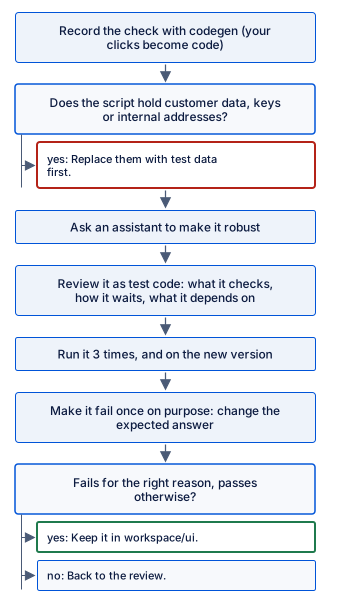
Text description of the diagram
Record the check with codegen, so that your clicks become code. Then ask: does the script hold customer data, keys or internal addresses? If it does, replace them with test data first. Then ask an assistant to make it robust. Review the result as test code: what it checks, how it waits, and what it depends on. Run it three times, and on the new version. Make it fail once on purpose, by changing the expected answer. If it fails for the right reason and passes otherwise, keep it in workspace/ui. If not, go back to the review.
Run it three times
Section titled “Run it three times”Esme saved the assistant’s test and ran it three times on 2.3.0, and once on 2.3.1. It never passed. The first run failed here:
> assert "error" not in trace_dataE AssertionError: assert 'error' not in {'trace_id': 'tr-0003-1', 'conversation_id': 'c-0003', 'turn': 1, 'app_version': '2.3.0', ...}The assistant guessed that a good trace has no field error. But every trace of the app has that field: it is "error": null when nothing went wrong. The assistant had never seen a trace. It wrote a check from a guess, and the guess was wrong. This check would fail on every correct reply.
The other three runs failed earlier, on the first line that uses the page:
E playwright._impl._errors.TimeoutError: Locator.select_option: Timeout 15000ms exceeded.E Call log:E - waiting for get_by_label("Test customer", exact=True)The assistant added exact=True to “make the locators exact”. But the list of test customers sits inside its label. When the list has loaded, the label’s text also holds every customer’s name, so the exact text “Test customer” matches nothing. In the first run, the check was faster than the list, so it passed this line by luck. So the “robust” version was flaky in a new way.
Read it
Section titled “Read it”Three more points came from reading the 120 lines:
- It tests the app’s internals, not the page. It waits for the requests
/api/chatand/api/traces/..., reads their JSON, and checks the request body. If Tomás renames an API field, the test fails, though the customer sees no change. A browser check should check what the customer sees. - It installs without versions:
python -m pip install pytest playwright. Next month, that installs other versions. Pin them, as the course does. - It is long. Every line is code that someone must read and fix later. Five times longer than the recording is a cost, not a quality.
None of these points needs programming skill. They need the questions that a tester asks of any test. What does it check? What does it depend on? Can it fail for the wrong reason?
Keep the good ideas, write the short version
Section titled “Keep the good ideas, write the short version”Esme kept the assistant’s two best ideas, the Seed box and the New conversation button. She dropped the rest, and wrote the check with the four habits:
def open_new_conversation(page, seed):    page.goto(URL)    page.get_by_label("Test customer").select_option("C-1001")    page.get_by_label("Seed").fill(seed)    page.get_by_role("button", name="New conversation").click()

def send(page, text):    page.get_by_role("textbox", name="Message").fill(text)    page.get_by_role("button", name="Send").click()

def test_reply_shows_answer_source_and_trace():    with sync_playwright() as p:        browser = p.chromium.launch()        page = browser.new_page()        open_new_conversation(page, "1")        send(page, "Do gift cards expire?")
        reply = page.locator(".msg.bot")        expect(reply).to_have_count(1)        expect(reply).to_contain_text("never expire")        expect(reply.get_by_role("link")).to_have_attribute("href", re.compile(r"^/policies/gift-cards/"))
        trace_button = reply.get_by_role("button", name=re.compile(r"^tr-\d+-1$"))        trace_id = trace_button.inner_text()        trace_button.click()        expect(page.locator("#trace")).to_contain_text(f'"trace_id": "{trace_id}"')        browser.close()
expect(...) waits for the page by itself, up to 5 seconds, so the check needs no fixed pause. launch() with no options starts the browser without a window (headless). The top of the file sets URL (default http://localhost:8730) and imports re, expect and sync_playwright.
Run the robust check
Section titled “Run the robust check”-
Install Playwright and pytest in the practice app’s environment:
Terminal window python -m pip install pytest==9.1.1 playwright==1.64.0python -m playwright install chromiumThe second command downloads a browser for Playwright. It can take a few minutes.
-
Copy the course’s
uifolder from the stageend-of-m07into your workspace. Inpractice-app:Terminal window cp -R ../workspace/snapshots/end-of-m07/ui ../workspace/Terminal window Copy-Item -Recurse ..\workspace\snapshots\end-of-m07\ui ..\workspace\Terminal window cp -R ../workspace/snapshots/end-of-m07/ui ../workspace/If you made your own recording, keep it next to these files.
-
In a second terminal, in
practice-appwith the environment active, start the app:Terminal window python -m helpdesk serve -
In the first terminal, in
practice-app, run the checks three times:Terminal window for i in 1 2 3; do python -m pytest ../workspace/ui/test_chat_ui.py; doneTerminal window foreach ($i in 1,2,3) { python -m pytest ..\workspace\ui\test_chat_ui.py }Terminal window for i in 1 2 3; do python -m pytest ../workspace/ui/test_chat_ui.py; doneThe end of each run, simulated (practice app):
FAILED ../workspace/ui/test_chat_ui.py::test_empty_message_gets_a_reply_not_an_error========================= 1 failed, 1 passed in 5.91s ==========================
The first check passed in all three runs. The file also has a second check, for BUG-004, which you write in “Your turn”. It fails on 2.3.0 because the bug is there: that is correct. Your times differ.
Make it fail on purpose
Section titled “Make it fail on purpose”A check that cannot fail is worse than no check: it gives false confidence. So break the expected answer once, and watch it fail.
-
In
test_chat_ui.py, change"never expire"to"expire after 2 years". Save the file. -
Run only the first check.
-k answerselects the checks with “answer” in their name:Terminal window python -m pytest ../workspace/ui/test_chat_ui.py -k answerThe end of the output:
E Actual value: Good question. Gift cards never expire and have no fees. [1]EE Sources:E [1] Gift cards, version 1: Using a gift card (/policies/gift-cards/v1#using-a-gift-card)trace tr-0007-1 | conversation c-0007 | seed 1...FAILED ../workspace/ui/test_chat_ui.py::test_reply_shows_answer_source_and_trace======================= 1 failed, 1 deselected in 5.44s ======================== -
Change the text back to
"never expire", and save.
It failed for the right reason, and the message shows the whole reply. A reader sees at once what the app said. Your trace and conversation numbers differ.
Run it on the new version
Section titled “Run it on the new version”In the second terminal, stop the app with Ctrl+C. Start release 2.3.1 from its own folder: cd ../releases/2.3.1, then python -m helpdesk serve. Run the checks again in the first terminal:
../workspace/ui/test_chat_ui.py ..                                       [100%]
============================== 2 passed in 0.90s ===============================
Both checks pass on 2.3.1, twice in a row. The robust check does not care about the version, and the BUG-004 check now passes, because 2.3.1 fixed the bug. Stop the app when you finish, and go back with cd ../../practice-app.
When to automate in the browser, and what it costs
Section titled “When to automate in the browser, and what it costs”A browser check is slow and needs care. Each one starts a browser, and it breaks when the page changes, even when the assistant’s answers do not. The YAML cases of the runner check the same replies in a fraction of the time. So:
- Use the runner for what the assistant says: facts, sources, tools, refusals. That is most of your checks.
- Use the browser for what only the page shows: the error message that a customer sees, the trace link, the source links. Keep these few, and keep them short.
An assistant saves typing, not review. In this lesson, the assistant wrote about 120 lines in seconds, and two of its guesses made the test fail. The review took longer than the writing. That is normal, and it is the part that cannot be skipped. For how developers review AI-written code in general, see Inspect the diff in AI-Assisted Software Development.
Common mistake
The check cannot reach the app
Symptom: every check fails at the first line, with an error that names the address:
E playwright._impl._errors.Error: Page.goto: net::ERR_CONNECTION_REFUSED at http://localhost:8730/Cause: the app is not running, or it runs on another port.
Diagnose: look at the second terminal. It must show Larkfield help desk ... on http://localhost:8730.
Recover: start the app with python -m helpdesk serve. If it runs on another port, tell the check: HELPDESK_URL=http://localhost:8731 python -m pytest ... on macOS and Linux, or $env:HELPDESK_URL = "http://localhost:8731" first on Windows.
Common mistake
A check passes alone and fails in a loop
Symptom: a check passes on the first run and fails on later runs, or the other way round. The app has not changed.
Cause: the check depends on something that changes between runs: a counter (tr-0001-1), a random greeting, the data that the last run left, or how fast the page loads (the exact=True label above).
Diagnose: run it three times in a row and read the first failing line. Ask “what was different on this run?”
Recover: apply the four habits: a stable locator, the fact instead of the sentence, a known start state, nothing pinned that may change. Never “fix” it with a fixed pause such as wait_for_timeout(5000): it makes every run slower and still fails on a slow day.
Your turn: a browser check for BUG-004
Section titled “Your turn: a browser check for BUG-004”On 2.3.0, a message with only a space shows “Error 500: Internal Server Error” in the chat (BUG-004). This is something that only the page shows. Write a second check for it. This takes about 10 minutes.
- In
test_chat_ui.py, add a functiontest_empty_message_gets_a_reply_not_an_error. Useopen_new_conversation(page, "1")andsend(page, " "). - Check that exactly one reply appears, and that it does not contain “Error”.
not_to_contain_textis the opposite ofto_contain_text. - Predict: on 2.3.0, does it pass or fail? And on 2.3.1?
- Run it on both versions, three times each.
Check your work
def test_empty_message_gets_a_reply_not_an_error():    with sync_playwright() as p:        browser = p.chromium.launch()        page = browser.new_page()        open_new_conversation(page, "1")        send(page, " ")
        reply = page.locator(".msg.bot")        expect(reply).to_have_count(1)        expect(reply).not_to_contain_text("Error")        browser.close()
On 2.3.0, it fails in every run, with the bug’s own message:
E AssertionError: Locator expected not to contain text 'Error'E Actual value: Error 500: Internal Server ErrorOn 2.3.1, it passes in every run: the reply is “Please type your question.”
Why to_have_count(1) first? Without it, the check could run before any reply exists. “No reply contains Error” is then true, and the check passes on a broken app. Waiting for exactly one reply makes the check fail for the right reason. Why not check for “Please type your question.”? That would pin one wording; the rule is “a reply, not an error”.
Knowledge check
Section titled “Knowledge check”Check your understanding
The recorded check passed on its first run and failed on its second, with no change to the app. Name the cause, and two other lines of the recording that would also break later.
Show the answer
The recording looked for the button tr-0001-1. The second run made a second conversation, with tr-0002-1, so the locator found nothing and timed out after 30 seconds. Two other lines would break. The check of the whole sentence fails on another seed, because the greeting and closing are random. The check for "app_version": "2.3.0" fails on 2.3.1 with no bug. A fourth weakness: it never starts a new conversation, so old messages can match.
Does your answer have the main points of ours?
Sign in and enroll in the course to save your answers. Every check counts toward the certificate.
Check your understanding
The assistant's test explained every change well. Why did it still fail, and what did you do that found the problems?
Show the answer
It wrote two checks from guesses about an app it had never run. It assumed a good trace has no error field, but every trace has "error": null. It added exact=True to the customer label. But once the list loads, the label’s text also holds the customers’ names. So the locator matched only when the page was slow. Running the test three times found both. Reading it found a third problem: it checks the app’s API requests, not what the customer sees.
Does your answer have the main points of ours?
Sign in and enroll in the course to save your answers. Every check counts toward the certificate.
Check your understanding
A colleague wants to paste a recorded check from the live shop into an online assistant, 'only to fix the locators'. What do you check first, and what do you tell them?
Show the answer
Check what the recording holds: real customers’ names, emails and order numbers, and any cookies, tokens, keys or internal addresses. A recording from the live shop holds what was on the screen. Tell them to record on test accounts, or to replace every real value with test data before they paste anything. And use only tools that the company allows. Deleting it afterwards does not work. Trace files and screenshots from real accounts must never go to an outside tool.
Does your answer have the main points of ours?
Sign in and enroll in the course to save your answers. Every check counts toward the certificate.
Recap
- A recorded check writes down the moment: a trace number, a sentence, a version. It fails when the moment changes.
- A robust check finds elements by role and label, checks the fact and not the sentence, starts from a known state, and pins nothing that may change.
- An assistant can rewrite a check in seconds. Review the result as test code. Run it three times, read what it depends on, make it fail once, and run it on the new version. Here, the assistant’s version never passed.
- Paste only test data into an outside tool. Never paste customers’ data, cookies, keys or trace files.
- Use browser checks only for what the page shows. Use the runner for what the assistant says.
Your workspace now: the earlier files, plus ui/recorded_check.py (the recording), ui/test_chat_ui.py (two robust checks) and ui/README.md. Next, you turn all your findings into a regression set and decide on release 2.3.1.
Next: From findings to a regression set and a release sign-off