
Images and running containers
- Lesson 2
- 45 min
- Module 1: Understand containers
Lesson 2 of 15 · Docker and Cloud Essentials for AI DevelopersImages and running containers
1. Understand containers
2. Build the application image
3. Networking, configuration and persistence
4. Cloud building blocks
5. Deploy and clean up
What you will be able to do
Know what is in an image, what a running container adds to it, and what is lost when the container is removed. This is the base for every later module: the API’s code goes in the image, and data that must survive goes somewhere else.
Before you startWhat to know and to have ready
What you need to know
- Image, container, registry and tag, from Environment consistency: Images, containers and Docker.
- Commands, arguments and exit codes in the terminal, from Files and terminal: Exit codes: did the command work? in Python for Practical AI Engineering.
What you need on your computer
- Docker, to run the commands yourself. If you do not have it yet, do Install and verify: Install Docker and Check the installation first, then come back. Or read this lesson first: every command has its real output. The module practice at the end of the next lesson asks you to run the same steps.
- An internet connection. The first command downloads the Python image (46 MB).
- No project files. This lesson does not change
ticket-api.
Tested with Docker Desktop 4.81.0 (Docker Engine 29.6.1) on macOS, Apple silicon. The Windows and Linux steps are not tested. The docker commands are the same on every system.
Get an image
Section titled “Get an image”Amira downloads the official Python image from Docker Hub. To download an image is to pull it:
docker pull python:3.14.8-slim-trixieThe output (on a computer that does not have the image yet):
3.14.8-slim-trixie: Pulling from library/python2037d17aae31: Pulling fs layer11de3117eae8: Pulling fs layerbbeda6b4abb7: Pulling fs layer9822e19f729e: Pulling fs layer...9822e19f729e: Pull completeDigest: sha256:f85c5697265c178cc6887276c55fe16cf3d14ca35c3df6a5eab3b360534a55d2Status: Downloaded newer image for python:3.14.8-slim-trixiedocker.io/library/python:3.14.8-slim-trixieEach line with a short ID is one layer: a set of files that the image adds on top of the layers below it. Docker downloads the layers separately, at the same time. The digest is the exact fingerprint of the image. Module 2 uses it to pin a version. library/python means a Docker Official Image: one of a set of images on Docker Hub that Docker reviews, and that get security updates quickly. Module 2 says more about how to choose an image.
Now the image is on the computer:
docker image ls pythonIMAGE ID DISK USAGE CONTENT SIZE EXTRApython:3.14.8-slim-trixie f85c5697265c 206MB 46MBThe image has two sizes. CONTENT SIZE (46 MB) is the compressed layers: what a pull or a push moves over the network. DISK USAGE (206 MB) is what the image uses on this computer, with its layers unpacked. Your numbers can be a little different if your computer already has other images that share layers.
A first container
Section titled “A first container”Amira starts a container that runs one Python command:
docker run --name c18m01-first python:3.14.8-slim-trixie python -c "print('Hello from a container')"| Part | Meaning |
|---|---|
docker run |
Make a new container from an image, and start it. |
--name c18m01-first |
A name for the container. Without it, Docker chooses a random name. In this course, names start with the module (c18m01-), so you can find and remove your containers later. |
python:3.14.8-slim-trixie |
The image. |
python -c "..." |
The command to run in the container, instead of the image’s own start command. |
The output:
Hello from a containerThe command ended, so the container stopped. It still exists. docker ps shows only the containers that run now; docker ps -a (“all”) shows the stopped ones too. --filter name=c18m01- shows only the containers whose names have that text:
docker ps --filter name=c18m01-docker ps -a --filter name=c18m01-CONTAINER ID IMAGE COMMAND CREATED STATUS PORTS NAMESCONTAINER ID IMAGE COMMAND CREATED STATUS PORTS NAMES87a66f714f56 python:3.14.8-slim-trixie "python -c 'print('H…" Less than a second ago Exited (0) Less than a second ago c18m01-firstThe first list is empty. The second has the container, with Exited (0): the program ended with exit code 0, which means success. Docker keeps what the program printed. docker logs shows it again, and docker rm removes the stopped container:
docker logs c18m01-firstdocker rm c18m01-firstHello from a containerc18m01-firstA container lives exactly as long as its main program. This is the most important fact about containers: a container is a process, with Docker around it.
The same image can answer other questions. For example, which Python and which processor:
docker run --rm python:3.14.8-slim-trixie python -c "import sys, platform; print(sys.version, platform.machine())"3.14.8 (main, Oct 6 2026, 02:02:59) [GCC 14.2.0] aarch64--rm removes the container when its program ends, so you do not need docker rm. On an Intel or AMD computer, the last word is x86_64.
What is in an image
Section titled “What is in an image”docker history lists the layers of an image, the newest at the top, with the instruction that made each one:
docker history python:3.14.8-slim-trixieIMAGE CREATED CREATED BY SIZE COMMENTf85c5697265c 39 hours ago CMD ["python3"] 0B buildkit.dockerfile.v0<missing> 39 hours ago RUN /bin/sh -c set -eux; for src in idle3 p… 16.4kB buildkit.dockerfile.v0<missing> 39 hours ago RUN /bin/sh -c set -eux; savedAptMark="$(a… 45.3MB buildkit.dockerfile.v0<missing> 39 hours ago ENV PYTHON_SHA256=c2215904f02b175596dc493515… 0B buildkit.dockerfile.v0<missing> 39 hours ago ENV PYTHON_VERSION=3.14.8 0B buildkit.dockerfile.v0<missing> 39 hours ago RUN /bin/sh -c set -eux; apt-get update; a… 4.99MB buildkit.dockerfile.v0<missing> 39 hours ago ENV PATH=/usr/local/bin:/usr/local/sbin:/usr… 0B buildkit.dockerfile.v0<missing> 2 days ago # debian.sh --arch 'arm64' out/ 'trixie' '@1… 110MB debuerreotype 0.17Read it from the bottom:
- The files of Debian 13, a small Linux system: 110 MB.
- A few system packages, installed with
apt-get: 4.99 MB. - Python 3.14.8, built from its source code: 45.3 MB.
- Short names for the Python commands, such as
pythonforpython3: 16.4 kB. ENVandCMDlines: 0 B. They add no files. They are metadata: information about how to run the image.ENVsets environment variables, andCMDis the start command.
<missing> is normal. The layers were built on another computer, so only the top one has an ID here.
docker image inspect shows the metadata. --format chooses which values to print:
docker image inspect python:3.14.8-slim-trixie --format 'Cmd={{.Config.Cmd}} User={{.Config.User}} Arch={{.Architecture}}'Cmd=[python3] User= Arch=arm64The start command is python3. User= is empty, which means that the program runs as root, the administrator of the container’s system. Module 2 changes that for the ticket API. arm64 is the processor that this copy of the image is for.
Worked example: a file in a container
Section titled “Worked example: a file in a container”Amira starts a container that keeps running. sleep infinity waits forever, and -d (“detached”) starts the container in the background, so the terminal is free:
docker run -d --name c18m01-box python:3.14.8-slim-trixie sleep infinitydocker ps --filter name=c18m01-aa62c8ec9cb50a09e1259d59b20422651168cecb7363ef53177e4a0b46e2a58fCONTAINER ID IMAGE COMMAND CREATED STATUS PORTS NAMESaa62c8ec9cb5 python:3.14.8-slim-trixie "sleep infinity" Less than a second ago Up Less than a second c18m01-boxThe long line is the full container ID. docker exec runs a second command in a running container. She writes a file in it, and reads it back:
docker exec c18m01-box sh -c 'echo "written inside" > /tmp/note.txt'docker exec c18m01-box cat /tmp/note.txtwritten insidedocker diff lists what changed in the container, compared with its image. A means added, C changed, D deleted:
docker diff c18m01-boxC /tmpA /tmp/note.txtdocker top shows the processes in the container. There is one, sleep infinity:
docker top c18m01-boxUID PID PPID C STIME TTY TIME CMDroot 8886 8863 0 16:54 ? 00:00:00 sleep infinityPredict: Amira stops the container and starts it again. Is the file still there? Then she removes the container and starts a new one from the same image. Is the file there?
docker stop c18m01-boxdocker ps -a --filter name=c18m01-docker start c18m01-boxdocker exec c18m01-box cat /tmp/note.txtc18m01-boxCONTAINER ID IMAGE COMMAND CREATED STATUS PORTS NAMESaa62c8ec9cb5 python:3.14.8-slim-trixie "sleep infinity" 10 seconds ago Exited (137) Less than a second ago c18m01-boxc18m01-boxwritten insideAfter stop and start, the file is still there. (docker stop took 10 seconds here. It asks the program to stop, and waits up to 10 seconds. sleep does not react to that request in a container, so Docker forced it to stop: exit code 137. Module 2 shows how the API stops at once.)
Now she removes the container, with -f (“force”) because it is running, and starts a new one:
docker rm -f c18m01-boxdocker run -d --name c18m01-box python:3.14.8-slim-trixie sleep infinitydocker exec c18m01-box cat /tmp/note.txtc18m01-box908dbd393fa639f56aa3f90f0a482fefb9b4c2cf40b7dec4ed5f8818fe7ff437cat: /tmp/note.txt: No such file or directoryThe file is gone. The new container has the same name and the same image, but it is a different container.
The writable layer
Section titled “The writable layer”Here is the rule behind the result. The layers of an image are read-only: no container can change them. When Docker starts a container, it adds one thin, empty writable layer on top of the image’s layers. Every file that the container writes, changes or deletes goes into its writable layer. The container sees the layers together, as one file system.
docker stopstops the process. The writable layer stays.docker rmdeletes the container, and its writable layer with it.- A new container gets a new, empty writable layer.
docker ps --size shows how small the writable layer is. With the note in it:
docker ps --size --filter name=c18m01-boxCONTAINER ID IMAGE COMMAND CREATED STATUS PORTS NAMES SIZE21f0351f8228 python:3.14.8-slim-trixie "sleep infinity" 1 second ago Up Less than a second c18m01-box 12.3kB (virtual 160MB)12.3 kB is the writable layer. “virtual 160MB” is the writable layer plus the image’s unpacked layers, which the container uses but does not copy.
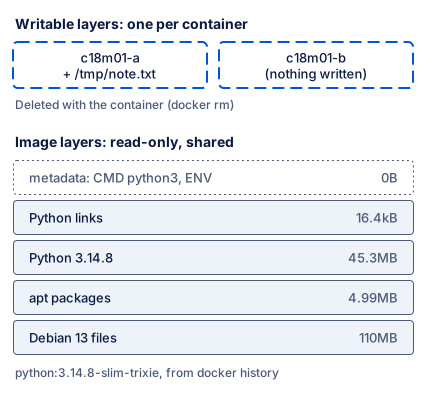
Text description of the diagram
The diagram has two parts. At the bottom are the image layers of python:3.14.8-slim-trixie, from docker history. They are read-only and shared by every container. From the bottom up: Debian 13 (110 MB), apt packages (4.99 MB), Python 3.14.8 (45.3 MB), Python links (16.4 kB). At the top of the stack is the metadata, CMD python3 and the ENV lines, which add 0 B. (In docker history, the ENV lines are between the other layers.) Above the image are two writable layers, one for each container. Container c18m01-a wrote /tmp/note.txt. Container c18m01-b wrote nothing. docker rm deletes a container’s writable layer.
Many containers from one image
Section titled “Many containers from one image”Amira starts two containers from the same image:
docker run -d --name c18m01-a python:3.14.8-slim-trixie sleep infinitydocker run -d --name c18m01-b python:3.14.8-slim-trixie sleep infinitydocker ps --filter name=c18m01-f507c4b684d5984760d67bdd2c9d4856c15ca19481d9d84af8b9a326959182dabc257ecef1f618a63a53fb3bdc855cae09f8ea92c8d60334bb7204f3af017cd4CONTAINER ID IMAGE COMMAND CREATED STATUS PORTS NAMESbc257ecef1f6 python:3.14.8-slim-trixie "sleep infinity" 1 second ago Up Less than a second c18m01-bf507c4b684d5 python:3.14.8-slim-trixie "sleep infinity" 1 second ago Up Less than a second c18m01-aShe writes a note in c18m01-a only, and looks for it in c18m01-b:
docker exec c18m01-a sh -c 'echo only-in-a > /tmp/note.txt'docker exec c18m01-b cat /tmp/note.txtcat: /tmp/note.txt: No such file or directoryEach container has its own writable layer, so it has its own view of the files. Each one also has its own name on the network, and its own list of processes:
docker exec c18m01-a hostnamedocker exec c18m01-b hostnamedocker exec c18m01-a python -c "import os; print(sorted(int(p) for p in os.listdir('/proc') if p.isdigit()))"f507c4b684d5bc257ecef1f6[1, 25]The host name of a container is its short ID. Inside c18m01-a, only two processes exist: number 1 is sleep infinity, and number 25 is the Python command that asks the question. The container cannot see the processes of the other container, or of the computer.
One thing the containers share: the kernel, the core of the operating system that runs every process and talks to the hardware.
docker exec c18m01-a uname -rdocker exec c18m01-b uname -runame -r6.12.76-linuxkit6.12.76-linuxkit25.6.0Both containers report the same Linux kernel, 6.12.76-linuxkit. The last line is the Mac’s own kernel, version 25.6.0, which is not Linux. Containers need a Linux kernel. On macOS and Windows, Docker Desktop runs one small Linux virtual machine, and every container uses its kernel. On a Linux computer, containers use the computer’s own kernel.
Amira removes the two containers:
docker rm -f c18m01-a c18m01-bContainers and virtual machines
Section titled “Containers and virtual machines”A virtual machine (VM) is a complete computer made in software: it has its own operating system, with its own kernel. A program called a hypervisor shares the real hardware between the VMs. A container has no kernel of its own. It is a process on the host’s kernel, which Docker separates from the other processes.

Text description of the diagram
The left stack shows containers. Three containers, each with an app, Python and libraries, run on the Docker Engine. Below it is one Linux kernel, which all the containers share. At the bottom is the hardware: CPU, memory and disk. The right stack shows virtual machines. Two VMs each have an app, Python and libraries, and their own kernel. They run on a hypervisor, on the host’s operating system and kernel, on the same kind of hardware.
| Container | Virtual machine | |
|---|---|---|
| Has its own kernel | No: it shares the host’s Linux kernel | Yes |
| Starts | In about a second: it starts one process (docker run --rm python:3.14.8-slim-trixie true took 0.4 to 1.0 s here) |
When its whole operating system has started |
| Size | Only the program’s files: 206 MB for this Python image | A whole operating system |
| Separation | Good for your own programs. All containers depend on one kernel. | Stronger: a problem in one kernel stays in one VM |
Cloud platforms often use both. In Module 5, Azure runs your container, and Azure decides where the kernel and the VMs are. That is part of what you pay for.
Guided practice: prove the writable layer
Section titled “Guided practice: prove the writable layer”-
Start a container that keeps running.
Terminal window docker run -d --name c18m01-practice python:3.14.8-slim-trixie sleep infinityExpected: a long container ID.
-
Write a file in it.
Terminal window docker exec c18m01-practice sh -c 'echo "my note" > /tmp/note.txt' -
Check the change with
docker diff c18m01-practice. Expected:C /tmpandA /tmp/note.txt. -
Check the size of the writable layer with
docker ps --size --filter name=c18m01-practice. Expected: a few kB, and “virtual 160MB”. -
Remove the container with
docker rm -f c18m01-practice. -
Start a new container with the command from step 1.
-
Look for the file with
docker exec c18m01-practice cat /tmp/note.txt. Expected:cat: /tmp/note.txt: No such file or directory. -
Remove the container with
docker rm -f c18m01-practice, and check withdocker ps -a --filter name=c18m01-that the list is empty.
Show why step 7 fails
The note was in the writable layer of the first container. docker rm -f in step 5 deleted that container and its writable layer. The container in step 6 has the same name, but it is new. It has a new, empty writable layer on the same read-only image. The image never had the note.
Your turn: delete a file of the image
Section titled “Your turn: delete a file of the image”Start two containers, c18m01-a and c18m01-b, as in Many containers from one image. In c18m01-a, delete the pip3 command: docker exec c18m01-a rm /usr/local/bin/pip3. Predict: does pip3 --version still work in c18m01-a? In c18m01-b? What does docker diff c18m01-a show? Then run the commands and check. Remove both containers at the end.
Show the answer
OCI runtime exec failed: exec failed: unable to start container process: exec: "pip3": executable file not found in $PATHpip 26.2.1 from /usr/local/lib/python3.14/site-packages/pip (python 3.14)C /usrC /usr/localC /usr/local/binD /usr/local/bin/pip3pip3 is gone in c18m01-a only. The file is still in the image’s read-only layer. The writable layer of c18m01-a only records “deleted” (D), and hides the file from that one container. c18m01-b and every new container still have pip3. Remove both with docker rm -f c18m01-a c18m01-b.
Common mistake
The container stops at once
Symptom: Amira starts the Python image in the background, without a command. docker run prints an ID, but docker ps shows nothing:
docker run -d --name c18m01-py python:3.14.8-slim-trixiedocker ps --filter name=c18m01-pydocker ps -a --filter name=c18m01-py1e8a3e2b493bb6a733ce77279cfa60aba1caaa3726f5c74a8df530ac91619bfaCONTAINER ID IMAGE COMMAND CREATED STATUS PORTS NAMESCONTAINER ID IMAGE COMMAND CREATED STATUS PORTS NAMES1e8a3e2b493b python:3.14.8-slim-trixie "python3" 3 seconds ago Exited (0) 2 seconds ago c18m01-pydocker logs c18m01-py prints nothing.
Cause: the image’s start command is python3, the interactive Python prompt. In the background, no terminal is connected, so Python reads the end of its input at once and ends, with exit code 0. A container lives only as long as its main process.
Fix:
- Look at the status in
docker ps -a, and at the command in theCOMMANDcolumn.Exited (0)means that the program ended normally. It did not crash. - Give the container a command that keeps running, such as
sleep infinityfor a test, or a server. - For an interactive Python prompt, connect your terminal instead:
docker run -it --rm python:3.14.8-slim-trixie(-ikeeps the input open,-tgives it a terminal). Typeexit()to leave. - Remove the stopped container:
docker rm c18m01-py.
For a real AI service: the service’s start command must start a server that keeps running, such as fastapi run. If the server stops because of an error, the container stops too. docker ps -a and docker logs are the first two places to look.
Check your understanding
Amira writes a file in a running container, then runs docker stop and docker start. Then she runs docker rm and docker run again. When is the file still there, and why?
Show the answer
After docker stop and docker start, the file is still there: stopping ends the process, but the container and its writable layer stay. After docker rm and a new docker run, the file is gone. docker rm deletes the container and its writable layer. The new container starts with a new, empty writable layer on the read-only image.
Does your answer have the main points of ours?
Sign in and enroll in the course to save your answers. Every check counts toward the certificate.
Check your understanding
Why does docker history show 0B for the ENV and CMD lines of the Python image?
Show the answer
ENV and CMD add no files. They are metadata: ENV sets environment variables for the processes in the container, and CMD is the start command. Docker keeps them in the image’s configuration, which docker image inspect shows, not in a layer of files.
Does your answer have the main points of ours?
Sign in and enroll in the course to save your answers. Every check counts toward the certificate.
Check your understanding
Two containers run on Amira's Mac. Which of these do they share: the files that they write, their process list, the kernel?
Show the answer
Only the kernel. Each container has its own writable layer, so a file that one writes is not in the other. Each has its own process list: inside c18m01-a, the main process is number 1, and the other container’s processes are not visible. Both use the same Linux kernel, 6.12.76-linuxkit: on a Mac, that is the kernel of Docker Desktop’s small Linux virtual machine. A virtual machine, in contrast, has its own kernel.
Does your answer have the main points of ours?
Sign in and enroll in the course to save your answers. Every check counts toward the certificate.
Recap
- An image is a stack of read-only layers, plus metadata: the start command (
CMD), environment variables (ENV), the user.docker historyanddocker image inspectshow them. - A container is a process, started from an image, with its own writable layer, files view, network name and process list. It shares the host’s Linux kernel. A virtual machine has its own kernel.
docker stopkeeps the writable layer.docker rmdeletes it. A new container starts empty.- The commands:
docker pull,run(-d,--name,--rm),psandps -a,logs,exec,diff,top,stop,start,rm,image ls,history.
Next, you install Docker (if you have not yet), check it with a first container, and run a web server in a container.
Next: Install and verify